How to Upload Files from Your Camera Roll to the File Cabinet [Mobile App Feature]
Instantly document job site progress by uploading photos and videos directly from your phone to BuilderPad. This guide shows you how to use our mobile app to add files from your camera roll straight into your project's File Cabinet, streamlining your on-site workflow.
Written By Stefan S.
Last updated 5 months ago
Easily upload photos and videos from your phone's camera roll directly into your project's File Cabinet. This mobile-only feature streamlines your workflow, allowing you to document job site progress, flag issues, or share visuals instantly without needing a computer.
Uploading from Your Camera Roll
Open the BuilderPad mobile app and select the Project you are working on.
Tap the File Cabinet option from the project menu to view your folders.
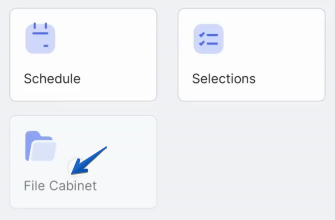
Open the specific folder where you want to add your files (for example, the "Images" folder).
Tap the + Upload File button within your options, or use the + New option in the right upper corner.
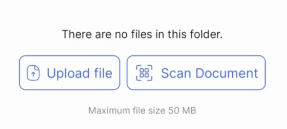
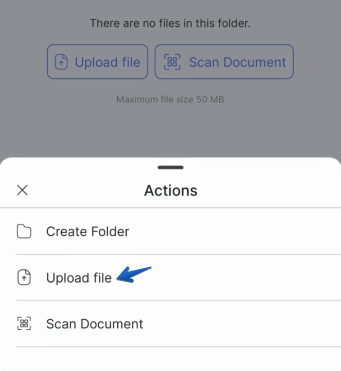
An Actions menu will appear.
Select Upload a File from the list.On the next screen, tap the Upload button.
A new menu will appear at the bottom. To access your camera roll, choose Upload File.
Your device's photo library will now open. Browse and tap on the photo or video you wish to upload. You can select multiple files if needed.
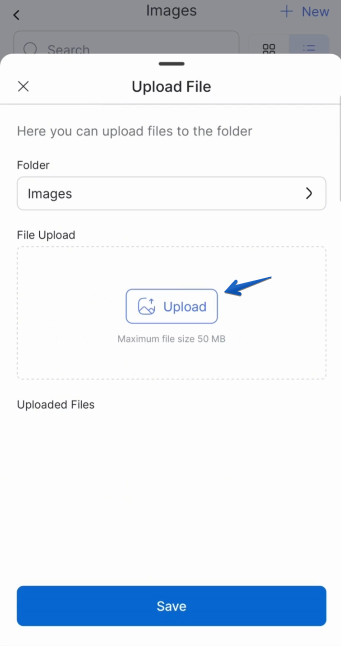
Tap the Save button to complete the upload.
The selected file(s) will now appear in the folder you selected.
We prepared a quick guide on how to Upload a File from your Camera Roll to your File Cabinet below:
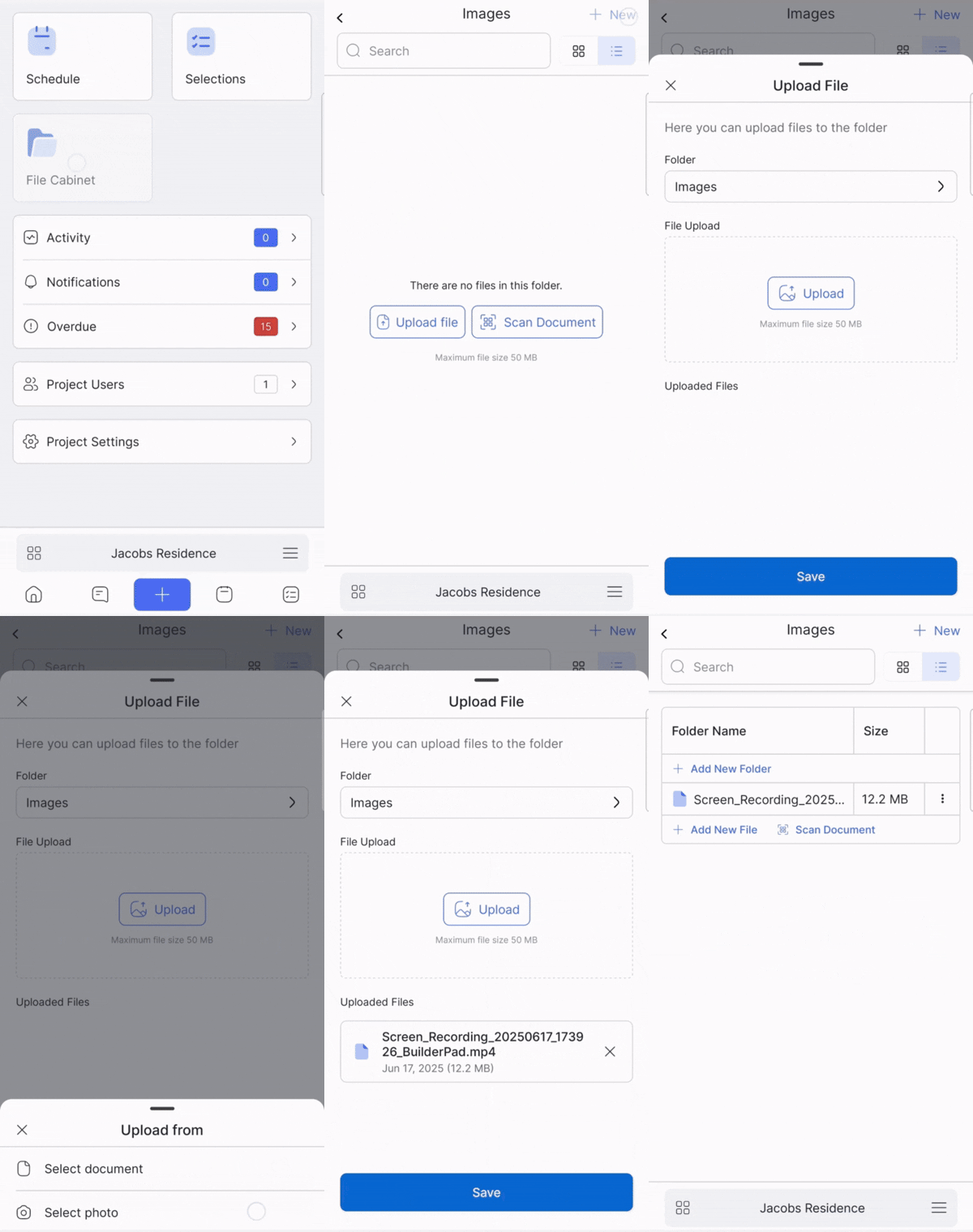
Your file will now be uploaded and visible within the folder you selected in your project's File Cabinet.
You're now ready to keep your File Cabinet updated directly from the job site.
Start sharing those progress shots in just a few taps! 📸
Please Note:
The maximum file size is limited to 50 MB currently.
Uploading files from the Camera Roll is a mobile-only feature.
Still need help? Ask the team