Exporting Approved Selections as a PDF document
Instantly generate a professional PDF report of all approved client selections, organized by category and complete with project details, images, and pricing for easy sharing.
Written By Stefan S.
Last updated About 1 year ago
You can easily generate a professional PDF report containing all approved selections, organized by category, for any project. This feature provides a clean, client-ready summary of final choices.
Steps to Generate the PDF Report
Navigate to the Project: From your main dashboard, click on the Project you wish to generate the report for (e.g., "Jackson Remodel" in the example image).
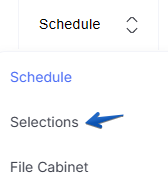
Access Selections: In the project navigation menu, click on the Selections area.
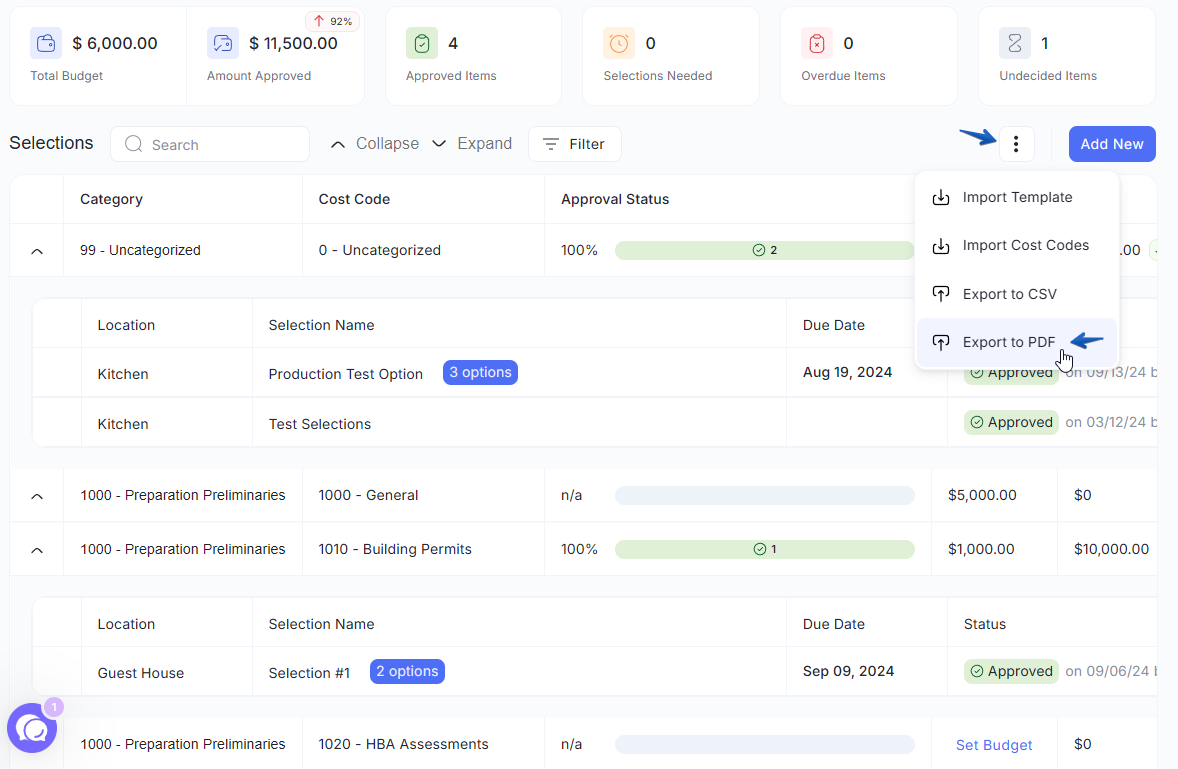
Locate the Export Option: On the Selections screen, look for the options menu. This is often represented by a three-dot icon (…) or a direct button near the search bar or the "Add New" button.
Export: Click the Export Selected to PDF option (you will see a PDF icon next to it).
Note: This report automatically includes only items with an Approved status, regardless of what filters are currently applied on your screen.
Download: The PDF document will automatically generate and download to your computer or mobile device.
What is Included in the PDF?
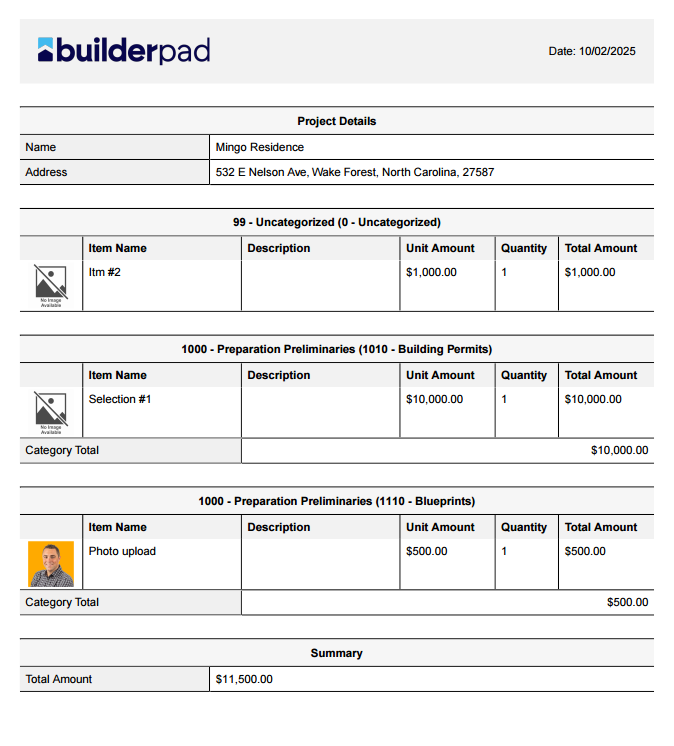
The generated PDF is designed to be a comprehensive, professional record. It includes:
Header: Your company logo (or the default BuilderPad logo), the Project Name, and the Project Address.
Structure: Selections are automatically grouped and presented by their respective Category (e.g., Flooring, Interior Paint).
Item Details: For each approved item, the report displays the following columns:
Image (a thumbnail of the item)
Item Name
Unit Amount (Price)
Quantity
Item Details (Specifications/Notes)
Still need help? Ask the team