Understanding Lag Type in BuilderPad Schedules
A useful guide for setting up your Default Lag Type settings and managing Lag Days in your BuilderPad Projects.
Written By Stefan S.
Last updated 12 months ago
In BuilderPad, the "Lag Type" setting dictates how tasks with dependencies behave when their preceding tasks are moved on the project schedule. This feature provides flexibility in how your project timeline automatically adjusts to changes, ensuring a logical and efficient workflow.
Important Note: Default Finish-to-Start Dependencies
All task dependencies in BuilderPad are Finish-to-Start by default.
This means that a succeeding task cannot begin until its predecessor task is completed. This is the most common and logical dependency type in construction workflows.
Lag days will allow you to create a buffer between tasks.
For example: If you want a 2-day delay between the completion of one task and the start of another, you can add a "Finish-to-Start" dependency and specify 2 lag days.
Lag time is entered as a positive value.
Defining Your Default Lag Type
You can select your desired Lag Type to control the automatic adjustments of dependent tasks. There are two options to choose from:
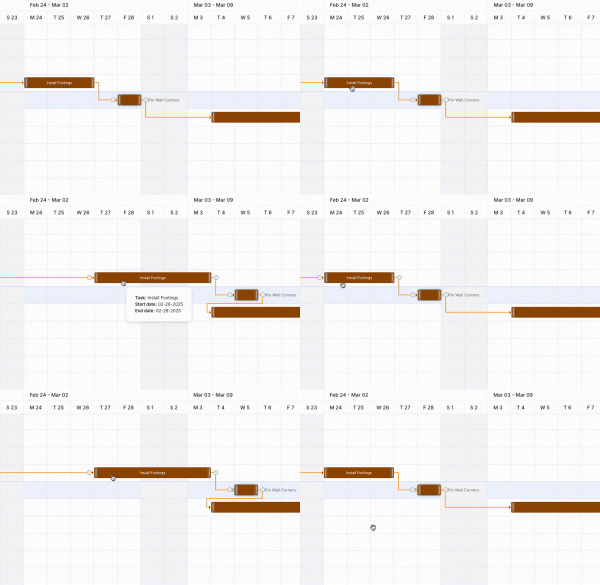
Maintain (Auto): This setting preserves the existing time gap, or "lag," between a task that is moved and any subsequent tasks that depend on it. Choosing this option allows you to move a group of connected tasks as a single unit, maintaining the planned intervals between them. This is ideal when you need to shift a sequence of tasks without altering their relative timing.
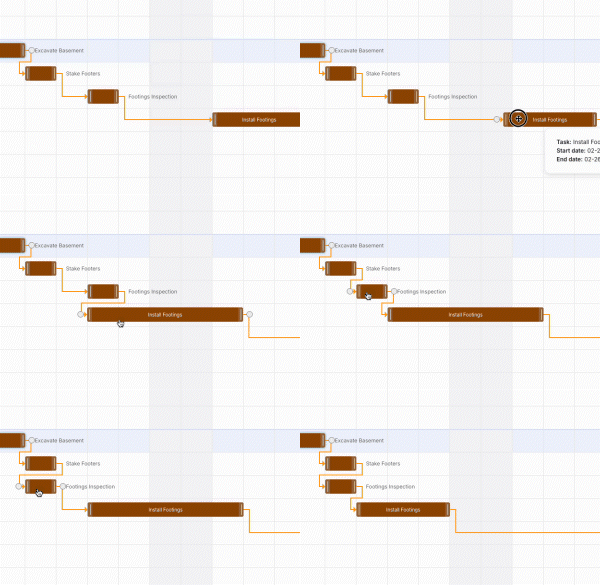
Minimum: This setting offers a more dynamic adjustment. When you move a task forward in the schedule, its dependent tasks will not start any earlier than the date you drop the preceding task. The time gap between them will compress to the minimum allowable lag. Conversely, if you drag a task to a later date, its successors will remain in their originally scheduled positions, which increases the lag time between the tasks.
Introducing Lag Days for Task Buffers
"Lag days" in BuilderPad allow you to intentionally create a buffer or delay between dependent tasks. For instance, if you need a two-day period for concrete to cure after it's poured (the first task) before you can begin framing (the second task), you can add a "Finish-to-Start" dependency with two lag days. This lag time is always entered as a positive numerical value and ensures that the succeeding task will not be scheduled to start until the specified number of lag days have passed after the completion of the preceding task.
How to Adjust Lag Type Settings
You have the flexibility to set your preferred Lag Type at both a default level for all new projects and on a case-by-case basis within individual projects.
Changing the Default Lag Type:
To set a default Lag Type for all your future projects:
Navigate to your Default Settings in BuilderPad.
Locate the Schedule or Task settings section.
Select your preferred Lag Type (Maintain (Auto) or Minimum) from the available options.
Your changes will be automatically saved and all of your the projects you create will automatically use your selected Lag Type.
Please note:
Maintain (Auto): This setting preserves the existing time gap, or "lag," between a task that is moved and any subsequent tasks that depend on it. Choosing this option allows you to move a group of connected tasks as a single unit, maintaining the planned intervals between them. This is ideal when you need to shift a sequence of tasks without altering their relative timing.
Maintain (Minimum): This setting offers a more dynamic adjustment. When you move a task forward in the schedule, its dependent tasks will not start any earlier than the date you drop the preceding task. The time gap between them will compress to the minimum allowable lag. Conversely, if you drag a task to a later date, its successors will remain in their originally scheduled positions, which increases the lag time between the tasks.
Changing the Lag Type Within a Project
To override the default Lag Type for a specific project:
Open the desired project.
Go to the Project Settings.
Locate the Lag Type option.
Choose a different Lag Type for this specific project.
Save your Project’s settings. Your selection will be applied to all dependent tasks within that project's schedule.
You will now be able to move your tasks seamlessly in the view that you prefer:
Maintain Lag Type View:
Minimum Lag Type View:
Still need help? Ask the team