How to Clone (Duplicate) a Selection Item
Speed up your selection process by cloning or duplicating selection items in BuilderPad. This article will show you how to quickly copy existing selection items, saving you time and effort when setting up similar selections across your projects.
Written By Stefan S.
Last updated About 1 year ago
The Cloning feature saves you valuable time by letting you quickly duplicate an existing selection item. This is the perfect tool when you need to create several similar items with only minor differences, as it prevents you from having to build each one from scratch. You can clone items from within a project's selections list or from your main Selections Library.
Cloning a Selection Item on the Browser App
Cloning a Selection Item on the Browser App
Navigate to the Project and click on Selections in the project's menu.
Locate the selection item you wish to duplicate from the list.
Click on the 3-dotted menu at the far right of the item's row to open the options menu.
Select the Clone option from the dropdown list.
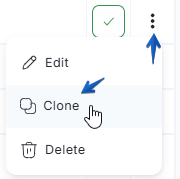
The selection item will be instantly duplicated with all its current options. The new item is ready for you to edit as needed.
To create more copies, simply repeat these steps.
Cloning a Selection Item on the Mobile App
Cloning a Selection Item on the Mobile App
Open the BuilderPad app and select the Project you are working on.
Tap on the Selections menu option.
Find the selection item you want to clone and tap on the 3-dotted menu icon next to it.
From the 3-dotted menu that appears, tap on Clone.
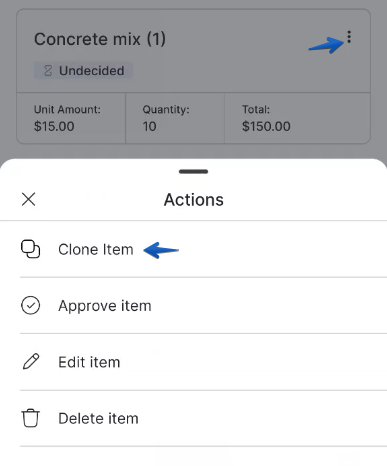
The item will be duplicated for you to edit further.
You can repeat the same steps to clone other selection items as needed.
Below you can view a quick representation on how to clone a specific item and proceed to edit it on the mobile app:
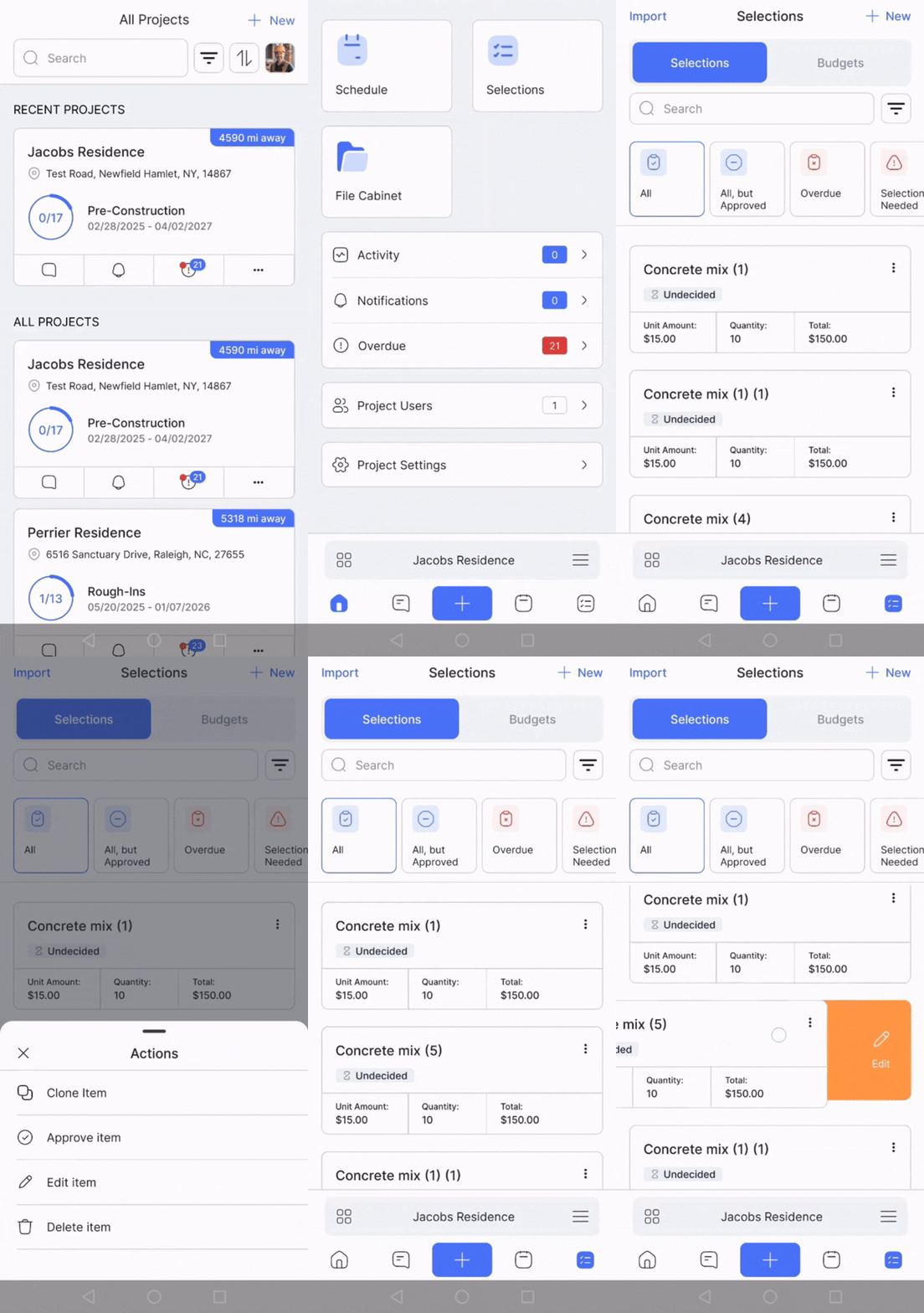
Please Note:
When you clone an item, BuilderPad automatically gives a unique name to the copied item to keep things organized.
For example, "Kitchen Faucet" becomes "Kitchen Faucet (1)" when cloned.
You can edit this name and any other details as needed.
That's it! You are now equipped with the knowledge on how to clone your selection items. Start speeding up your Project setup, today! ⚡
Still need help? Ask the team