Creating a New Project
Starting a new construction project in BuilderPad is simple. This guide will walk you through the process of creating a new project, from entering initial details to setting up the project dashboard, ensuring you have everything you need to get your project off to a great start.
Written By Stefan S.
Last updated About 1 year ago
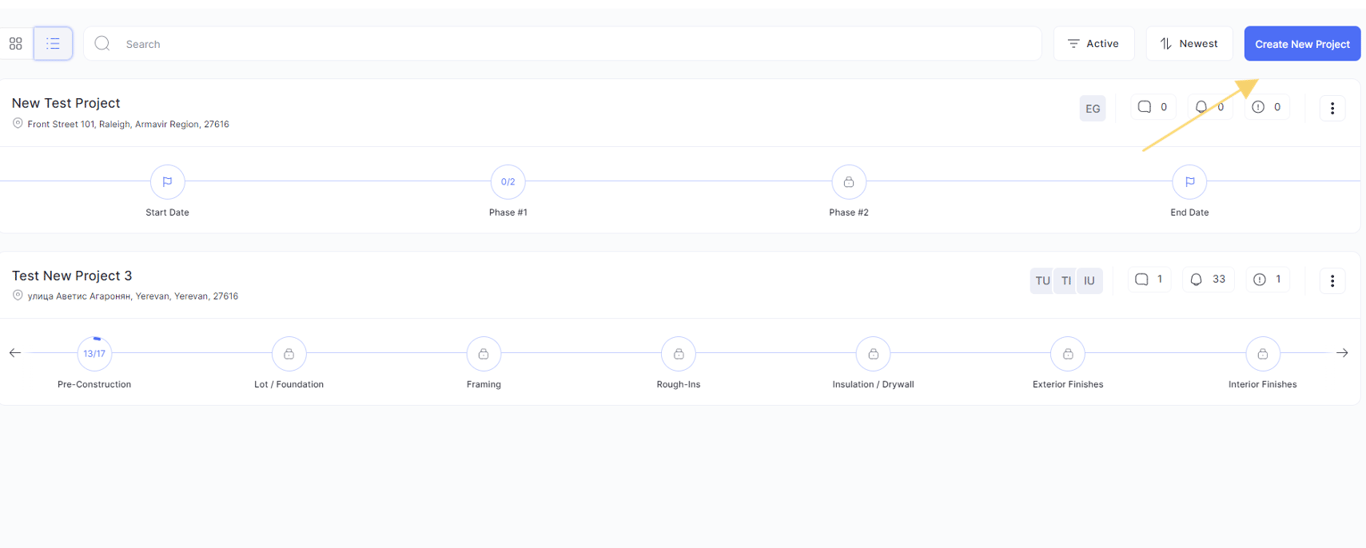
From the Main Dashboard page, click on the → Create New Project button.
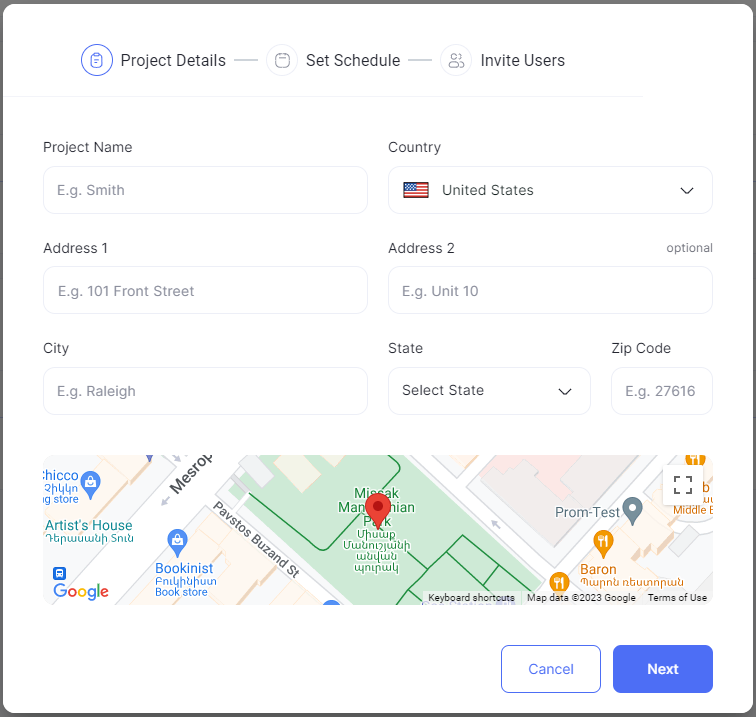
Upon clicking, a new modal will appear, presenting you with various fields to input relevant project information. You can enter the project name, select the country, provide address details such as address line 1 and address line 2, specify the city, choose the state, and enter the zip code. Additionally, there is an option to conveniently select your address using the Google map integration. Once you have entered the required details, proceed to the next steps by clicking → Next.
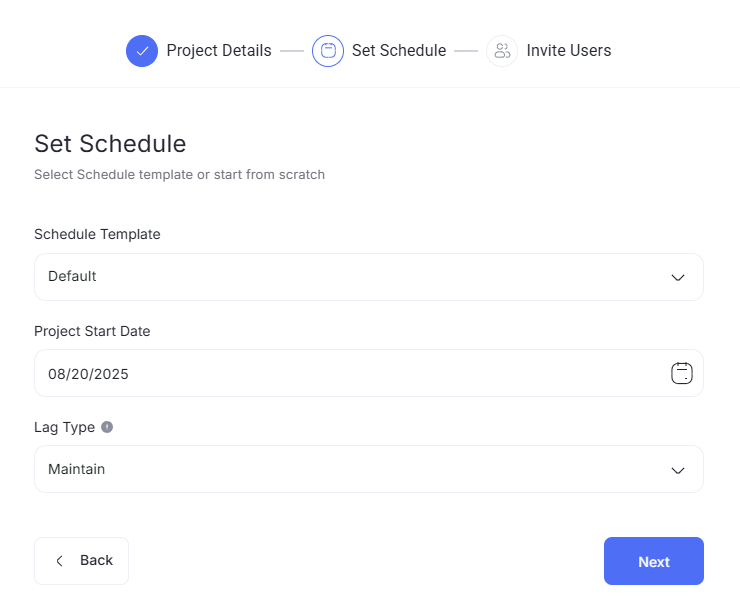
Next, you will need to choose a Schedule Template from the dropdown list or opt to start from scratch. If you prefer to begin with a blank template, simply select "Blank Template" from the provided options.
You also have the ability to select the Project Start Date, this way you set up the project so that it’s schedule begins on today’s date, or in the future.
You can also set the Lag Type for the project in this section. More about the difference between available Lag Types can be found in this article: https://builderpad.featurebase.app/en/help/articles/3908353-understanding-lag-type-in-builderpad-schedules
Click Next to proceed further.
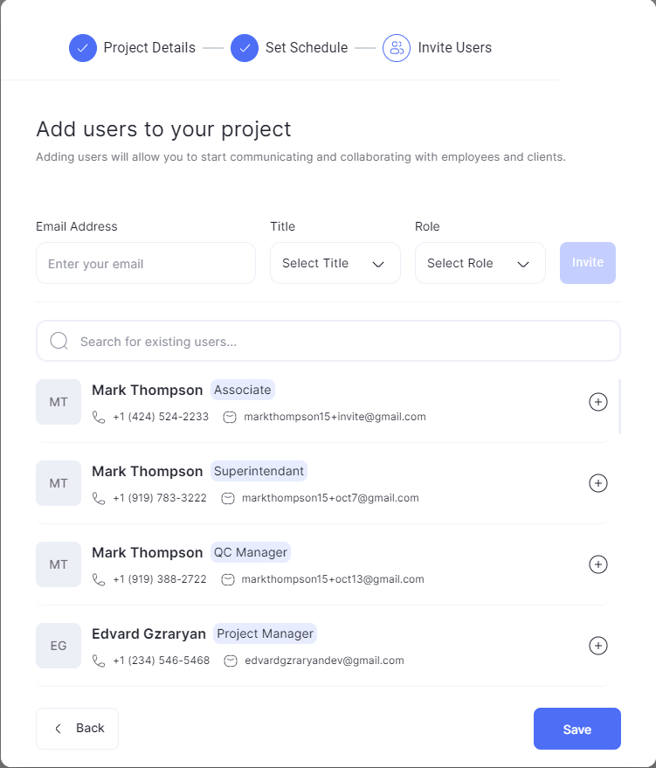
In the final step, you will need to add users to your project. This allows you to establish communication and collaboration with employees and clients. There are two ways to add users: either from existing projects or by adding new users.
To add new users, you will need to enter their email addresses and select their title and role. This enables us to send invitations to their respective emails.
To add users from existing projects, simply click on the icon. If you wish to remove them, click on the icon once again. You can also utilize the search bar to find users by their names or surnames. Once you have added the desired users, click Save to complete the project creation process.
If you wish to make changes to previous steps of the project creation, you can always click on the Back button.
Once you have completed the project creation process, you will see the newly added project successfully displayed on your main dashboard.
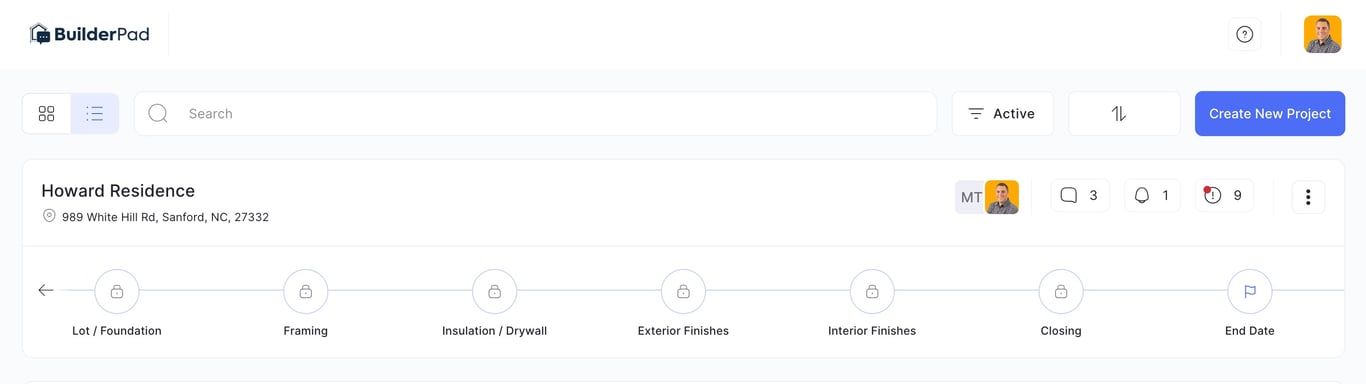
Here are a few buttons you need to know about:
 | Shows recent activity from the activity feed |
 | Shows System Notifications (ie: schedule updates, adding users to a project) |
 | Shows Recent Overdue Items |
 | You can edit the project, manage users or archive the project |
Still need help? Ask the team