Managing Successor Dates When Completing Items - Interactive Successor Management
Written By Stefan S.
Last updated About 1 year ago
This article explains the "Confirm Item Completion" process that appears when you complete an overdue schedule item that has dependent tasks (successors).
To provide greater control and flexibility over your project schedule, BuilderPad now prompts you for confirmation before automatically adjusting your timeline due to an overdue item. This allows you to precisely manage the downstream impact and decide whether successor tasks should be delayed, adjusted, or remain on their original schedule.
When Will I See This Prompt?
The "Confirm Item Completion" modal will appear when you complete a schedule item that meets both of these conditions:
The item is being completed after its originally scheduled end date (it is overdue).
The item has one or more successors (tasks that depend on it).
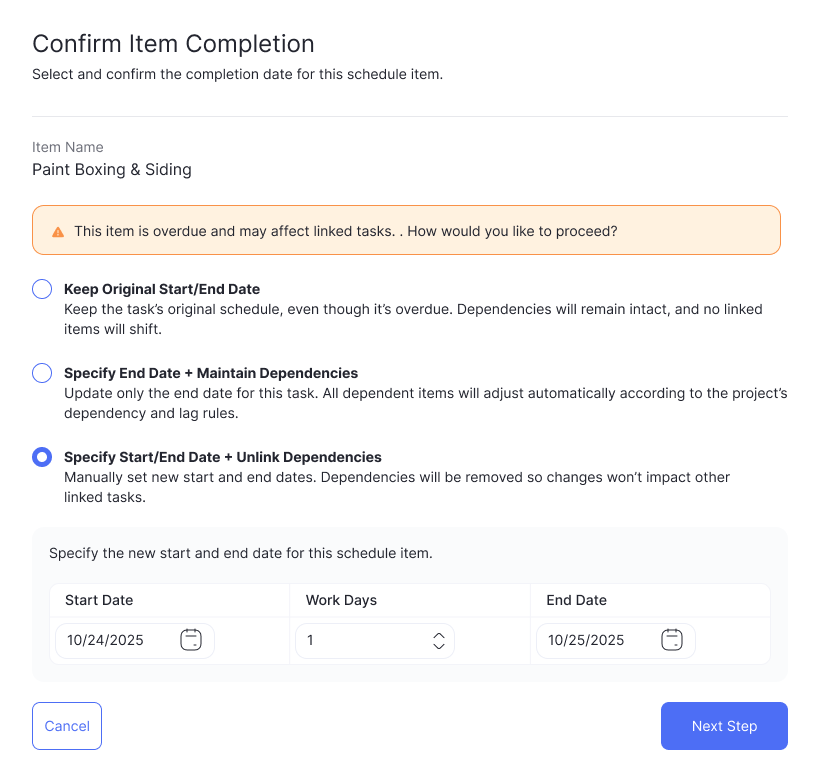
Using the Confirmation Modal
When the modal appears, it will list all successor items that will be adjusted. You have several options:
1. Keep Original Start/End Date
Keep the task’s original schedule, even though it’s overdue.
Dependencies will remain intact, and no linked items will shift.
To accept these suggestions, simply click the Confirm button.
2. Specify End Date + Maintain Dependencies
Update only the end date for this task.
All dependent items will adjust automatically according to the project’s dependency and lag rules.
3. Specify Start/End Date + Unlink Dependencies
Manually set new start and end dates. Dependencies will be removed so changes won’t impact other linked tasks.
If you know a successor task will not be delayed, you can prevent its dates from changing.
Click the link icon (🔗) next to the successor item. This will "unlink" it from this specific update, and it will revert to its original Start Date and End Date.
The item remains a successor in your project's logic, but its schedule is not impacted by this single completion event.
After unlinking the necessary items, click Confirm.
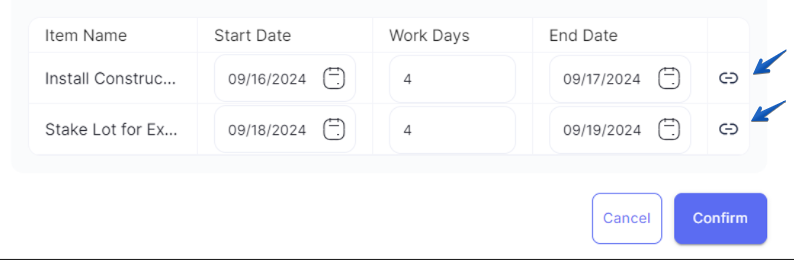
If you decide not to complete the item at this time, simply click Cancel to close the modal without making any changes.
Still need help? Ask the team