How to use the File Cabinet
Learn how to use the BuilderPad File Cabinet to upload, organize, and manage all your project documents. This guide covers creating folders, setting permissions, and accessing files like plans, contracts, and images from any device.
Written By Stefan S.
Last updated 7 months ago
The File Cabinet is your project's central hub for all important documents, images, and files. It keeps everything organized in one place, accessible from anywhere on the BuilderPad browser or mobile app.
Accessing the File Cabinet
Getting to your project's files is just a tap away by accessing your Project’s main menu.
From the main dashboard, select the project you are working on.
In the project menu, tap or click on the File Cabinet option to access the File Cabinet:
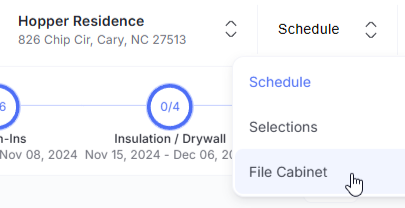
We also have a quick demo you can find below:
Navigating Your Folders
The File Cabinet is pre-organized with folders for common construction document types to help you get started quickly.
Default Folders
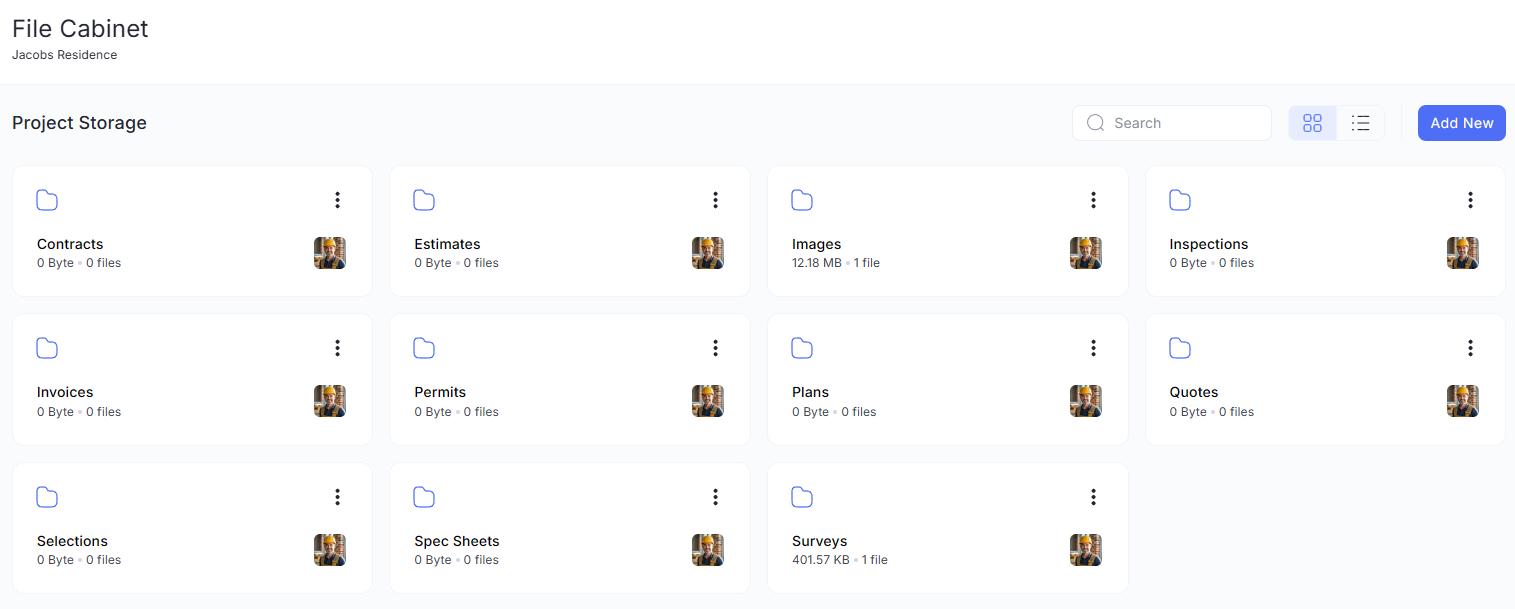
Contracts: Store signed agreements with clients, subcontractors, and vendors.
Invoices: Keep track of all project-related invoices, both sent and received.
Selections: Upload client selection sheets for finishes, fixtures, and materials.
Estimates: Save initial cost estimates and any revised versions.
Permits: A dedicated place for all approved building permits and related documents.
Spec Sheets: Store detailed specification sheets for appliances, materials, or equipment.
Images: Upload progress photos, inspiration images, or site condition photos.
Plans: The main repository for architectural drawings, blueprints, and revisions.
Surveys: Keep land surveys, topographical maps, and property reports.
Inspection: Store all reports from city, engineering, or third-party inspectors.
Quotes: Organize all quotes and bids received from suppliers and subcontractors.
Creating a New Folder
You can also create your own custom folders to fit your project's unique needs.
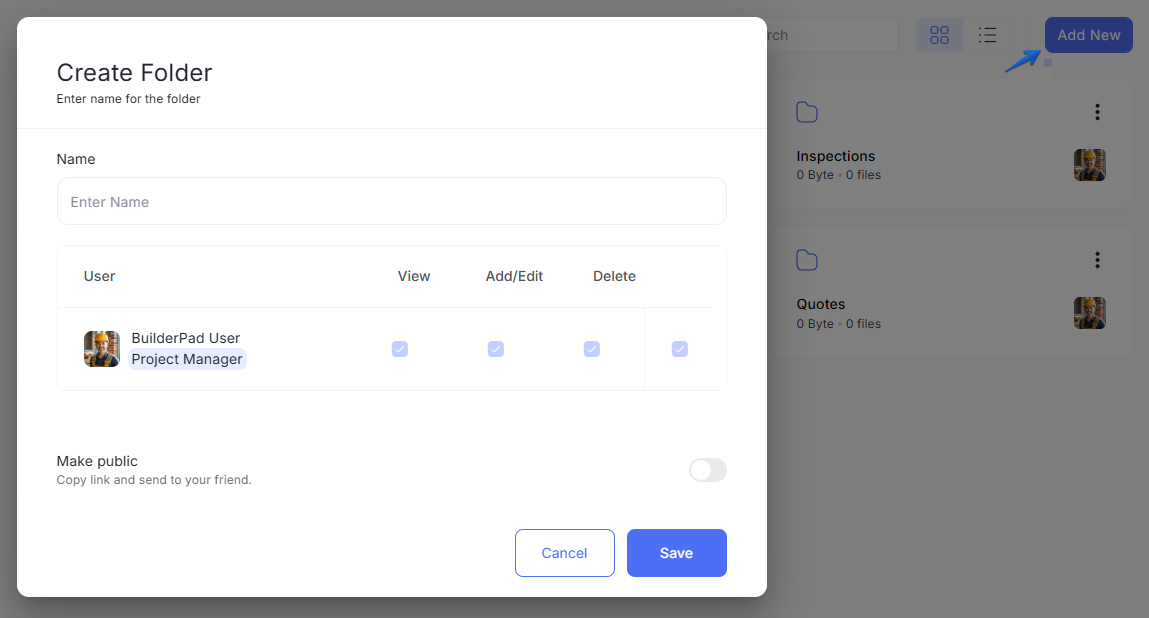
Click the Add New button within the File Cabinet.
Give your new folder a name.
Set permissions to control who on your team can view, add/edit, or delete files within that folder.
Uploading Files
You can simply drag and drop files directly into your File Cabinet and folders.

If using a device where drag and drop is not available or you’d like a different view, adding files to your folders is straightforward:
Navigate into the folder where you want to add a file.
Click the Add Files button.
A dialog box will appear. You can confirm you're in the correct folder or select a different one from the dropdown menu.
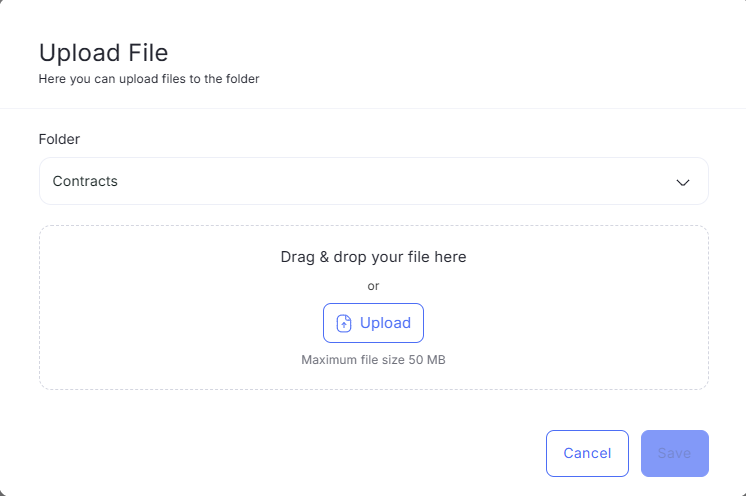
Drag and drop files directly into the window or click on Upload to browse and select files from your device.
Important Note: The maximum file size for a single upload is 50MB.
Viewing Your Files
You can customize how you view your folders and files to best suit your workflow. Look for the view toggle icons to switch between:

Grid View: Displays your files and folders as large thumbnails, which is great for quickly identifying images and plans.
List View: Shows your files in a detailed list, providing more information like file name, size, and date modified at a glance.
Removing Folders and Files
To prevent accidental loss, deleted files and folders are moved to a Trash bin rather than being erased immediately.

You have 30 days to restore any items before they are permanently removed from the system.
To delete a file, click on the 3-dotted menu, and select the Move To Trash option.
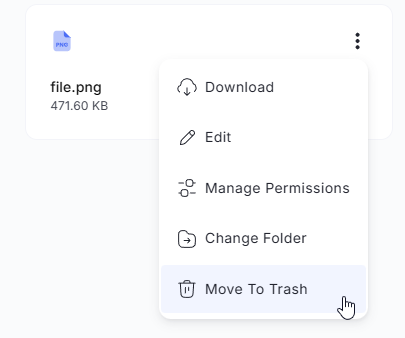
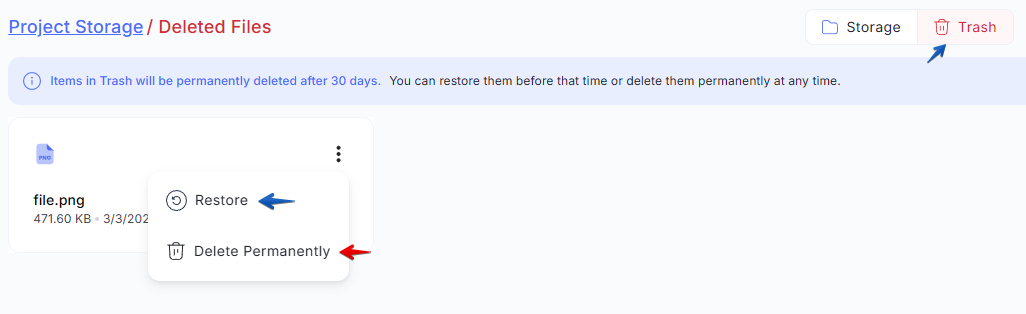
If you wish to restore the files or delete them permanently, access your File Cabinet’s Trash bin, and use the 3-dotted menu of the deleted file to manage it further:
Please note:
Permanently deleted files can not be reinstated.
If a file is moved to the Trash bin, you have 30 days to restore any items before they are permanently removed.
Still need help? Ask the team