Using the Display Level Feature in Your Camera
A quick guide explaining how to enable and use the on-screen Display Level to capture perfectly aligned photos directly within the BuilderPad app.
Written By Stefan S.
Last updated Over 1 year ago
The Display Level feature turns your phone into a virtual leveling tool within the BuilderPad camera. It provides a real-time horizontal reference line on your screen, allowing you to capture perfectly level photos every time.
Whether you’re documenting window sill installations, framing, or cabinet placements, this tool helps you verify alignment and maintain high-quality standards without needing extra equipment.
How to Use the Display Level Feature
Follow these steps to enable and use the on-screen level in your BuilderPad mobile app.
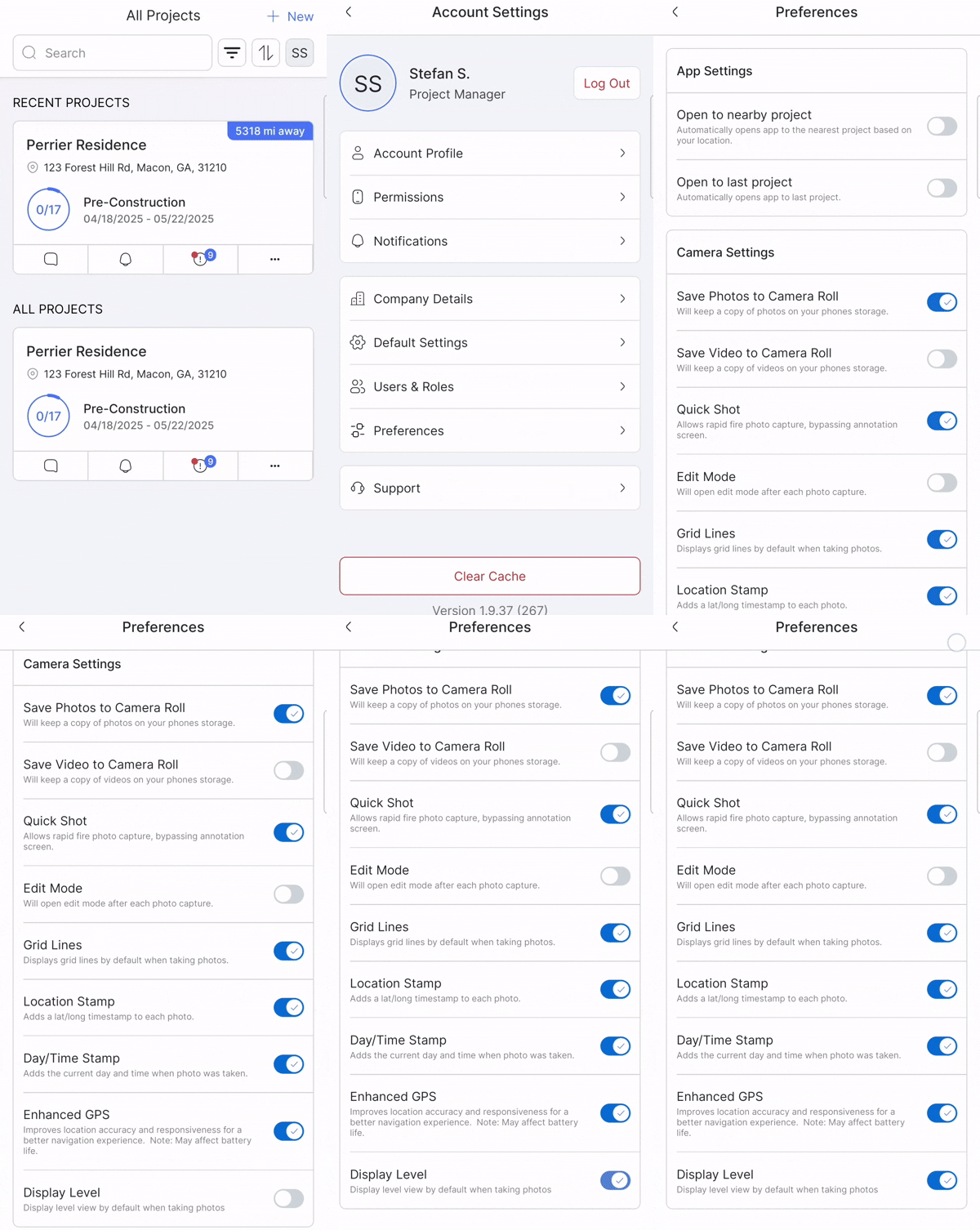
Step 1: Enable the Feature in Your Preferences
First, you need to turn the feature on in your main app settings.
In the BuilderPad mobile app, tap your Profile icon.
Select the Preferences tab.
Find the Display Level option and toggle the switch to the "On" position.
Step 2: Use the Level in Camera Mode
Once enabled in your preferences, the Display Level will appear by default whenever you open the camera within a project.
Navigate to the Project you are working on.
Tap the + icon and choose Take Photos.
The on-screen level will now be visible, helping you align your shot.
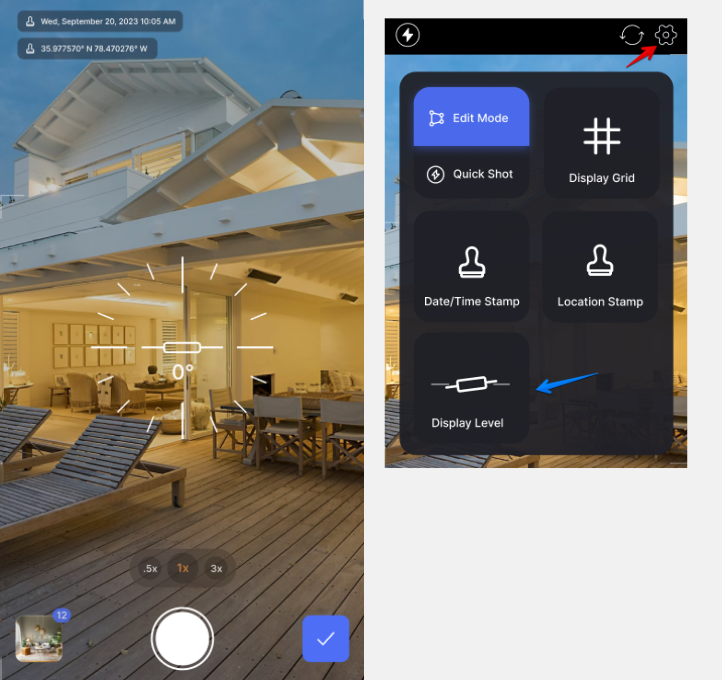
You can also quickly enable or disable the level directly from the camera screen by tapping the Gear Icon (⚙) at any time.
Important Notes
Sensor-Based: The feature uses your device's internal gyroscope and accelerometer to provide an accurate on-screen level.
On-the-Spot Verification: The Display Level is a convenient way to quickly check for misalignments without needing to carry a separate physical leveling tool.
Quick Toggle: While you can set your default preference, the tool can be turned on or off instantly from the camera's settings (⚙) to suit your needs for any particular photo.
Still need help? Ask the team