Using Variants in Selections
Written By Mark Thompson
Last updated About 1 year ago
Variants allow you to add multiple attributes to a single selection item — giving your clients clear, organized options without cluttering up your Selections list.
For example: instead of creating three separate selections for painting the family room, you can create one item with Variants for Paint Brand, Paint Color, and Paint Finish.
Step 1: Create Variant Types and Choices
Before adding variants to a selection item, you’ll need to set up your Types and Choices.
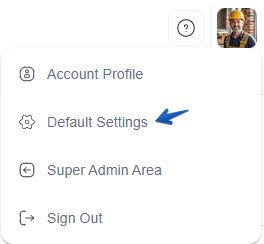
Navigate to Default Settings.
Then access the → Variants section.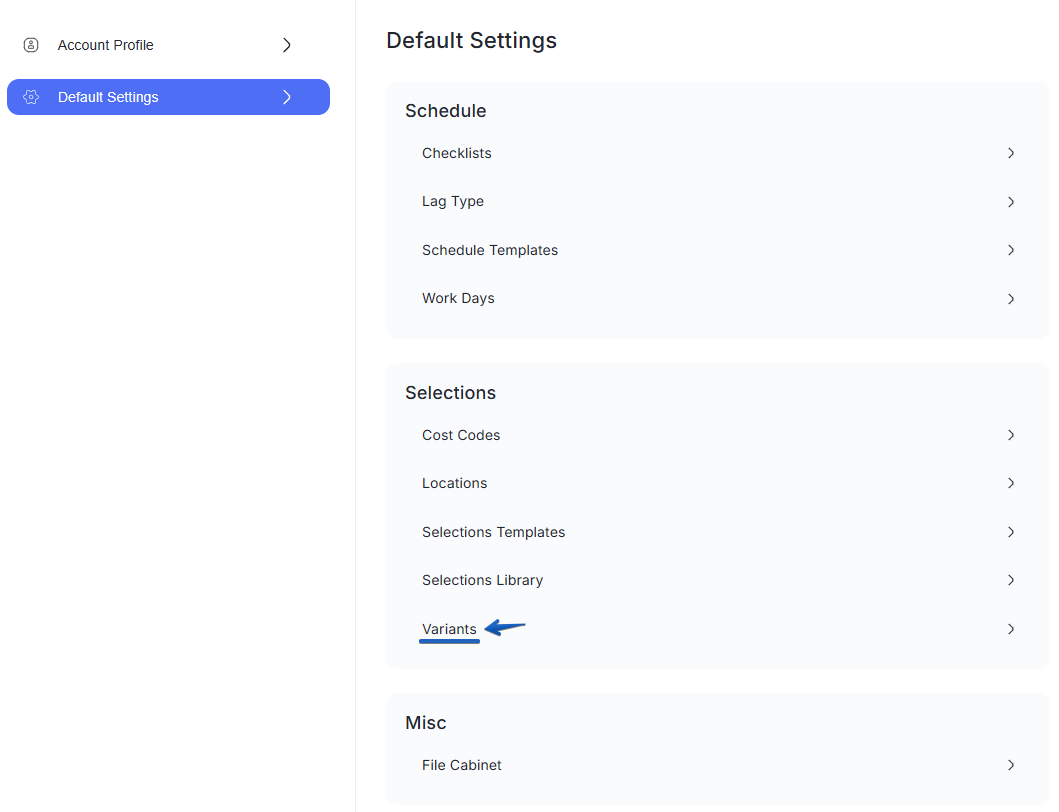
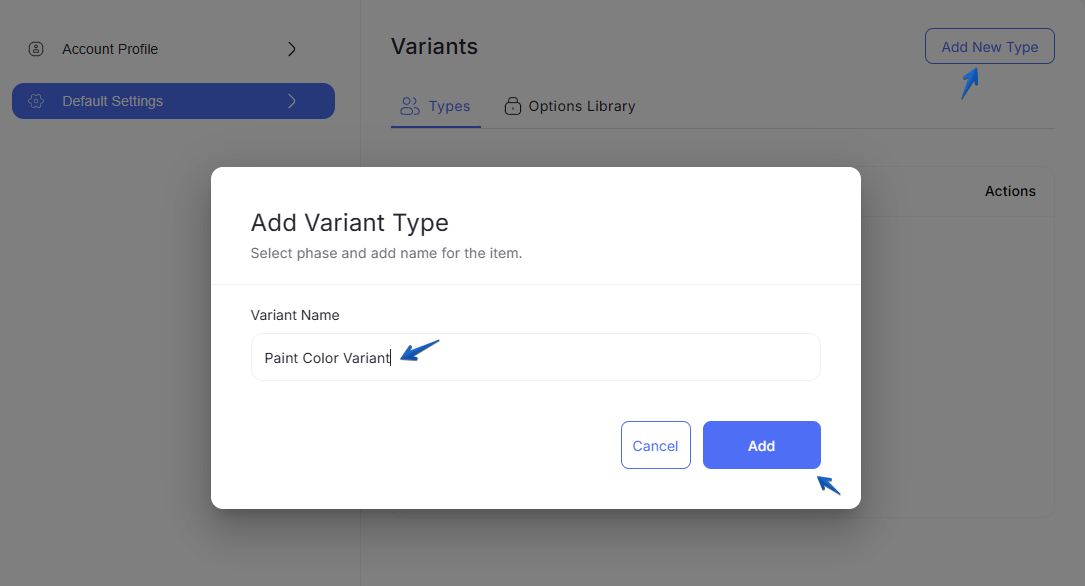
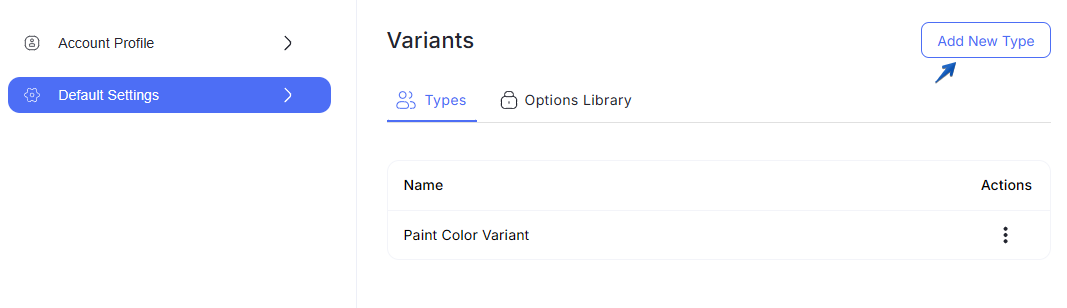
Create your Types (e.g., Paint Color, Paint Brand, Paint Finish).
Types are categories that define what kind of choice is being made.
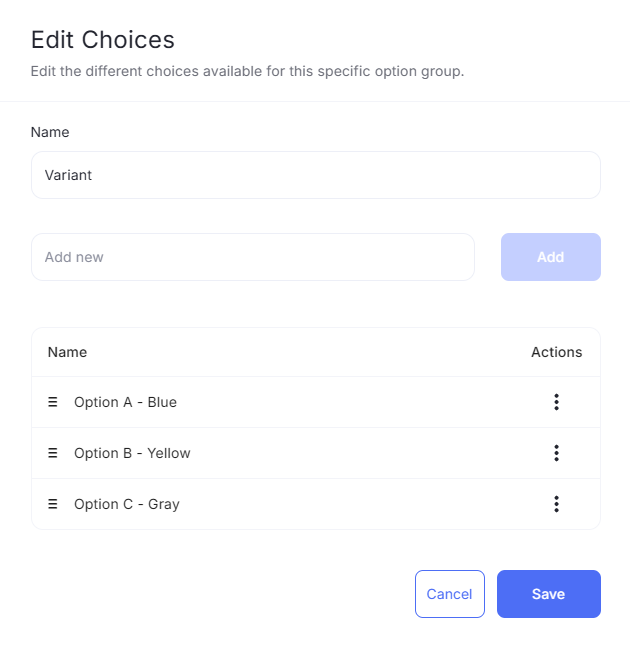
Add your Choices under each Type.
Choices are the specific options available within that Type
(e.g., Sherwin-Williams, Benjamin Moore for Paint Brand).
This step lets you build reusable lists of options that you can quickly apply to future projects without re-entering them each time.
Step 2: Add Variants to a Selection Item
Once your Types and Choices are set up, you can add them to a selection item:
Go to the Selection Item you want to update.
Click Add Variant.
Select the Type you’d like to apply (e.g., Paint Brand).
Choose from the predefined Choices under that Type.
Repeat as needed — you can mix and match multiple Types and Choices for complete flexibility.
Step 3: Client Experience
When you’ve set the Types and Choices, your client will see all available Variants for that selection item. They can then:
Review the grouped options
Select their preferred Choice for each Type you’ve requested
This makes it easier for clients to make decisions and keeps your selections organized in one place.
Benefits of Variants
Cleaner setup: Keep related options grouped under one selection item.
Faster project creation: Preload common Types and Choices to save time.
More clarity for clients: Clients see all their choices in one spot, making approvals quicker and easier.
Consistency across projects: Standardize your process by reusing Types and Choices.
Still need help? Ask the team