Understanding ACH fraud prevention and security confirmations
BuilderPad Finance (inBuild) > Payments · Author: Engineering team (built from feature walkthrough video) ·
Written By Gilbert
Last updated 4 days ago
To help protect your company from fraudulent payments, inBuild automatically checks certain ACH payments for suspicious activity, like a vendor's bank account changing unexpectedly. When something looks unusual, inBuild pauses the payment and asks you to confirm it's really you before it goes out. This guide explains what triggers a security confirmation, how to complete one, and what to expect afterward.
Before you start
You'll need to have two factor authentication (2FA) set up on your account through your personal authenticator app, since confirming a flagged payment requires a 2FA code. You should also have payment permissions on the project or company in question. No extra setup is needed beyond that. Most payments will never trigger this flow, it only appears when something about the payment looks different from usual.
What happens when a payment is flagged?
Step 1: Submit the payment as usual.
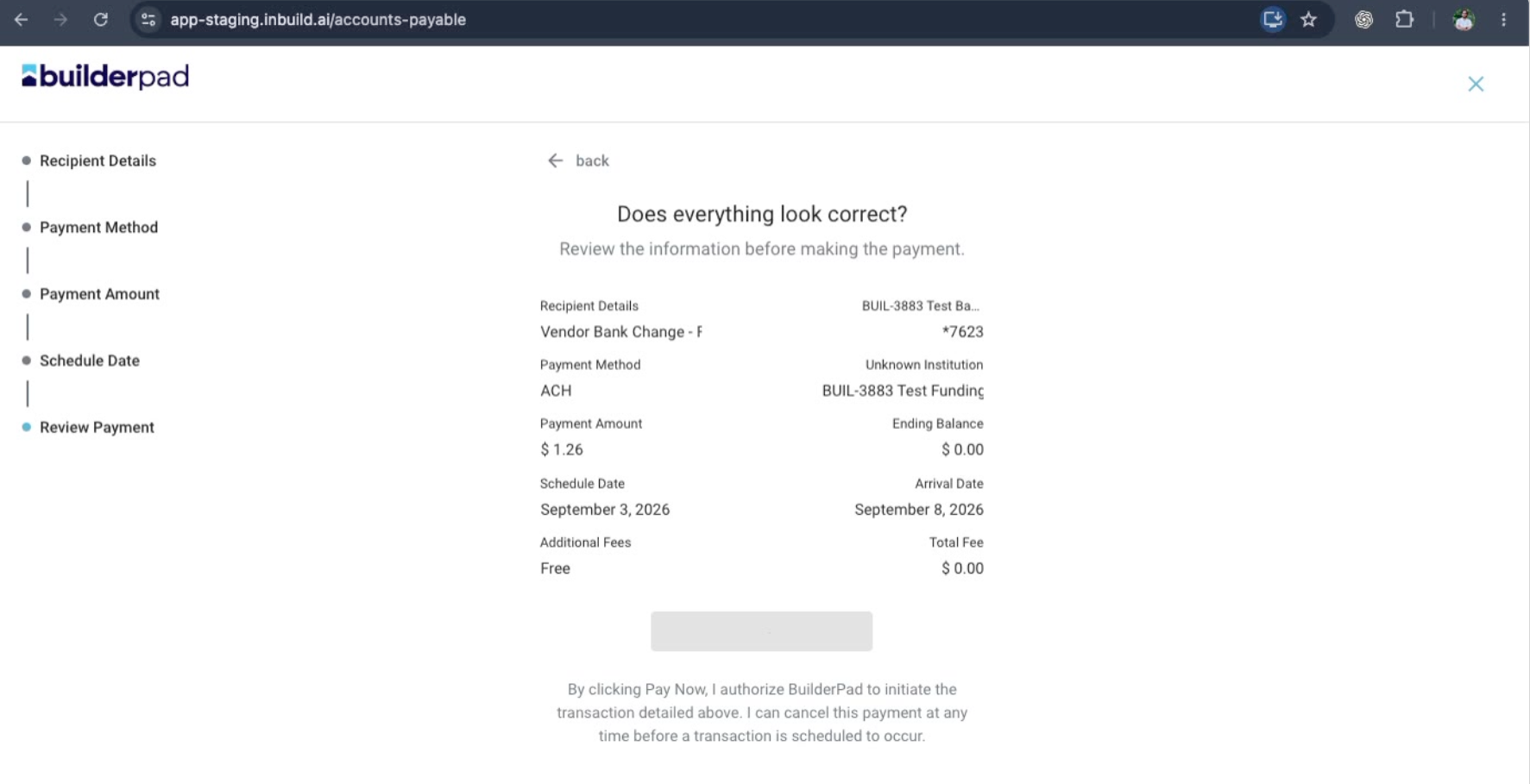
Select Pay Now on the invoice and choose your ACH payment method, then move through the payment flow as you normally would.
Step 2: Watch for the security notification.
If inBuild detects something unusual (for example, the vendor's payout bank account has changed since the last payment), you'll see a notice that says a security confirmation is required before the payment can be submitted.
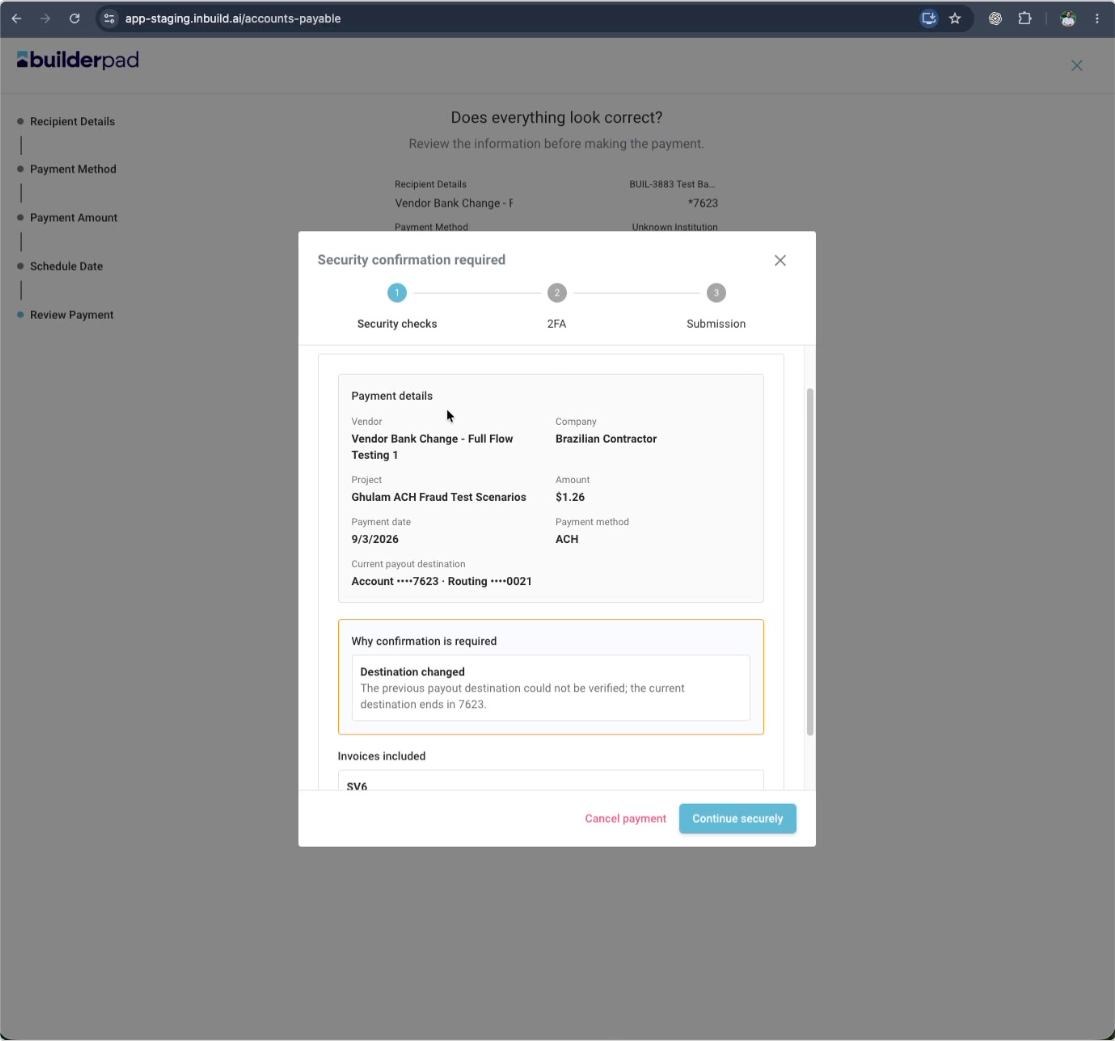
Step 3: Review the security confirmation window.
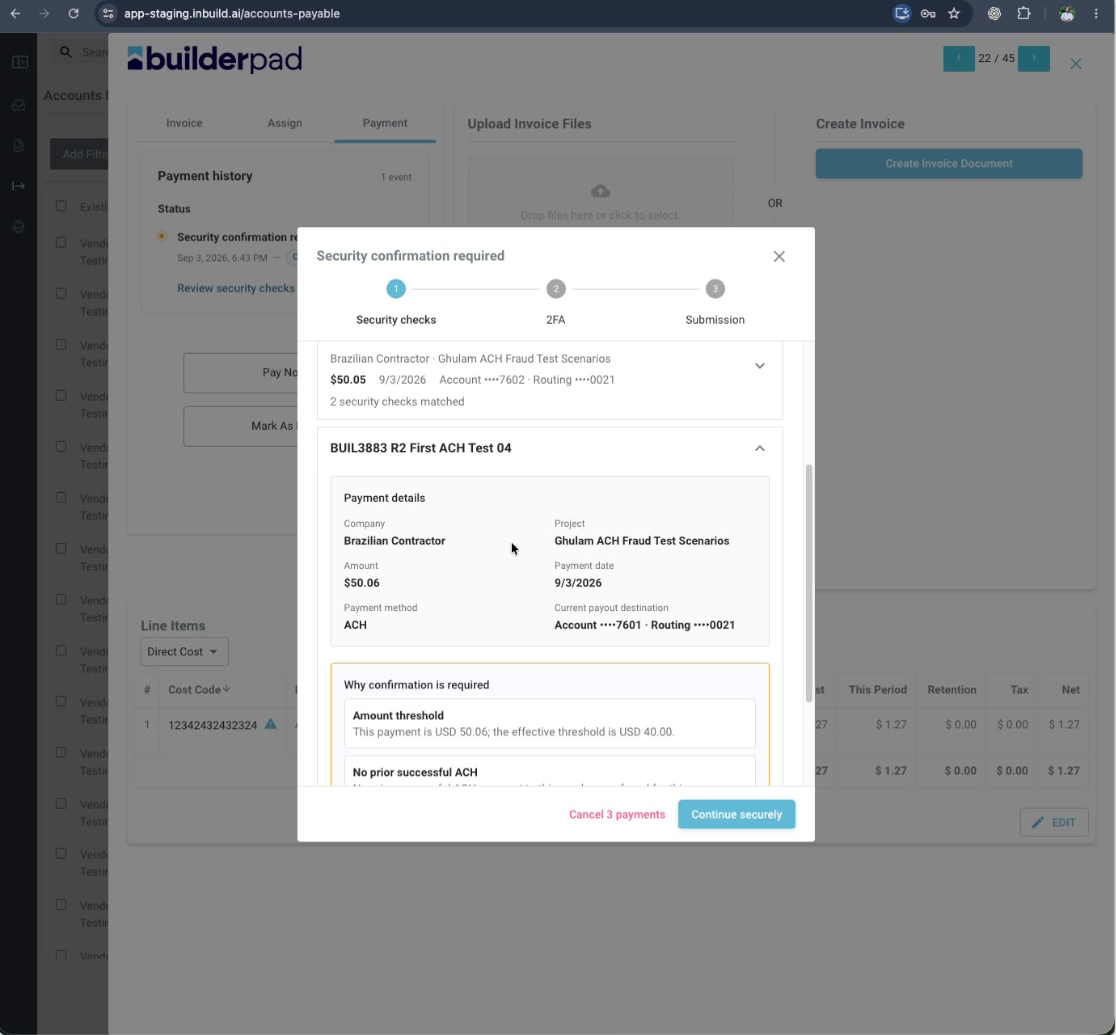
A window will open showing the details of the payment, including the vendor, company, amount, project, payment date, payment method, and bank account. It will also show why the confirmation is needed, along with the previous and current payout destinations, so you can compare them side by side.
Step 4: Confirm the details are correct.
Take a moment to check that everything in the window matches what you expect, especially the bank account information. If something looks wrong, you can cancel the payment instead of confirming it.
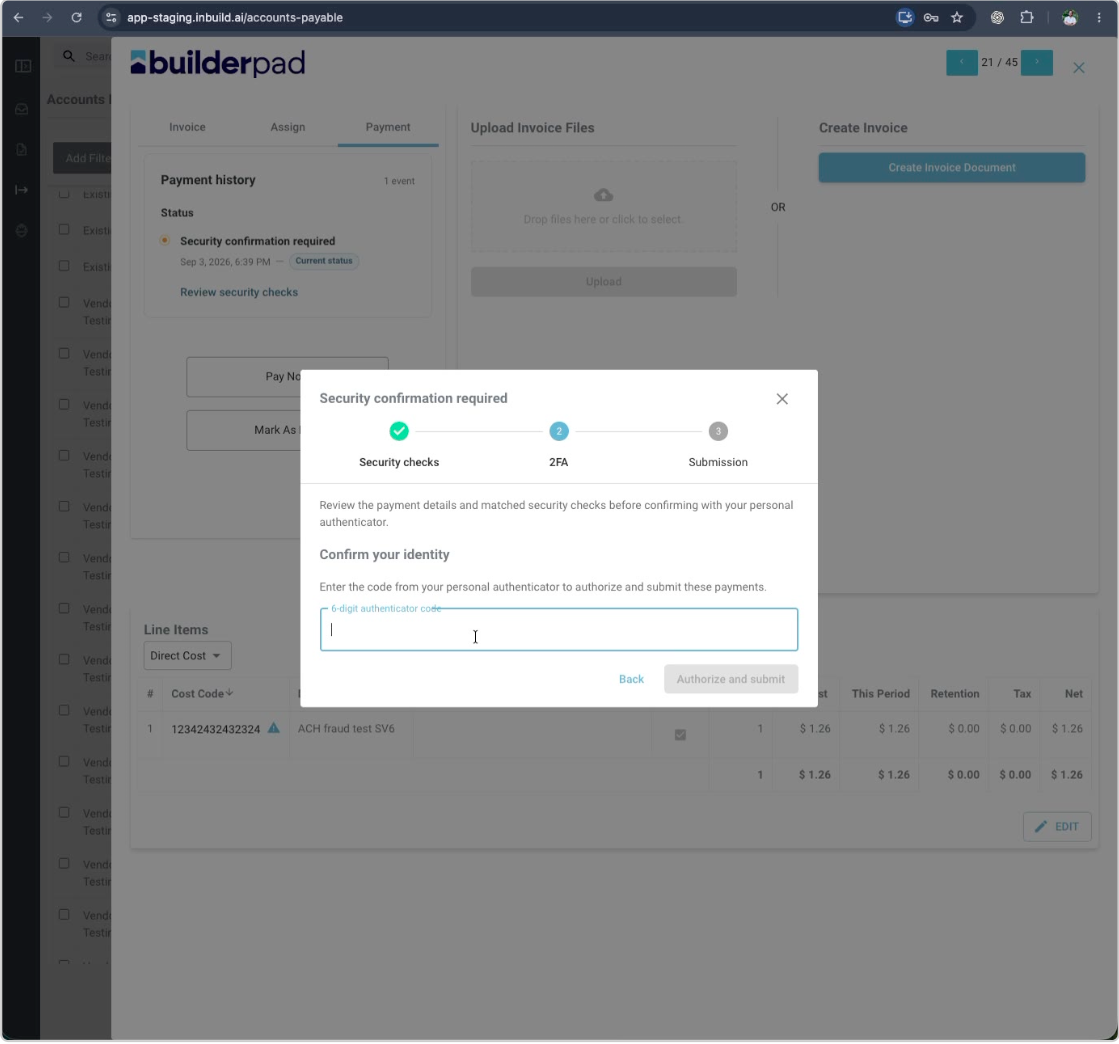
Step 5: Complete your 2FA check.
Once you confirm the details look correct, you'll be prompted to enter your 2FA code from your personal authenticator app.
Step 6: Authorize and submit.
After entering your 2FA code, select Authorize and Submit. The payment is then released for processing.
That's it! Your payment will move through its normal statuses (Released, Processing, Scheduled, Processing, Paid/Completed) just like any other payment, just with a short pausefor the security check along the way.
Tip: You don't have to complete the security confirmation right away. You can close the window and come back to it later, it will still be waiting for you on the invoice.
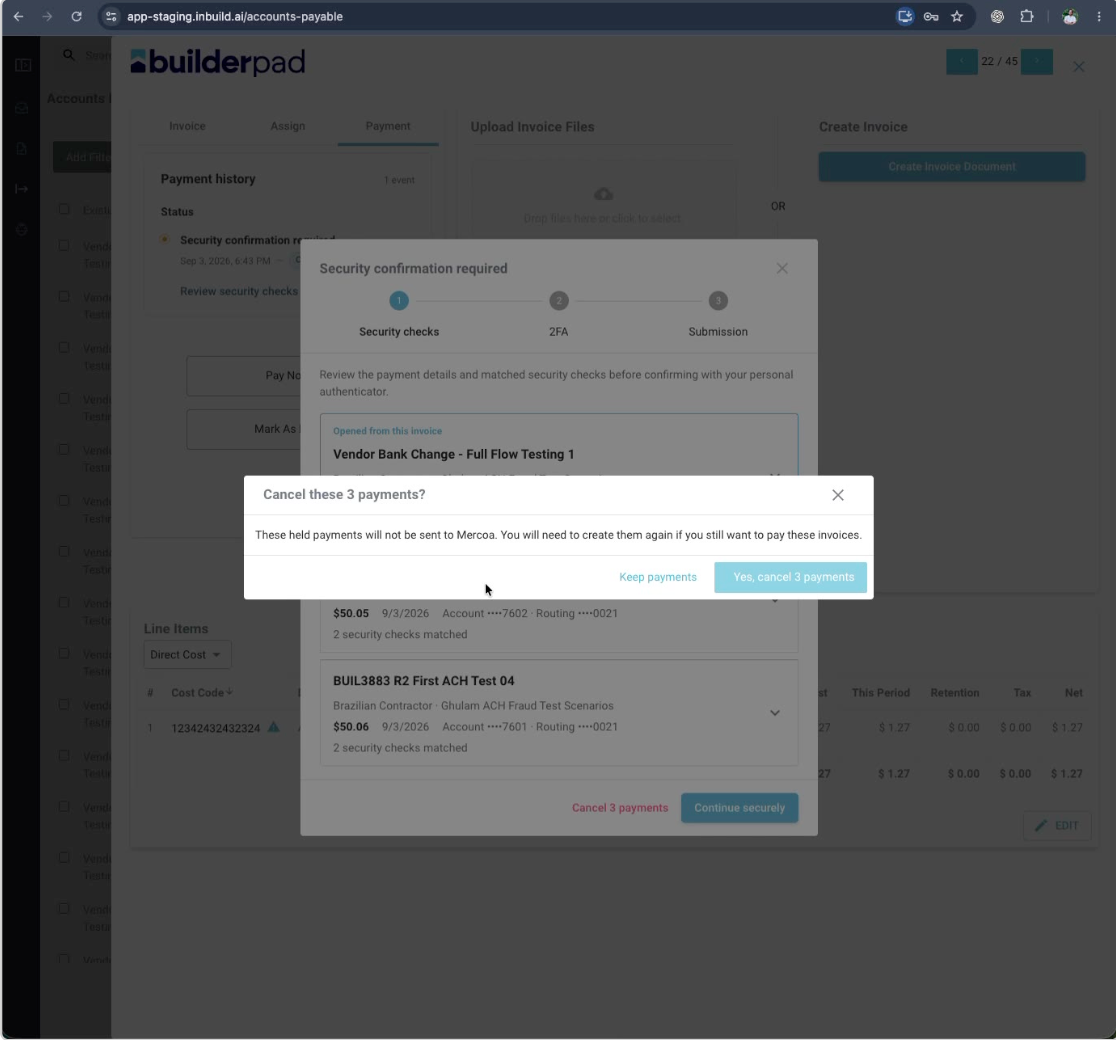
Tip: If you decide the payment shouldn't go through, you can cancel it from the security confirmation window. You'll be asked to confirm the cancellation, and the payment will then show as cancelled in your payment history.
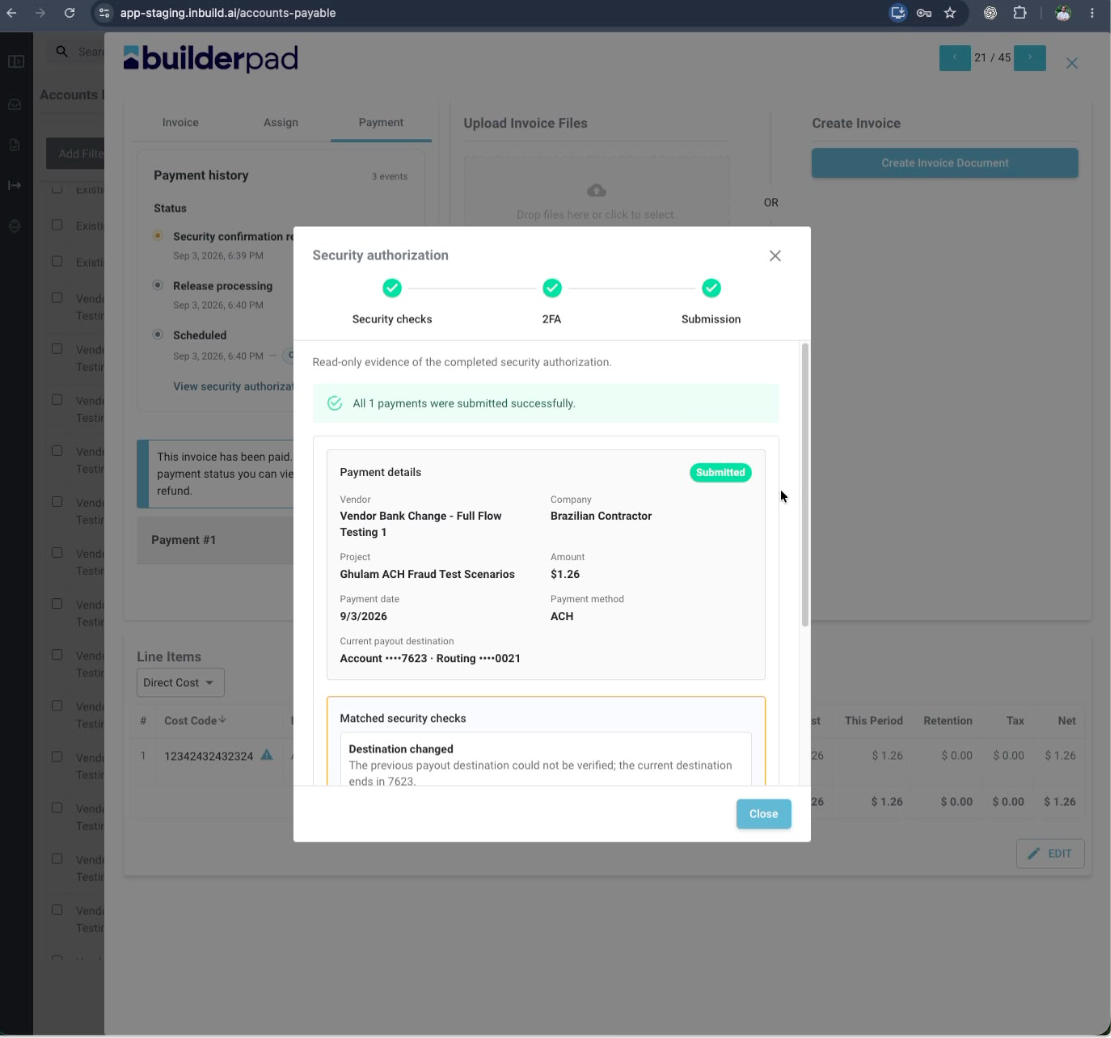
Verify it. After authorizing a flagged payment, open the payment details to confirm it shows who authorized it, when it was authorized, and that your 2FA check was completed. This gives you a clear record of the approval.
Batch payments and security review
If you're paying several invoices at once using Bulk Pay Bills, inBuild groups payments to the same vendor into a single combined payment, while payments to different vendors stay separate. Some payments in a batch may go through immediately, while others may require a security confirmation, it depends on each individual payment.
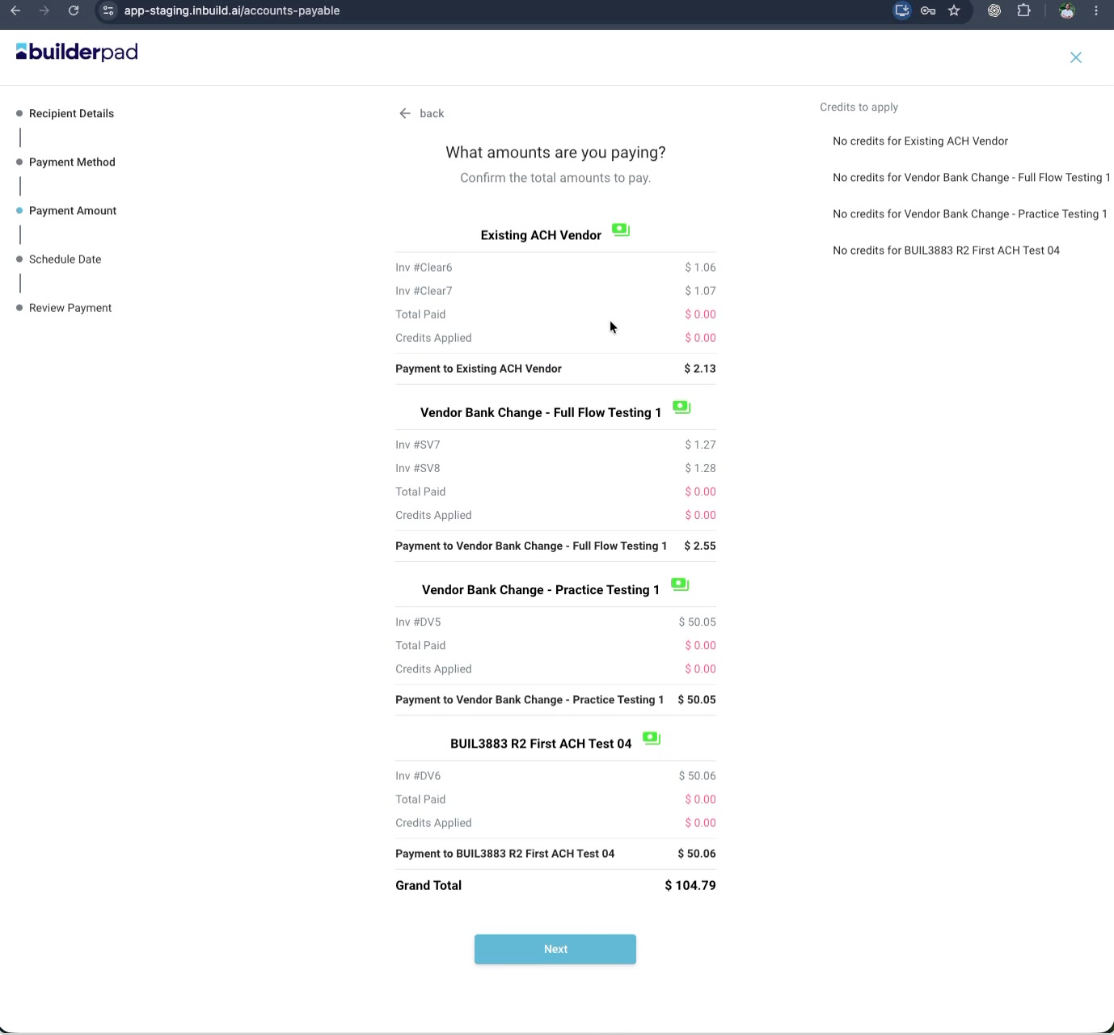
Because batch payments involve multiple invoices, you won't see the security review by opening just one invoice. Instead, open the security review from any invoice included in the batch, and you'll see all the related payments together, including which invoices were combined into each one. You can review and confirm them individually, or cancel some or all of them if needed.
Tip: If you'd rather not move forward with one or more flagged payments, you can cancel them directly from the review window. inBuild will ask you to confirm before the cancellation goes through.
FAQ
Why was my payment flagged for security confirmation?
This usually happens when something about the payment looks different from what inBuild expects, most commonly when a vendor's payout bank account has changed. It's an extra layer of protection to make sure the payment is really going where you intend.
Do all my payments require this extra step?
No. Most payments process normally without any interruption. The security confirmation only appears when inBuild flags something as unusual.
What if I close the confirmation window without finishing it?
No problem. The payment simply stays pending, and the security confirmation will still be there waiting for you when you come back to it.
What happens if I cancel a flagged payment?
The payment and its related invoice will both show as cancelled, and no further action is needed. If you'd like to pay the invoice later, you can start the payment process again.
Can I cancel just one payment in a batch, or do I have to cancel all of them?
You can review and act on each flagged payment in the batch individually, so you're not required to cancel everything at once.
What if my payment seems stuck after I authorize it?
This is rare, and inBuild automatically submits authorized payments within a few seconds. If a payment does appear stuck for longer than expected, please reach out to support so we can take a look.