Releasing Retainage in BuilderPad Finance (Accounts Payable)
When a project wraps up, getting your held retainage released shouldn't turn into a paperwork hunt. This guide shows you how to find what's still being held, record the release for each vendor, and confirm it went through, so your numbers are clean at closeout.
Written By Gilbert
Last updated 3 days ago
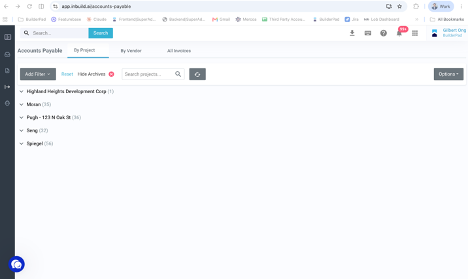
Step 1: Open Accounts Payable> (Upper left where it says Add Filter, click it), then open your project's details and make sure Hide Archived is turned off, so every invoice shows up.
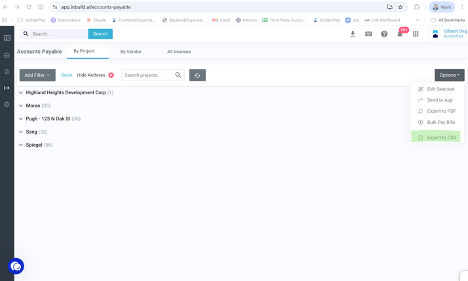
Step 2: Click Options to download the list as a CSV file.
Step 3: Open the file and sort it by Vendor, then by Retainage. Now you can see each vendor's total retainage and which cost code it sits on.
💡 Tip: Work one vendor at a time. It keeps each release easy to match back to its invoice.
Step 4: For each vendor you're releasing retainage for, drop their retainage release invoice into your inBox. If they didn't send one, you can create the invoice yourself.
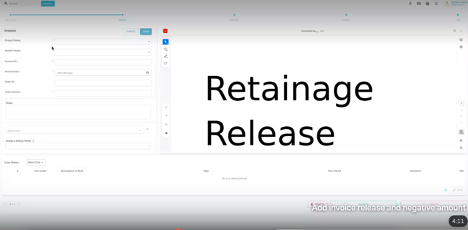
Step 5: Fill in the invoice details: the Project, the Vendor, an Invoice Number (for example, "Vendor Name Release"), today's Date, and the Total Amount being released. Click Save, then assign the Billing Period.
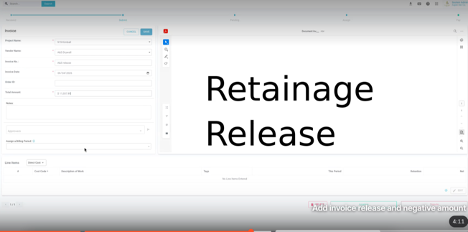
Step 6: Add the line as a Direct Cost on the cost code where the retainage is held. Enter $0.00 for This Period, and enter the amount being released as a negative number in the Retention column. Click Save.
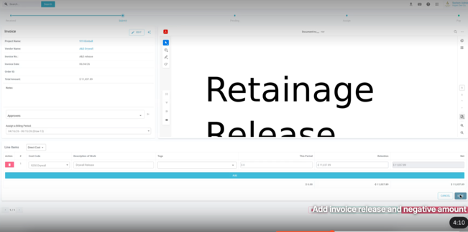
Important Note: If the vendor's retainage is held on more than one cost code, add a line for each one, so every cost code comes down to the right balance.
Step 7: Click Approve. That’s it.
Step 8: Open your Budget and go to that cost code. This Period should show nothing, and the retention should now be down by the amount you released (to zero for a full release).
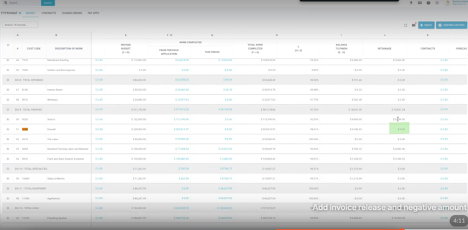
That's it! Repeat for each vendor, and your retainage is released and tracked. If anything looks different on your screen, reach out to our support team, and we'll be happy to help.
Still need help? Ask the team