Payments made simpler
We have updated our payment system to make payments more reliable and easier to track. The new system helps prevent issues such as payments being recorded twice or invoices showing an incorrect amount left to pay.
Written By Gilbert
Last updated 5 days ago

One important thing to know:
One important thing to know:
When this update is released, invoices created before the update and invoices created after the update will temporarily use two different payment systems. Because of this, old and new invoices cannot be included in the same bulk payment.
When this update is released, invoices created before the update and invoices created after the update will temporarily use two different payment systems. Because of this, old and new invoices cannot be included in the same bulk payment.
What does this mean to you?
We help you choose the right invoices.
Separating each group
Separating each group
You will still pay invoices using the same buttons and steps you use today. If you select a mix of old and new invoices for Bulk Pay, BuilderPad (inBuild) will automatically separate them for you and guide you through paying each group separately.
You will still pay invoices using the same buttons and steps you use today. If you select a mix of old and new invoices for Bulk Pay, BuilderPad (inBuild) will automatically separate them for you and guide you through paying each group separately.
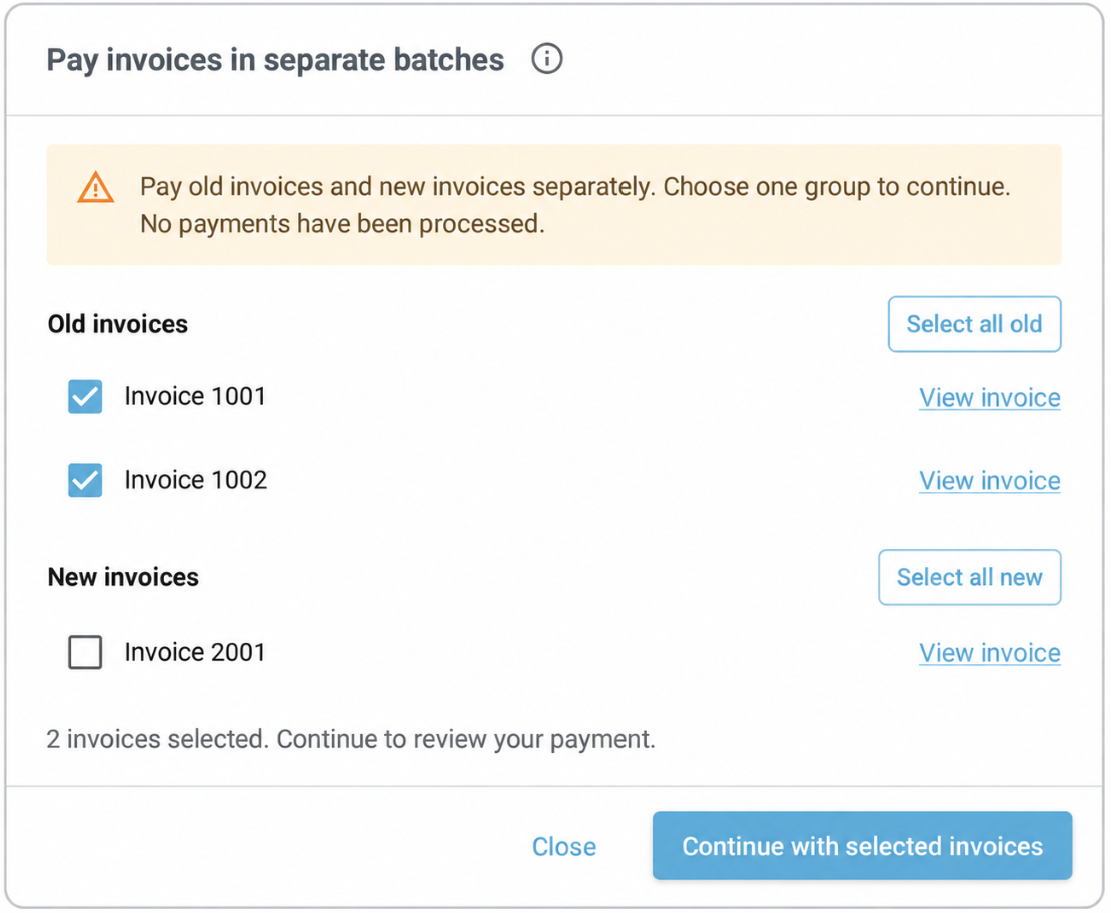
Choose one group to pay.
When does this window appears?
When does this window appears?
If your selection includes old and new invoices, this window appears as soon as you click Bulk Pay Bills. You have not paid anything yet.
If your selection includes old and new invoices, this window appears as soon as you click Bulk Pay Bills. You have not paid anything yet.
Select your invoices. Click Options > Bulk Pay Bills.
Choose Select all old or Select all new.
Click Continue with selected invoices and pay as usual.
Already paid in QuickBooks?
If one QuickBooks payment includes both an old and a new invoice, BuilderPad Finance/inBuild puts its update on hold when it checks that payment. This can happen when you click Sync Payments.
The payment is already recorded in QuickBooks. inBuild waits before updating those invoices. Other payments that do not need review can still sync.

Look for the yellow warning or the QuickBooks payment needs review notification. Open the invoice and click View details to see the window below.
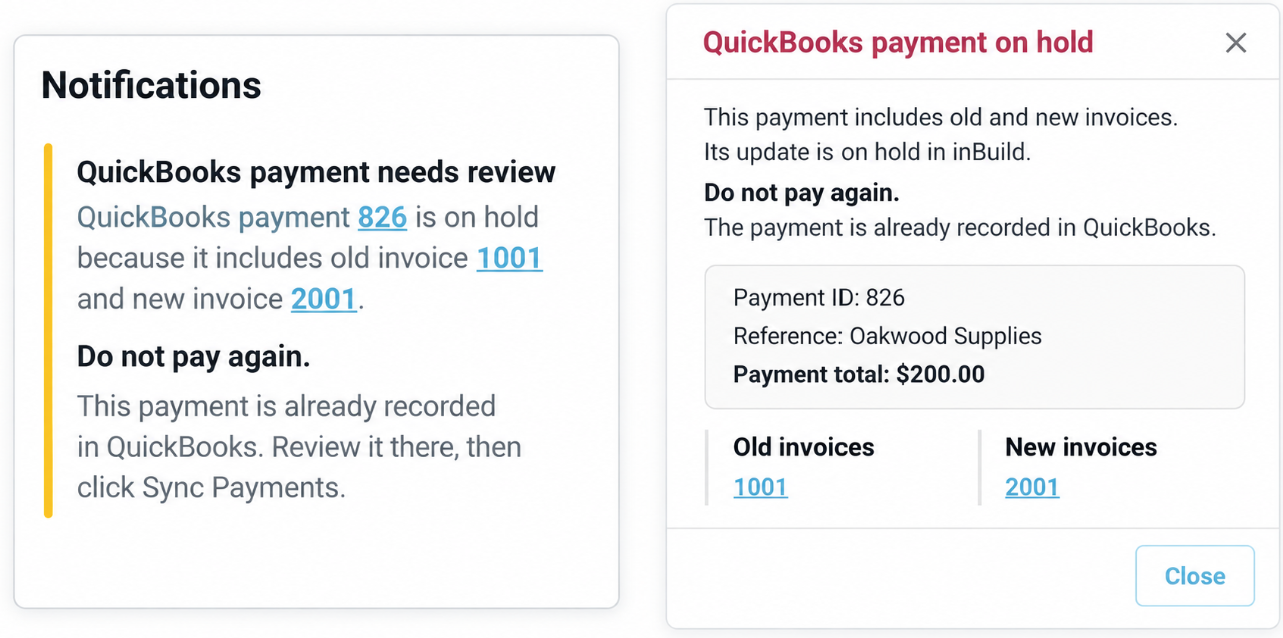
Check the details. The window shows the payment ID, amount, and the old and new invoices.
Correct the record in QuickBooks. Make sure old and new invoices are in separate payment records. Do not send the money again.
Click Sync Payments in BuilderPad Finance. It checks the corrected record again.
Need help?
If something does not look right, or you are not sure whether a payment went through, reach out to support team and we will take a look with you.
Was this helpful?
Still need help? Ask the team