Uploading Invoices/Bills/Receipts Tutorial
Written By Stefan S.
Last updated 5 months ago
This article guides you through the process of uploading an invoice, either via email, direct upload, or mobile app sync.
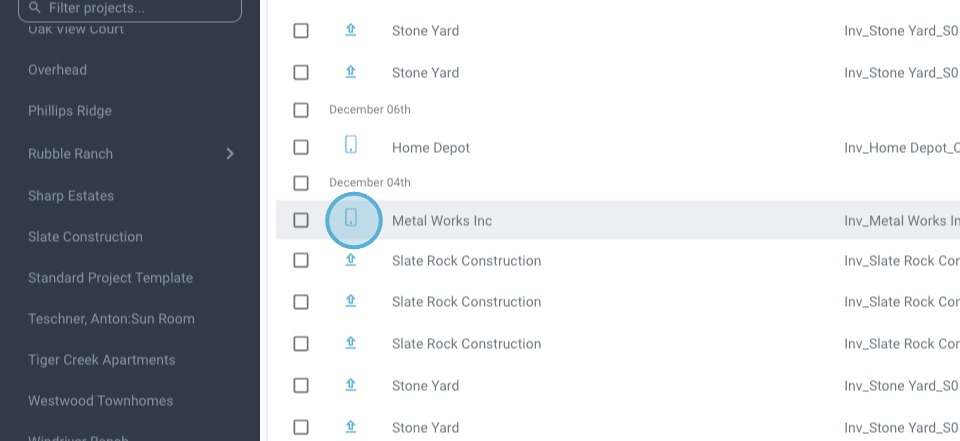
Step 1: Identify the icons that represent invoices received via email.
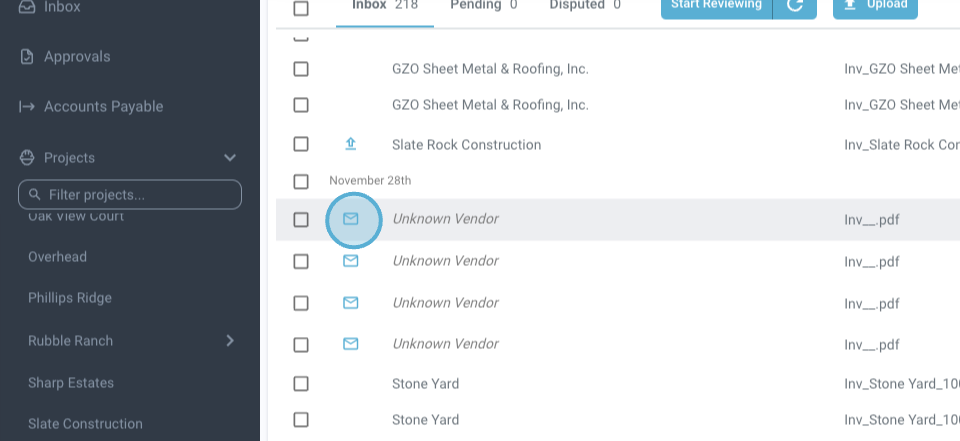
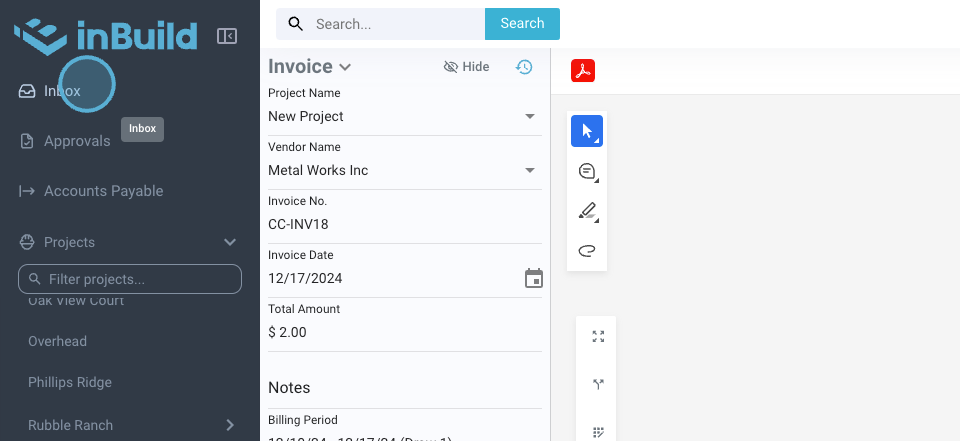
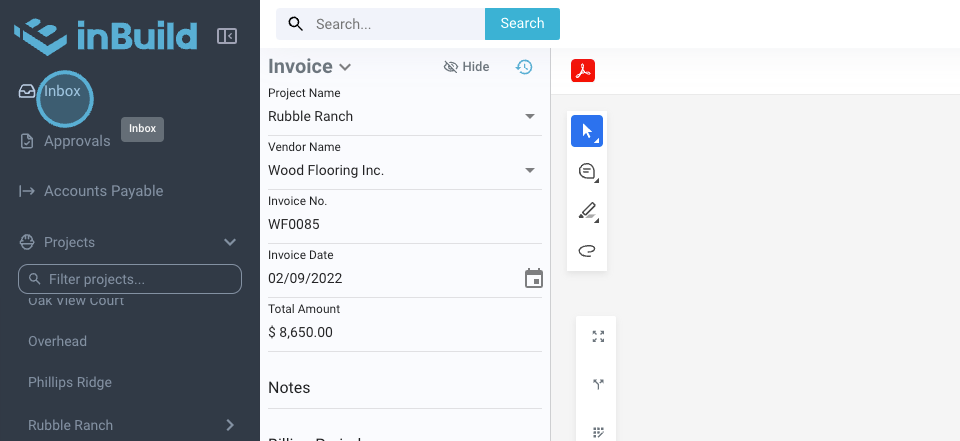
Step 2: Return to the inbox to view the uploaded invoices.
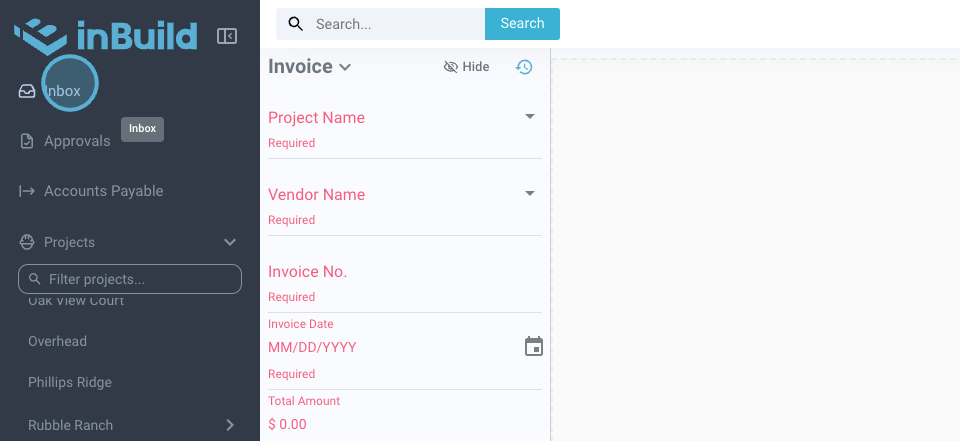
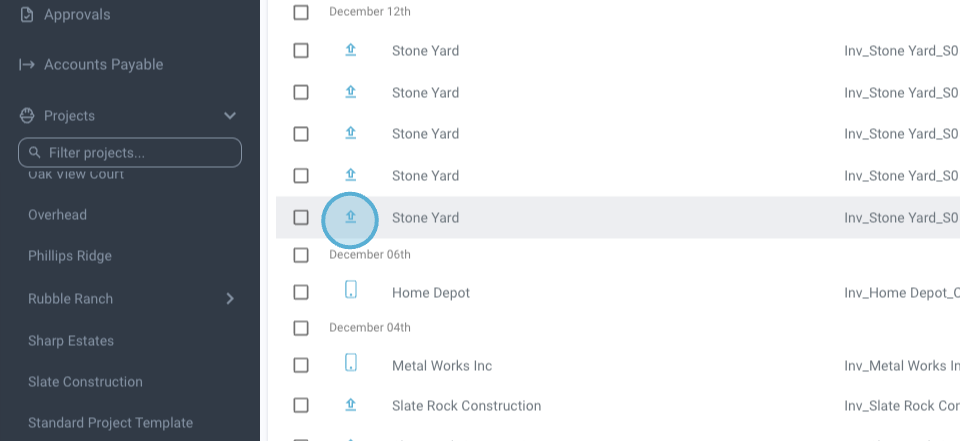
Step 3: Look for invoices that have been synced from the mobile app.
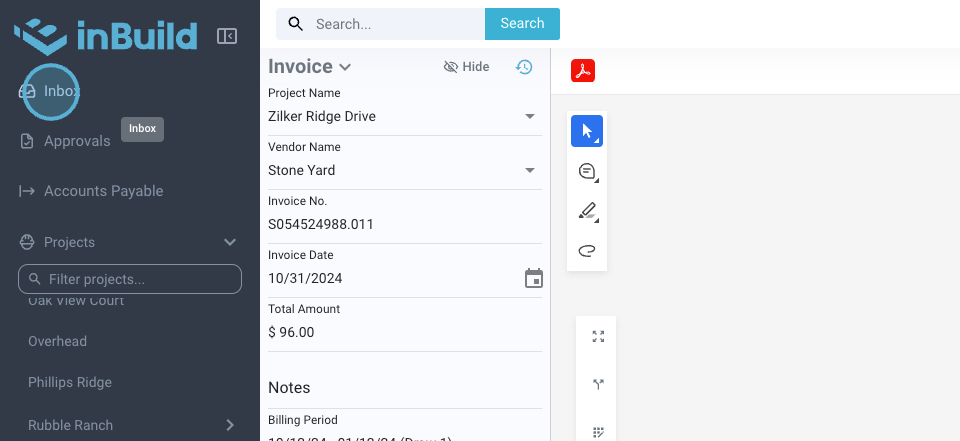
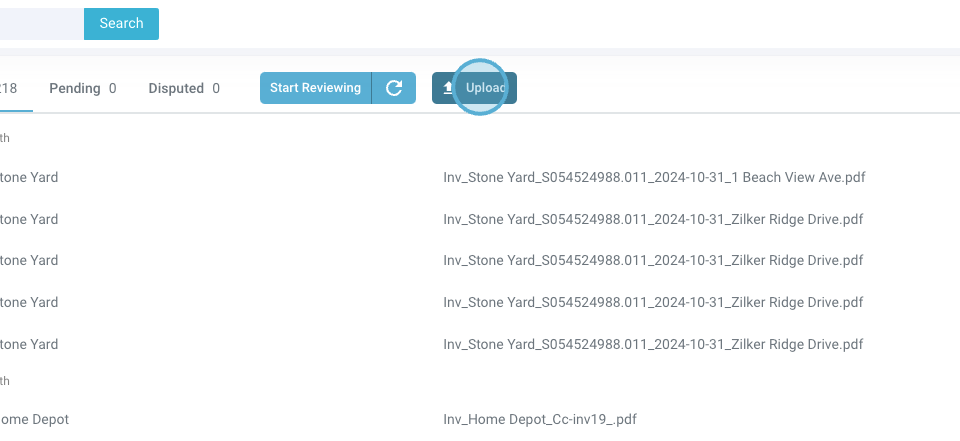
Step 4: To start uploading invoices, hit the Upload button.
Step 5: Open your finder to select the invoice files. Alternatively, you're free to drag and drop the invoices into the designated area.
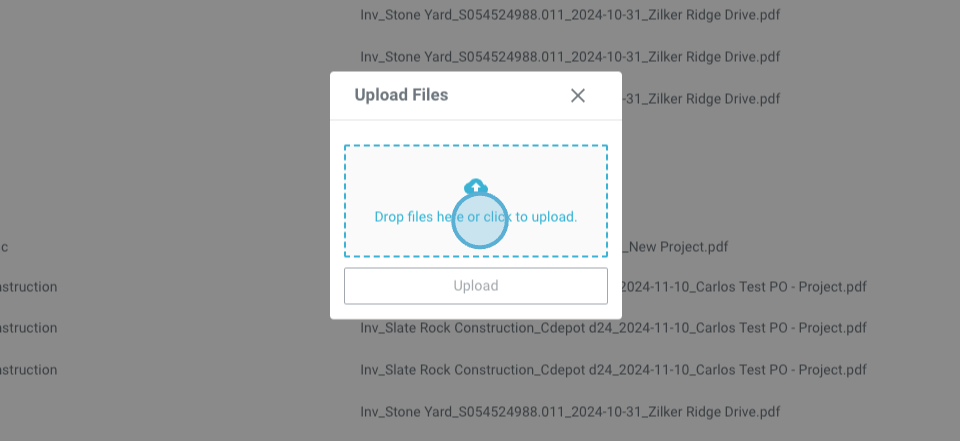
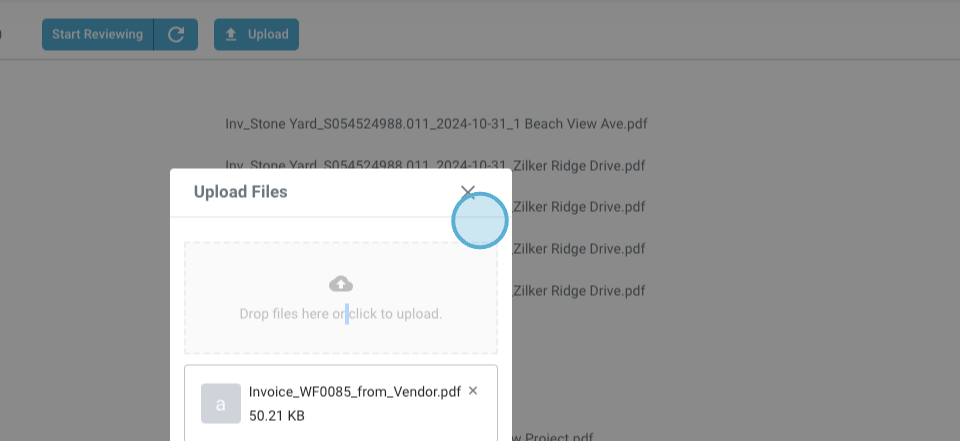
Step 6: Click Upload again. Your inbox will refresh and display the newly uploaded invoices.
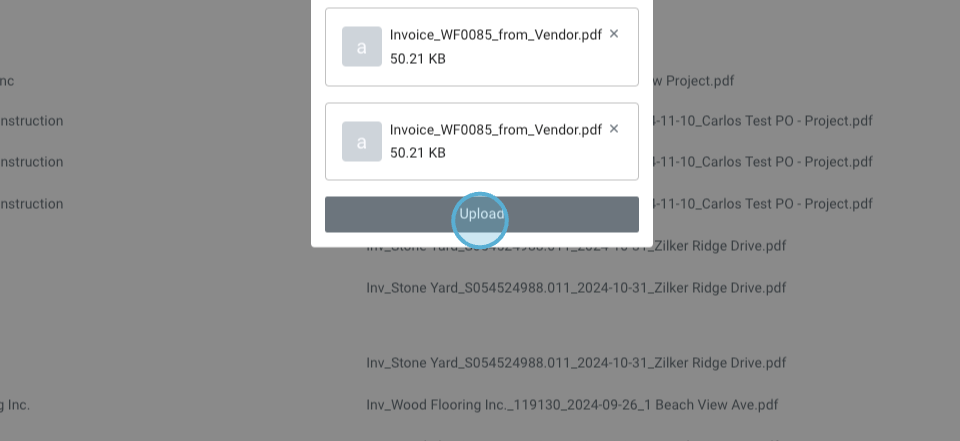
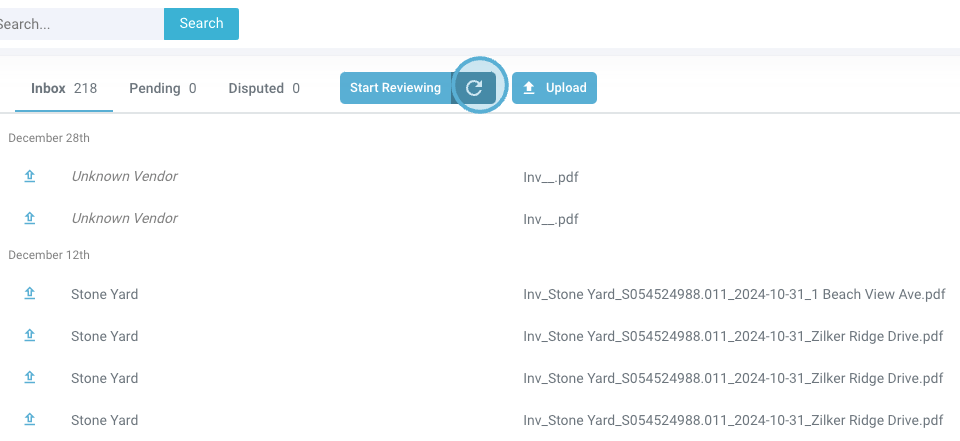
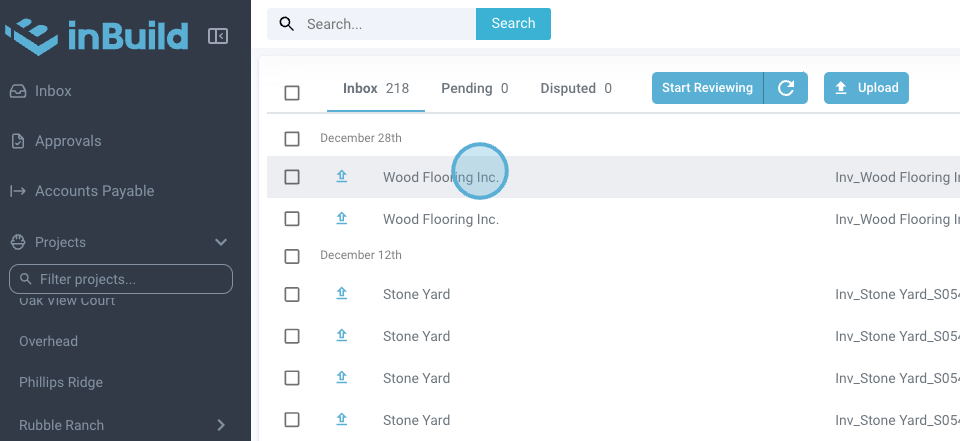
Step 7: If the invoices aren't visible right away, refresh the inbox. The vendor information should now be visible.
Don't hesitate to get in touch if you're unsure about anything.
Was this helpful?
Still need help? Ask the team