Adding New Cards to an Existing Card Connection
When someone on your team gets a new company card from a bank you've already connected, you can add it in a minute without creating a new connection. BuilderPad already pulls in charges from every card on that account, so you just need to tell it who the new card belongs to. Once the card is set up, its past charges match over automatically and new ones land in the right place going forward.
Written By Gilbert
Last updated 3 days ago

Before you start
Have these ready for each new card:
• The cardholder's name
• The last 4 digits of the card
• The QuickBooks account the card's charges should post to, if you use one per cardholder
The card also needs to have at least one charge before it shows up in BuilderPad. If a brand new card hasn't been used yet, wait for its first purchase to come through, then set it up.
How to add a new card
1. Go to Settings > Card Account Connections.
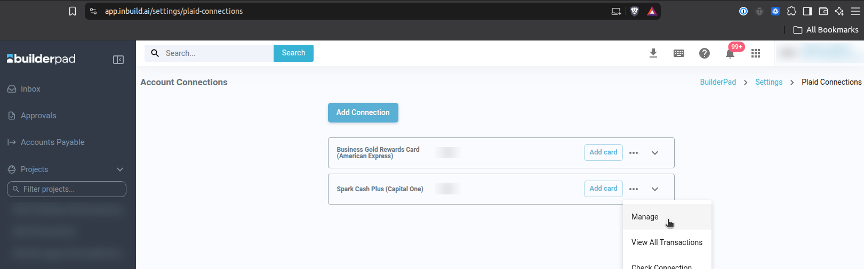
2. Find the connection the card belongs to (for example, Spark Cash Plus (Capital One)), click the three dots on that row, and choose Manage.
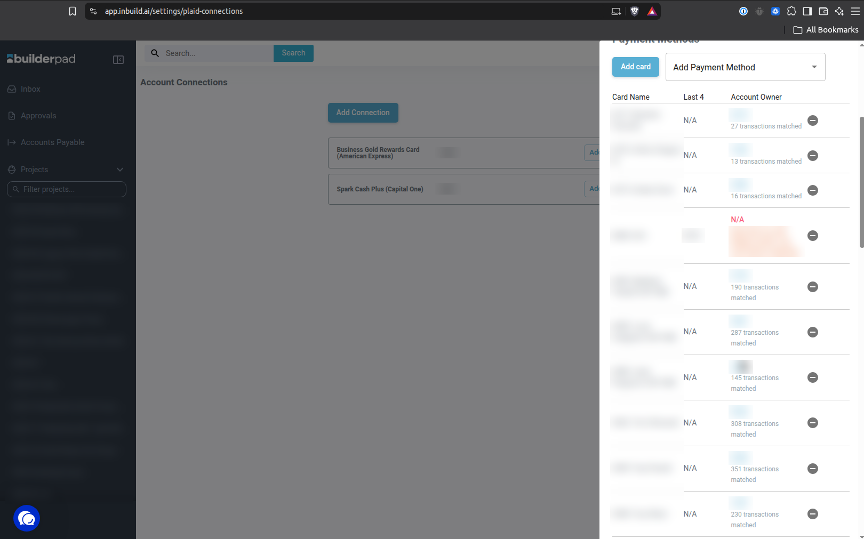
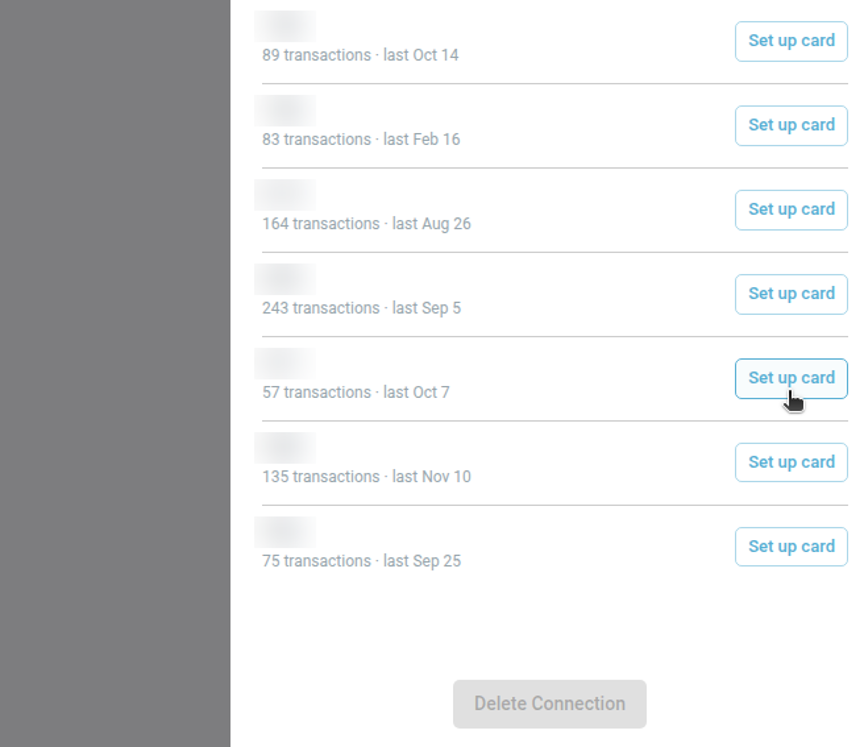
3. Scroll to the bottom of the panel and click Cards not set up yet to open the list. Each card shows its last 4 digits, how many transactions it has, and the date of its latest charge.
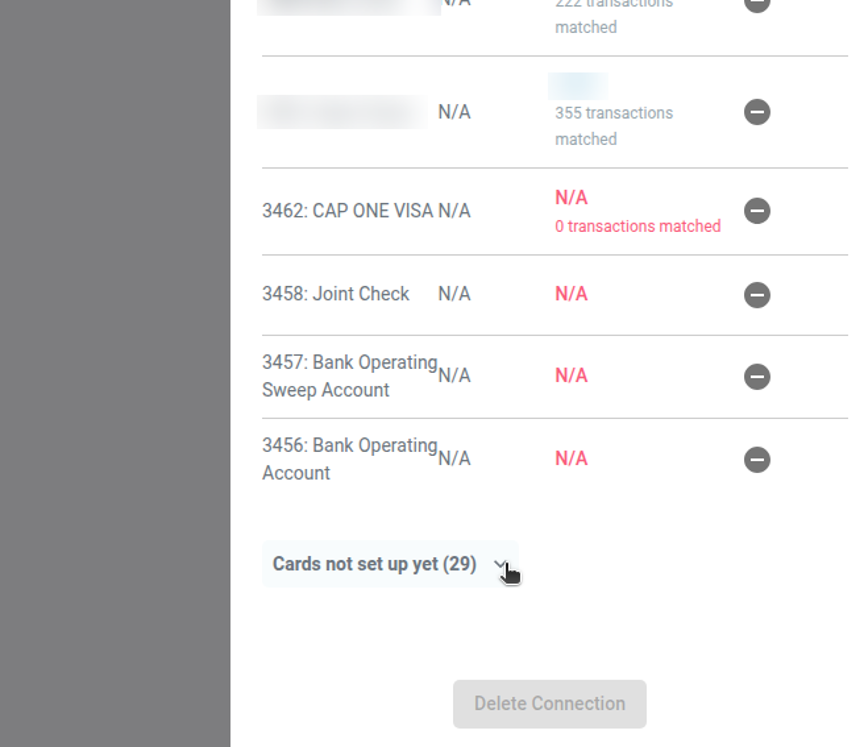
4. Find the last 4 digits of the new card and click Set up card.
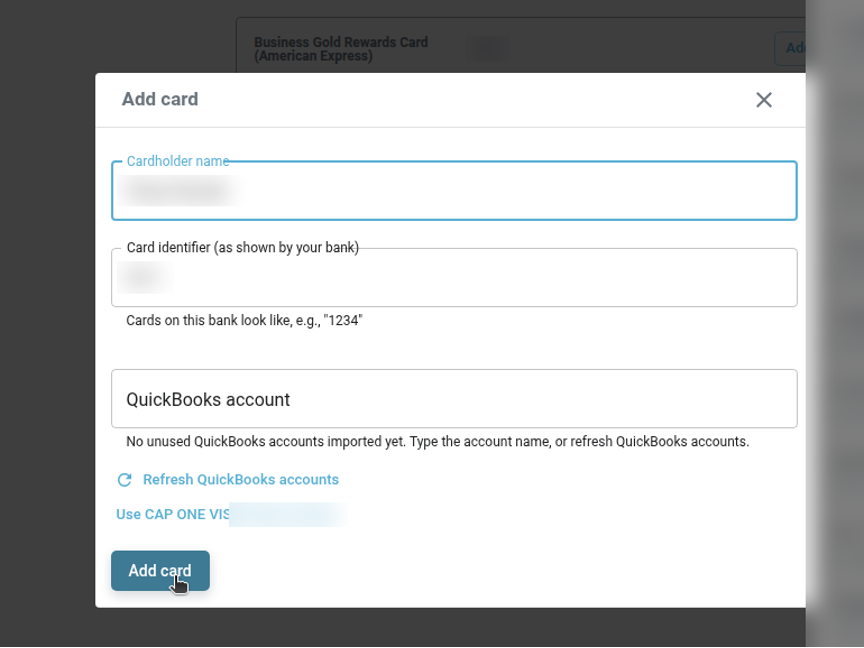
5. Type the cardholder's name in Cardholder name. The Card identifier is already filled in with the last 4 digits, so leave it as is.
6. In QuickBooks account, click the suggested account link under the field if one shows up, or type the account name. If you don't see the account you need, click Refresh QuickBooks accounts.
7. Click Add card.
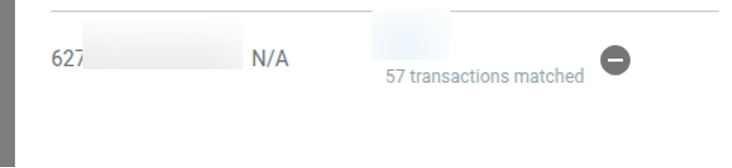
The card now appears in the card list with the cardholder's name, its last 4 digits under Account Owner, and how many past transactions were matched to it. Repeat these steps for each new card.
Tips and troubleshooting
Don't use Add Connection for a new card. That button connects a brand new bank or card account. If the card comes from a bank you've already connected, adding a second connection can create duplicates.
The card isn't in "Cards not set up yet." It usually means the card hasn't had any charges yet. Check back once its first purchase posts. If it has charges and still doesn't show, contact our support team.
You see a "may be a duplicate" warning. This shows when two cards share the same last 4 digits. Double check the card list before adding another one with the same number.
Removing an old card. Deleting a card in BuilderPad only removes it from your list here. It doesn't close the card with your bank, so close it with the bank directly if it's no longer needed. Before deleting, make sure its charges are matched to receipts and synced to QuickBooks.
Need help?
When someone on your team gets a new company card from a bank you've already connected and you do not know how to add them in BuilderPad Finance (inBuild), reach out to Support Team and we will take a look with you.
Was this helpful?
Still need help? Ask the team