Sage 100 exports made simpler.
BuilderPad Finance (inBuild) now sends your invoices and vendor payments to Sage 100 as a file. You download the file from inBuild and upload it in EI Dynamics, and EI Dynamics adds the records to Sage 100.
Written By Gilbert
Last updated About 2 hours ago
One important thing to know:
One important thing to know:
BuilderPad Finance (inBuild) no longer sends invoices to Sage 100 automatically. Nothing reaches Sage 100 until you upload the file in EI Dynamics.
Always upload the invoices file before the payments file.

What does this mean for you?
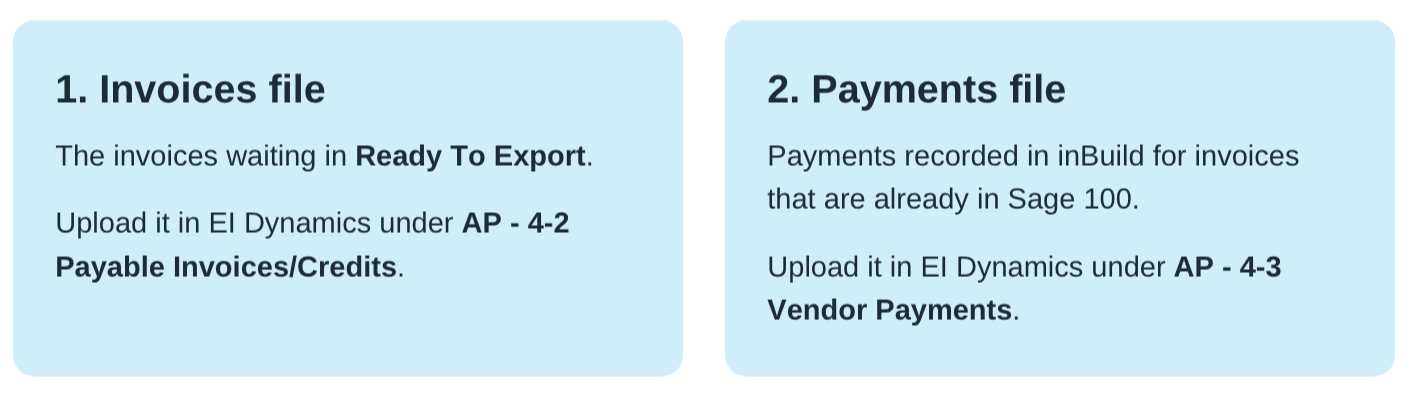
We check every invoice before it goes.
Before the file is created, inBuild checks each invoice and tells you which ones are not ready and why, for example a vendor with no Sage vendor number. Those are left out of the file, so you can fix them and export them later. The rest are not held up.
You'll find everything under Apps > Sage 100 (EI Dynamics).
Export your invoices.
Invoices to send to Sage 100 wait in the Ready To Export tab. Exporting creates the file; nothing changes in Sage 100 until you upload it.
Open Apps > Sage 100 (EI Dynamics) and select your invoices in Ready To Export.
Click Export. Review the list, then click Export again to download the file.
Click Open the EI Dynamics import page and upload the file under AP - 4-2 Payable Invoices/Credits.
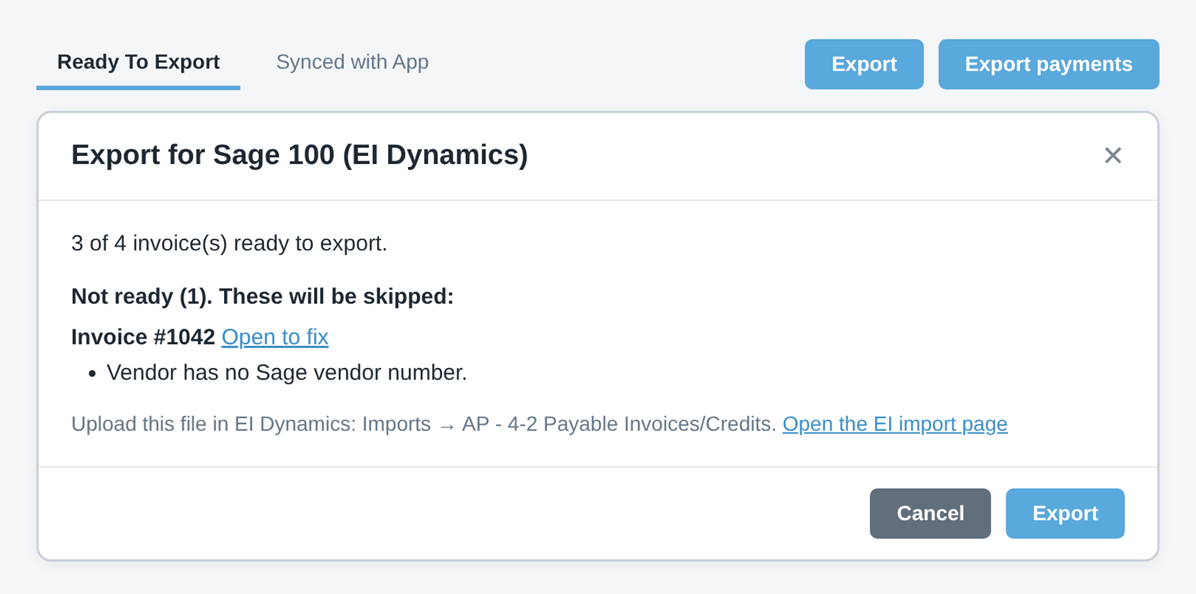
Invoices listed as Not ready are skipped and stay in Ready To Export. Click Open to fix, correct what the message says, and export them again. Exported invoices move to Synced with App.
Large exports are prepared in the background. You'll get the file by email and in your past reports.
Export each invoice once. EI Dynamics rejects an invoice number it already has.
Then export the payments.
Once the invoices are in Sage 100, send the payments you made in inBuild. Payments the previous Sage connection already sent are never included.

In Apps > Sage 100 (EI Dynamics), select the paid invoices and click Export payments.
Review the list and click Export to download the file.
Click Open the EI Dynamics import page and upload the file under AP - 4-3 Vendor Payments.
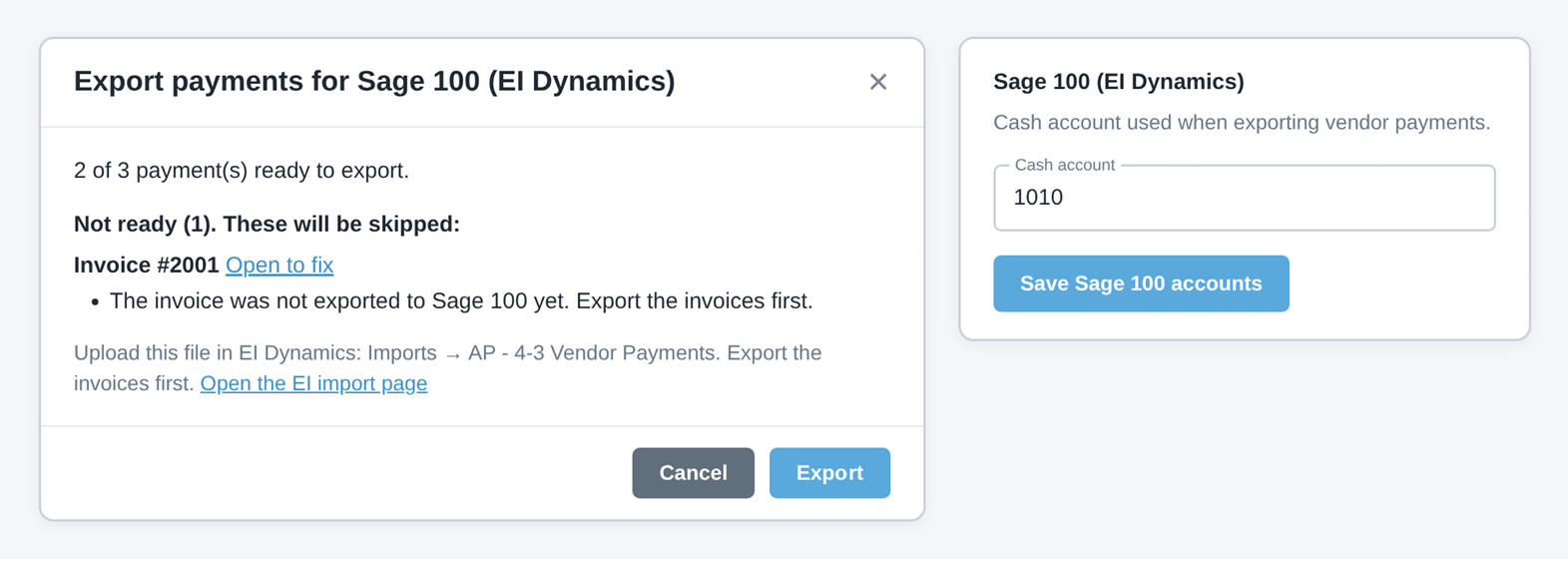
One-time setup (Admins). Each bank account or card you pay from needs its Sage account. Open Settings > Payment methods, edit the bank account or card, and fill in Sage 100 (EI Dynamics): the cash account for a bank account, or the card issuer account and card sub-account for a card.
Exported before? inBuild warns you when a selection was already exported. Uploading a payment twice can record it twice in Sage 100, so only export again if the first file was never uploaded.
Rejected in EI Dynamics? EI rejects a check number that already exists in Sage 100, and a payment dated in a closed posting period.
Need help? Contact support.
Was this helpful?
Still need help? Ask the team