Attaching a File from Your File Cabinet to a Post
Written By Stefan S.
Last updated 3 months ago
When you write an activity feed post on the web, you can now attach a file you already have in your File Cabinet, not just upload a new one from your computer. No more re-uploading a contract or plan you have already filed.
How to attach an existing file
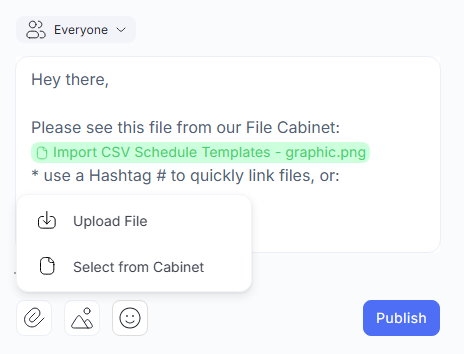
Step 1: Start a post in the activity feed and click the paperclip (attach) icon.
Step 2: Choose Select from Cabinet. (To add a brand-new file from your computer instead, choose Upload File.)
Step 3: In the Select a File window, find what you need. Use Search or Sorting, browse your folders, and check the box next to each file you want. The window shows an N items selected count as you go.
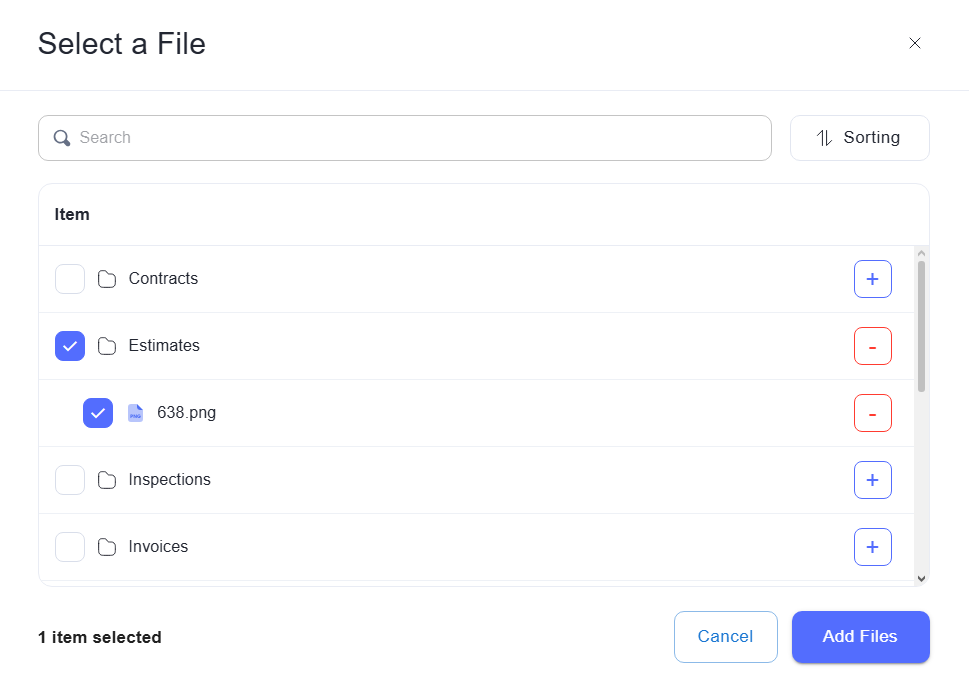
Step 4: Click Add Files to attach them to your post, then publish as usual.
💡 The same file can live in a post, in Media, and in your File Cabinet at once.
Attaching it here does not make a duplicate. See: Media vs File Cabinet: What Goes Where.
FAQ
Can I attach a file I already uploaded?
Can I attach a file I already uploaded?
Yes. Click the paperclip in a post and choose Select from Cabinet to pick an existing File Cabinet file.
Can I still upload a new file from my computer?
Can I still upload a new file from my computer?
Yes. Choose Upload File from the same paperclip menu.
Can I still upload a new file from my computer?
Can I still upload a new file from my computer?
Yes. Choose Upload File from the same paperclip menu.
Can I attach more than one file?
Can I attach more than one file?
Yes. Select multiple items in the Select a File window, then click Add Files.
Still need help? Ask the team