Using the Media Section
Written By Stefan S.
Last updated 3 months ago
All of your project's photos and videos now live in one place: the new Media section. It is a clean, visual home for every image and video on the job, separate from your documents in the File Cabinet, so you can scroll your progress at a glance, filter to exactly what you need, and act on photos in bulk.
Where to find Media
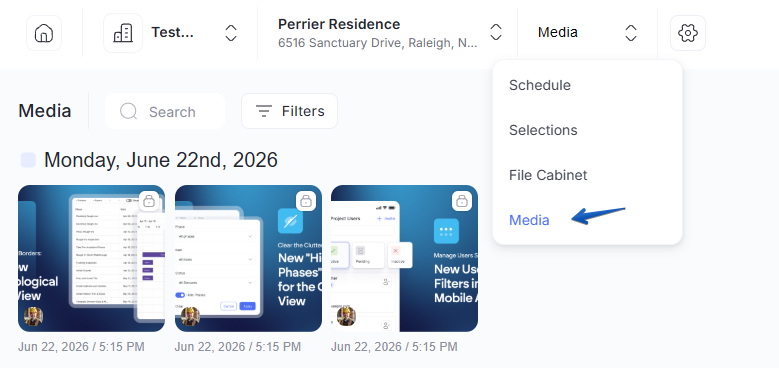
On the web app: open your project and choose Media from the project section dropdown at the top (next to Schedule, Selections, Finances, and File Cabinet). The old Feed/Media toggle in the activity feed is gone; Media is its own section now.
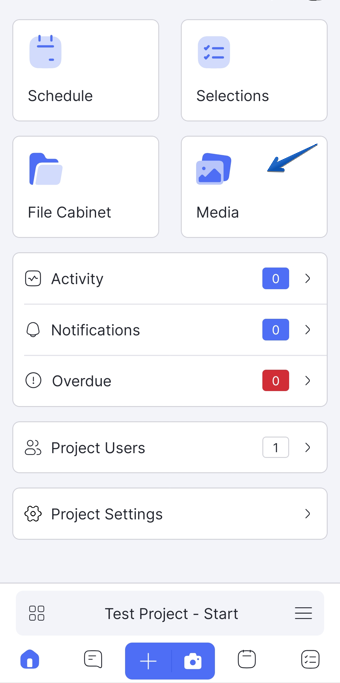
On mobile: your most recent photos and videos show in a Media section right at the top of the project’s feed dashboard. Tap Media > to open the full Media view.
You can also tap the Media tile in the project menu:
Browsing your media
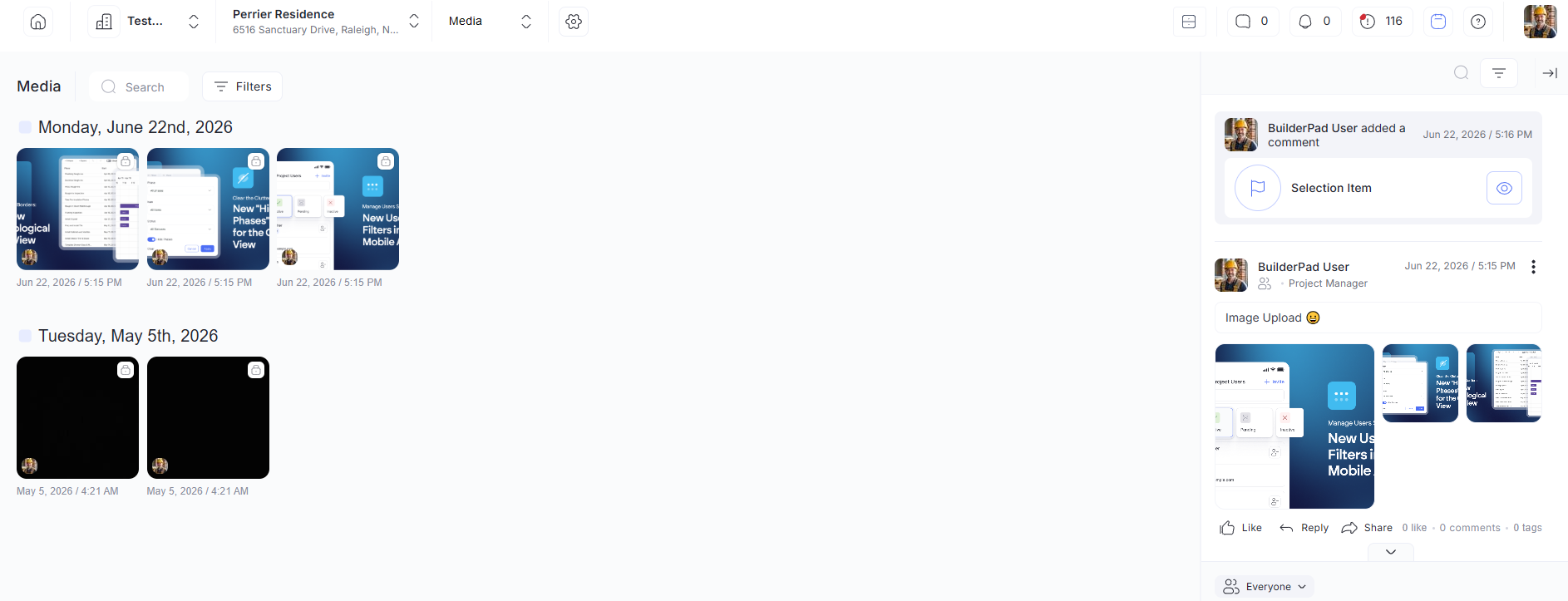
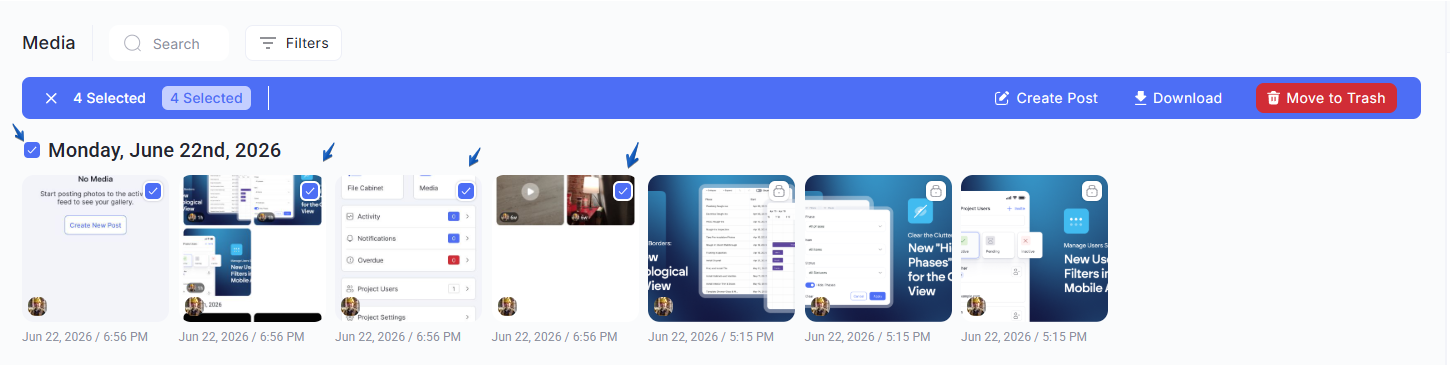
Media displays as a grid/gallery, grouped by date, so the newest work is front and center. Use Search to find a photo, and Filters to narrow the view.
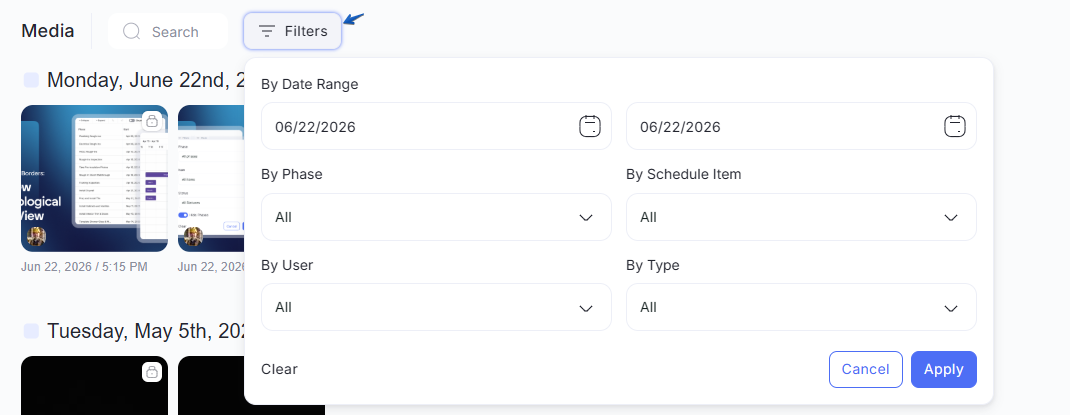
Filters let you sort by:
Date Range
Phase
Schedule Item
User (who uploaded it)
Type (Photo, Video, or All)
Acting on media in bulk
Select one or more items to reveal the action bar. From there you can:
Create Post from the selected media
Download
Tag
Share
Delete / Move to Trash
Show Feed / Hide Feed to toggle the feed panel
On mobile, select items and tap the 3-dot menu for the same kinds of actions:
Create Post, Save to Device, Tag, Share Gallery, and Move to Trash.
💡 Media you add lives in one place behind the scenes, so the same photo can appear on a post, here in Media, and in your File Cabinet without being duplicated.
Please see this article for more details → Media vs File Cabinet: What Goes Where
Media linked to a post is protected
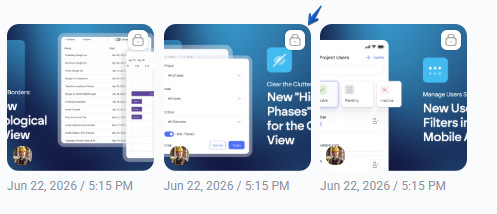
If a photo or file is attached to an activity feed post, it shows a lock icon in the top-left and cannot be deleted on its own. To remove it, delete the post it is attached to. This keeps your posts from ending up with missing images.
Removing media (Move to Trash)
When you remove media, it goes to the Trash rather than disappearing right away. You have 90 days to restore it before it is permanently deleted, and users with Admin or Manager permissions can move it back to the project within that window.

FAQ
Where did the Feed/Media toggle go?
Where did the Feed/Media toggle go?
Media is now its own section in the project dropdown (web) and on the project dashboard (mobile), so the toggle inside the feed was removed.
Why can't I delete a photo?
Why can't I delete a photo?
It is attached to a post (look for the lock icon).
Delete the post to remove it.
How long do trashed photos stay recoverable?
How long do trashed photos stay recoverable?
90 days. Admins and Managers can restore them to the project within that window.
Is Media the same as my File Cabinet?
Is Media the same as my File Cabinet?
No. Media is the visual home for photos and videos; the File Cabinet is for documents and structured files. They share the same storage behind the scenes.
Please see this article → Media vs File Cabinet: What Goes Where
Still need help? Ask the team