How to Stop a Check Payment Before It’s Mailed
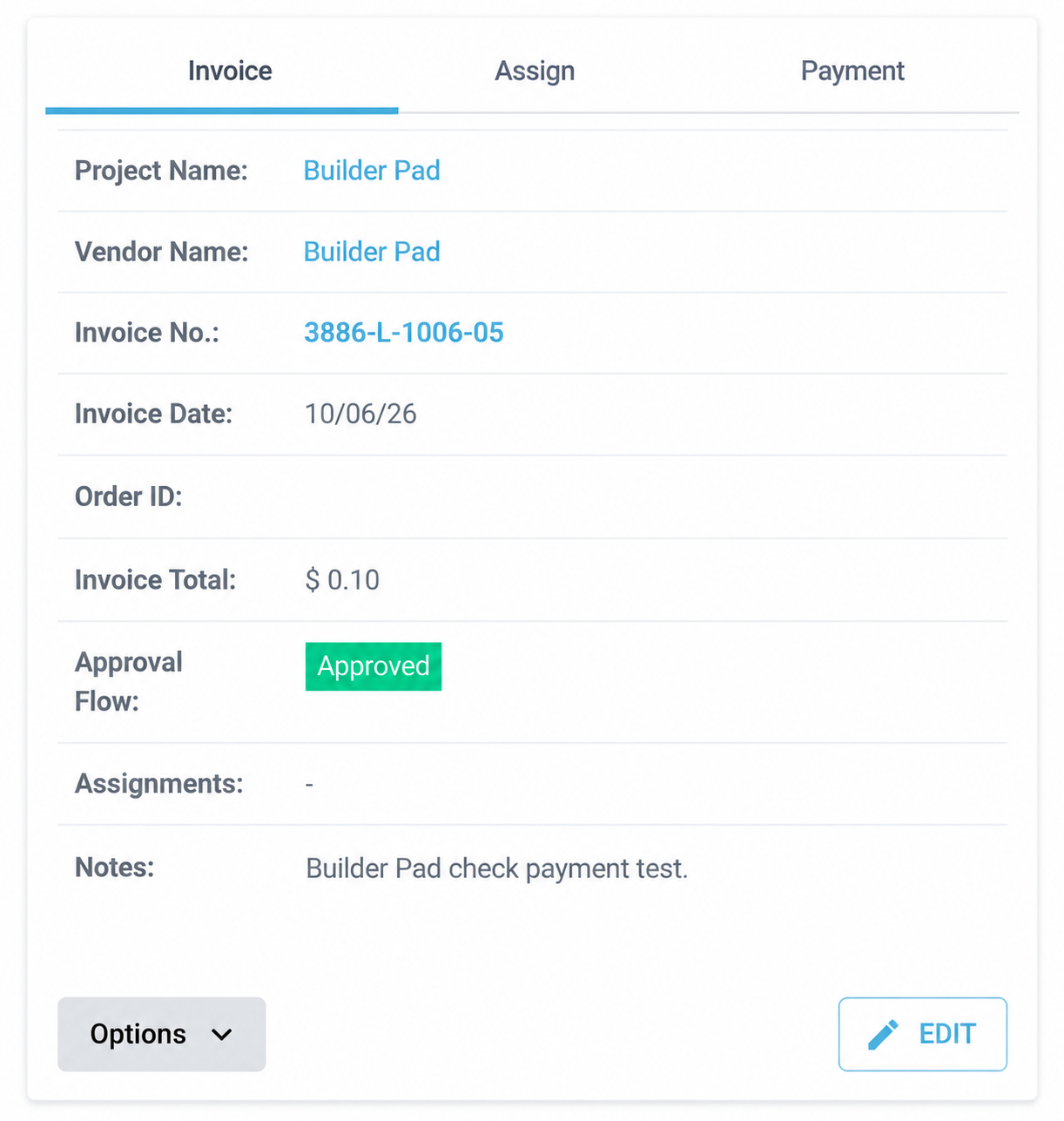
When you pay an invoice by check in BuilderPad, you can stop that check as long as it hasn’t been mailed yet. This is handy if you sent a payment by mistake, picked the wrong amount, or need to change something before the check goes out. Once a check is stopped, the invoice goes back to Approved and you can pay it again whenever you’re ready.
Written By Gilbert
Last updated About 4 hours ago

Sending a check payment
Open the invoice you want to pay.
Click the Payment tab.
Complete the check payment.
Checking when your check was initiated
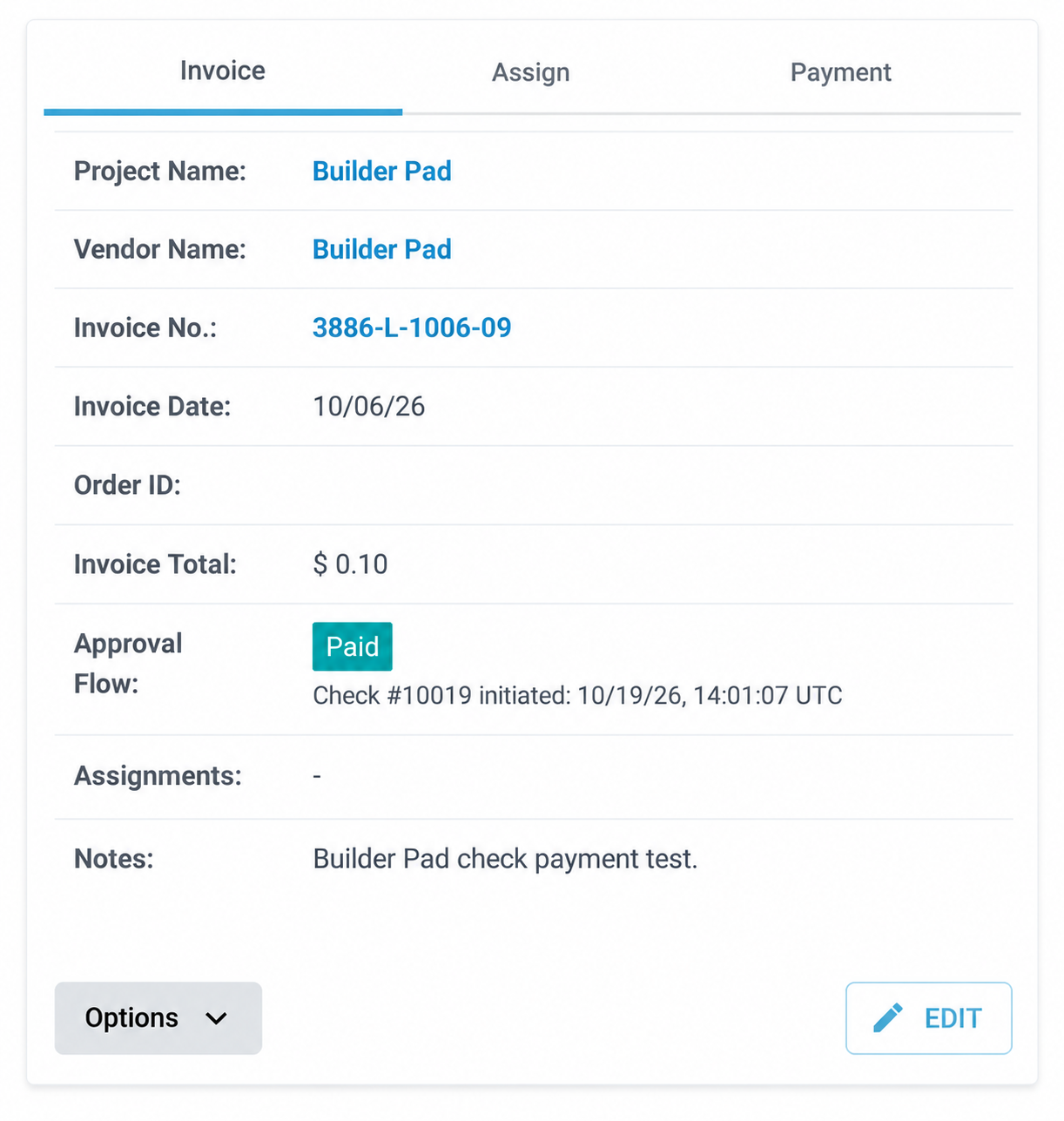
After you send a check, the invoice’s Approval Flow shows:
The Paid status
The check number (for example, Check #10020)
The date and time the check was initiated, shown in UTC
A Stop check button, as long as the check can still be stopped
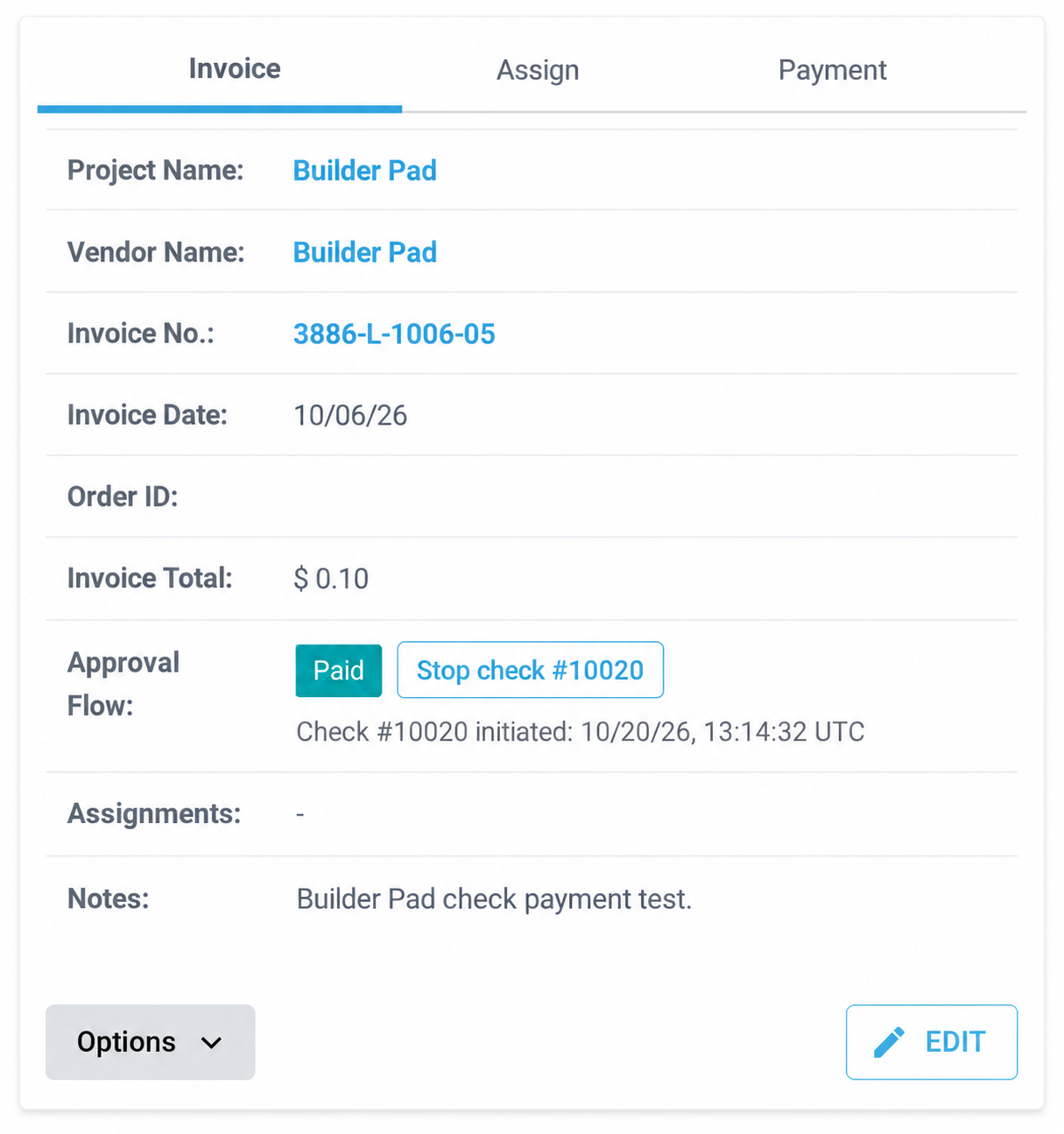
Keep in mind, the timestamp shows when the check was initiated, not when the vendor cashed it.
How to stop a check
Open the invoice and click Stop check #[check number] next to the Paid status.
Review the check number, amount, and invoice(s) in the confirmation window.
Click Stop check to cancel it, or Keep check to leave it active.
Wait for the confirmation. Please don’t close the window or submit another payment while the cancellation is processing.
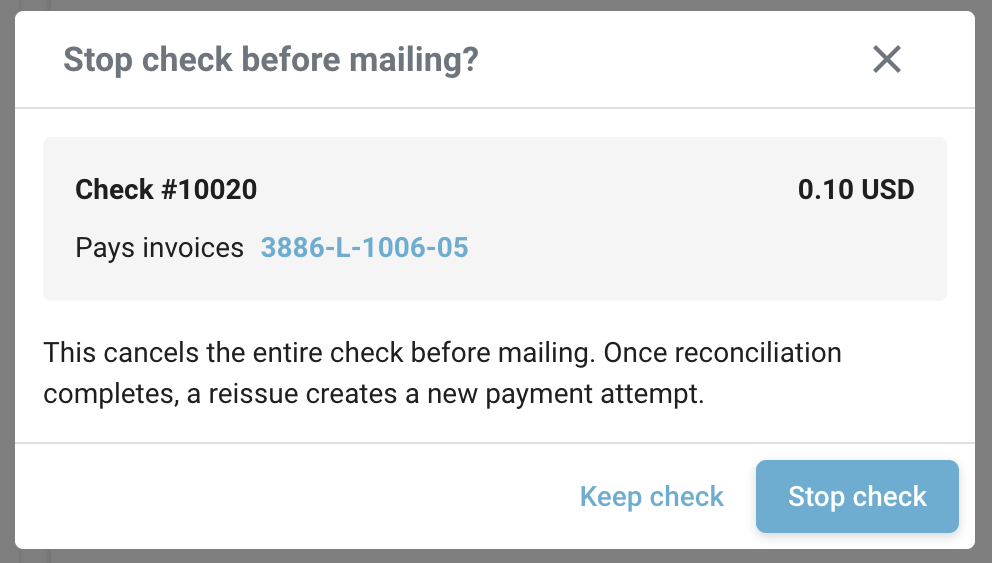
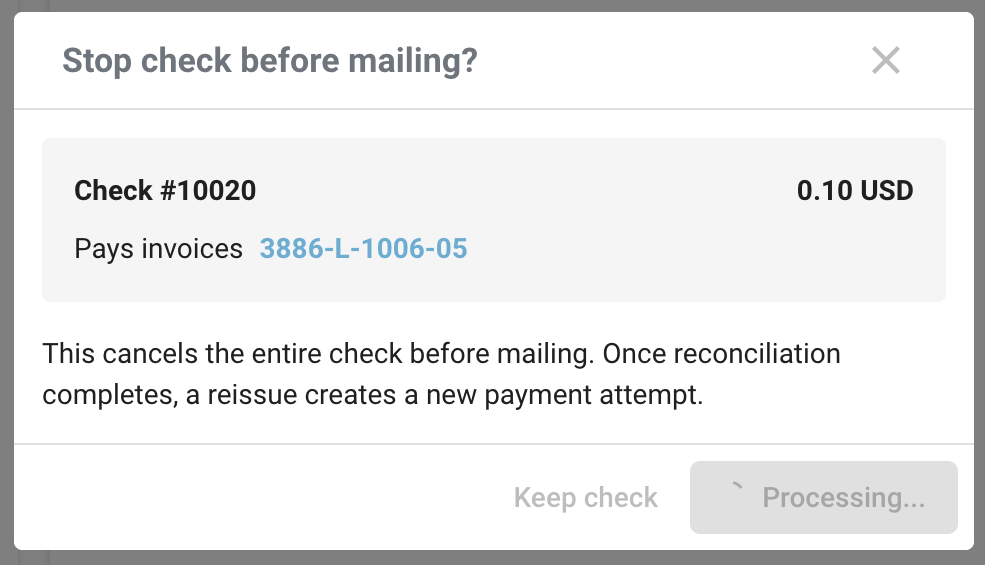
Once you click Stop check, the confirmation window shows the check number, the amount, and the invoice it pays, so you can make sure you’re stopping the right one. The button changes to Processing… while the cancellation goes through, and a red message reminds you not to refresh or close the window until the confirmation appears. This usually only takes a moment, so just sit tight until it finishes. If you change your mind before clicking Stop check, click Keep check and the check stays active.
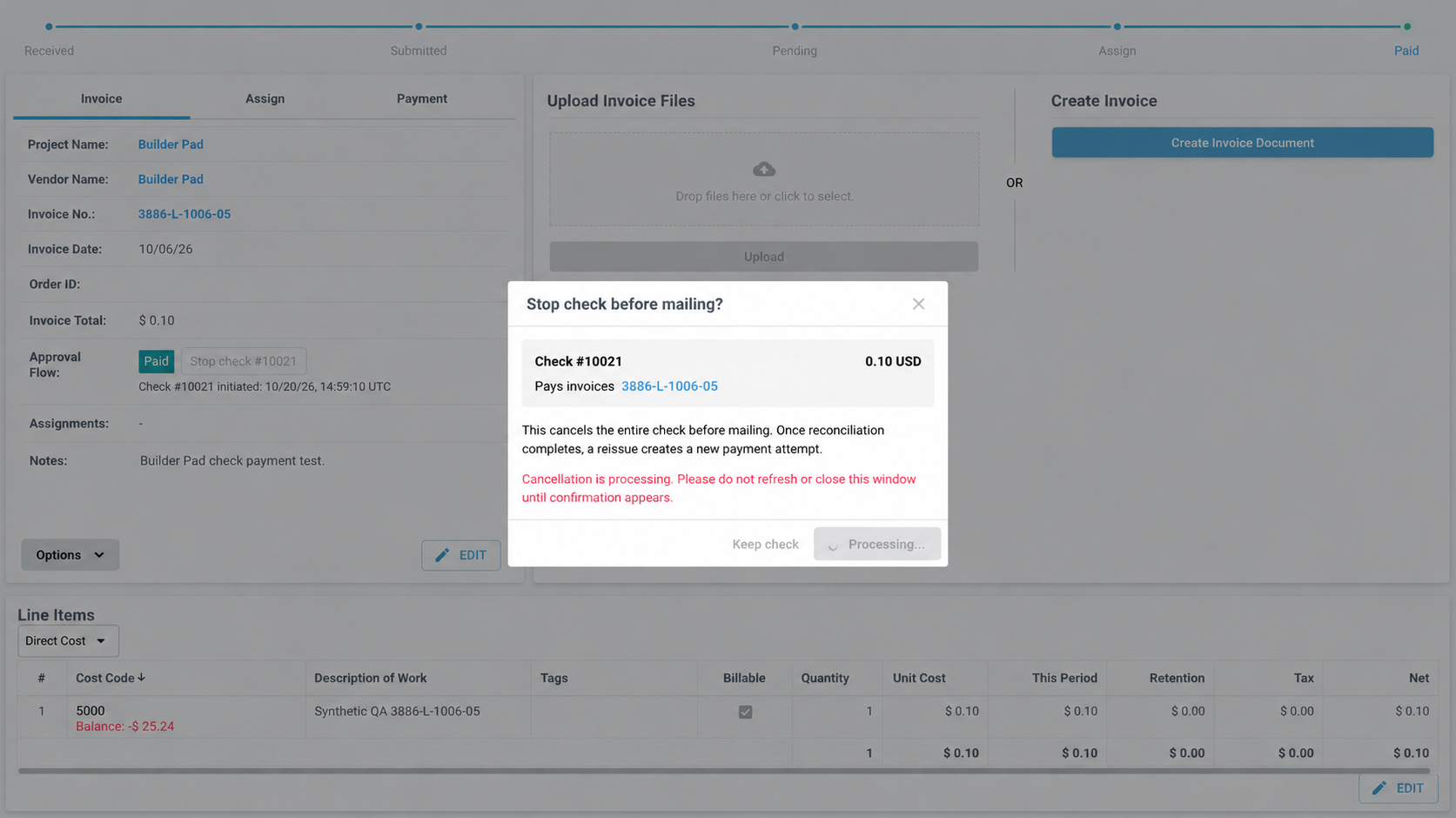
Stopping a check cancels the entire check. If one check pays more than one invoice, all of the invoices listed in the confirmation window are included in the cancellation.
After you stop a check
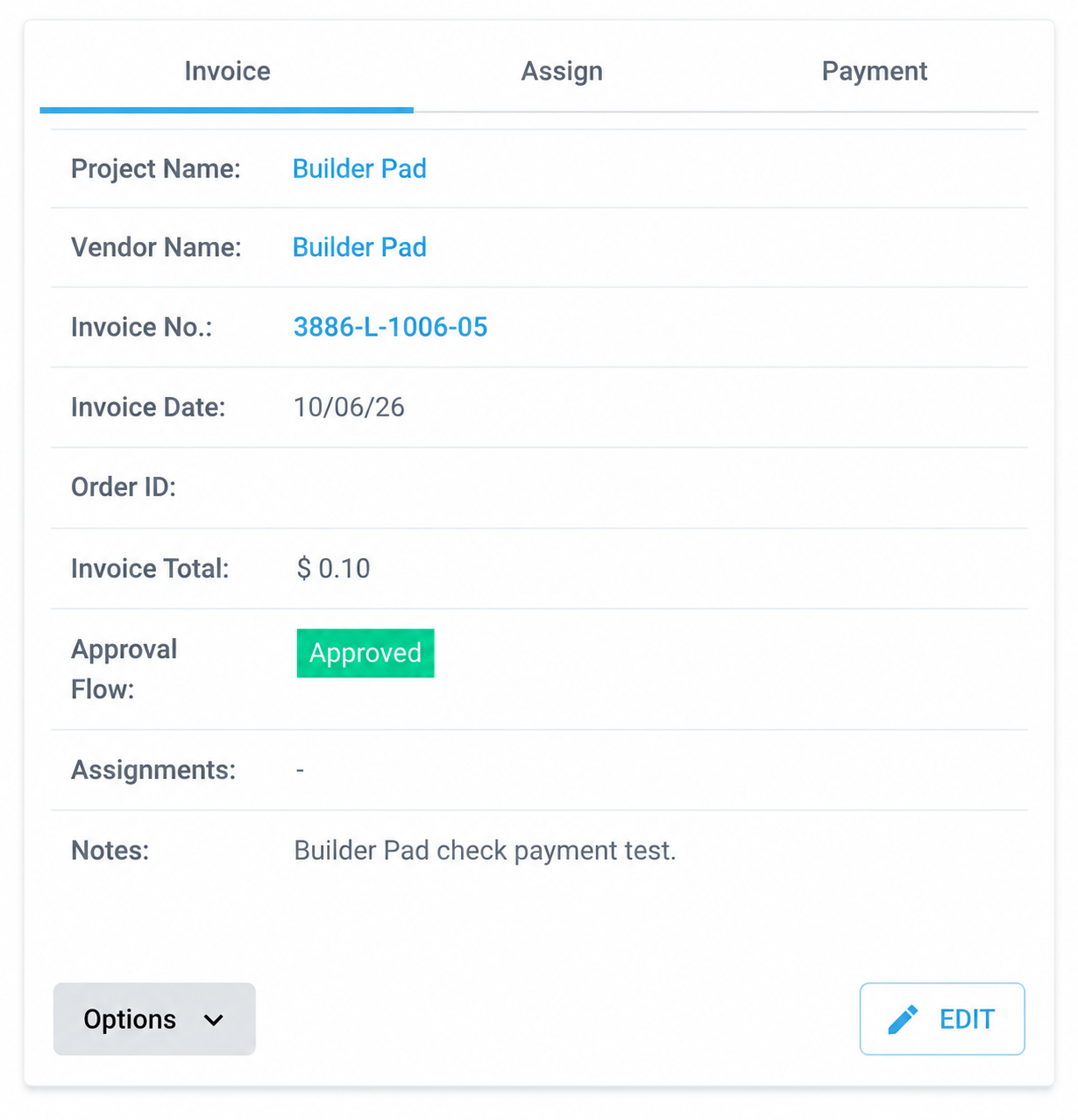
When the cancellation is complete, a green message pops up that reads “Check canceled. You can submit a new payment attempt.” That’s your sign the check has been stopped and won’t be mailed.

The invoice goes back to Approved, so it’s ready to be paid again whenever you are.
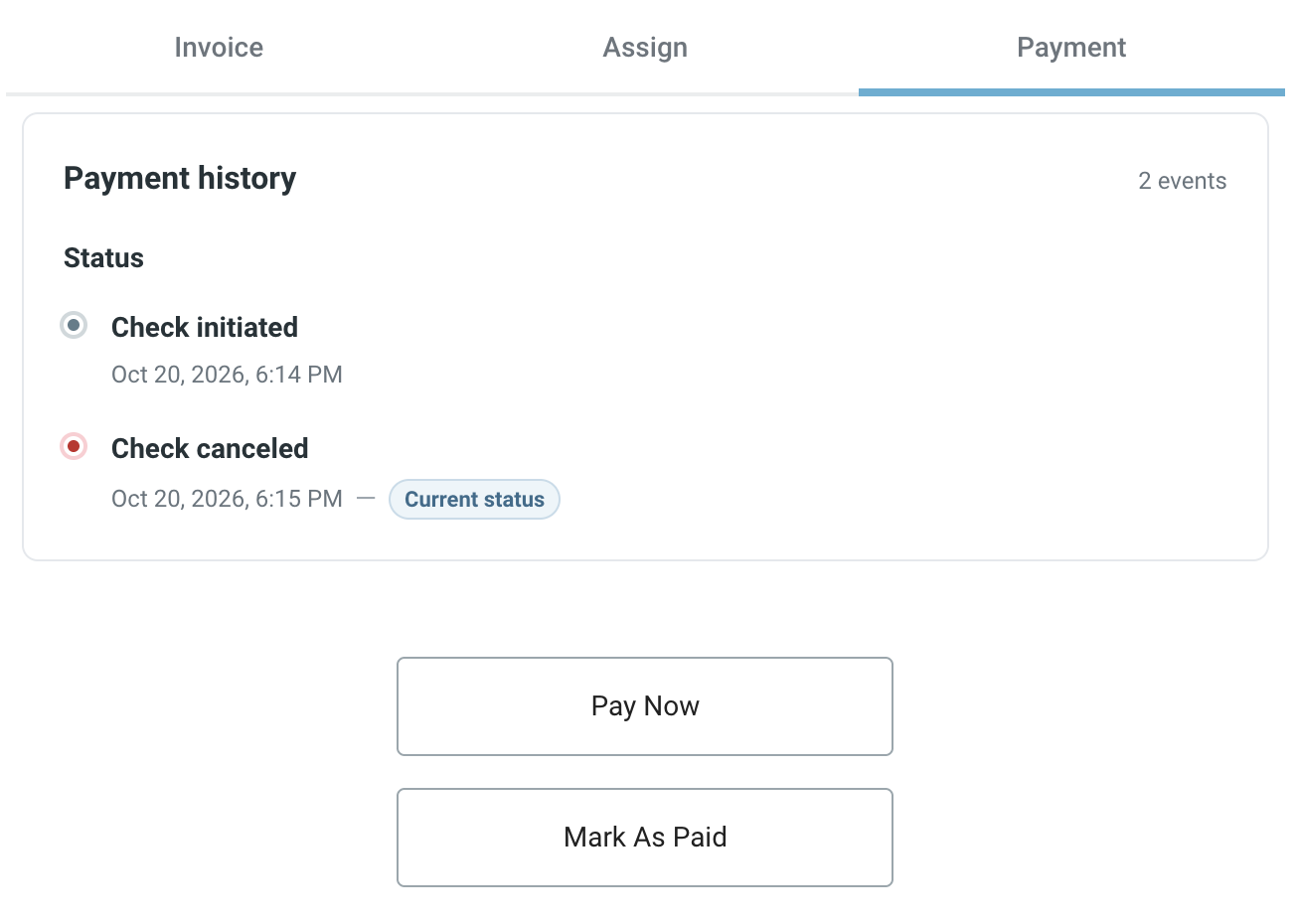
Your payment history stays on the invoice’s Payment tab, so you’ll always see both the Check initiated and Check canceled events with their dates and times.
Paying the invoice again
When you’re ready to pay again, go to the invoice’s Payment tab and click Pay Now. This creates a brand new payment attempt with a new check.
When the Stop check button isn’t showing
If the check has already moved past the point where it can be stopped, the Stop check button won’t appear anymore. You’ll still see the check number and initiation timestamp on the invoice for your records.
If you need help with a check that can no longer be stopped, reach out to our support team through chat and we’ll take a look.
Frequently asked questions
Does the timestamp mean the vendor received or cashed the check?
Does the timestamp mean the vendor received or cashed the check?
No, it only shows when the check was initiated in BuilderPad.
Can I stop just one invoice on a check that pays several?
Can I stop just one invoice on a check that pays several?
No, stopping a check cancels the whole check. You can pay the invoices again separately afterward.
Does this work for ACH payments?
Does this work for ACH payments?
The Stop check option is only for check payments. If you need to cancel an ACH payment, contact our support team as soon as possible and we’ll help you check what can be done.
Need help?
If something does not look right, or you are not sure whether a check payment went through, reach out to support team and we will take a look with you.
Was this helpful?
Still need help? Ask the team