General Overview
Written By Stefan S.
Last updated 5 months ago
How BuilderPad Finance Works
Let’s take a look under the hood:
You choose the email addresses you want BuilderPad to scan for documents
BuilderPad identifies and captures all incoming invoices
The system extracts key data from each invoice and pre-populates matching fields
An admin from your team reviews the data for accuracy and digitally distributes to approvers
Once approved, your invoices can be synced with your existing accounting system for payment.
General Layout
Menu Bar
Located at the top of your screen, this navigation bar will be the place to search, access connected apps, and your settings.

Smart Search: Find any document you need. Just search for an ID, vendor, amount, or other keyword, and a document from any point in your workflow will appear. Like magic!
Keyboard Shortcuts: See the full suite of shortcuts by pressing cmd + / or ctrl + / depending on your operating system.
Help Center: Click the question mark icon to access our help center, full of articles to help you navigate and become a power user of BuilderPad. But, I'll let you in on a little secret, if you're reading this, you're already there!
App Center: Access your connected applications and sync data to your other platforms.
Account center: Access your account settings, general settings, or sign out.
inBox
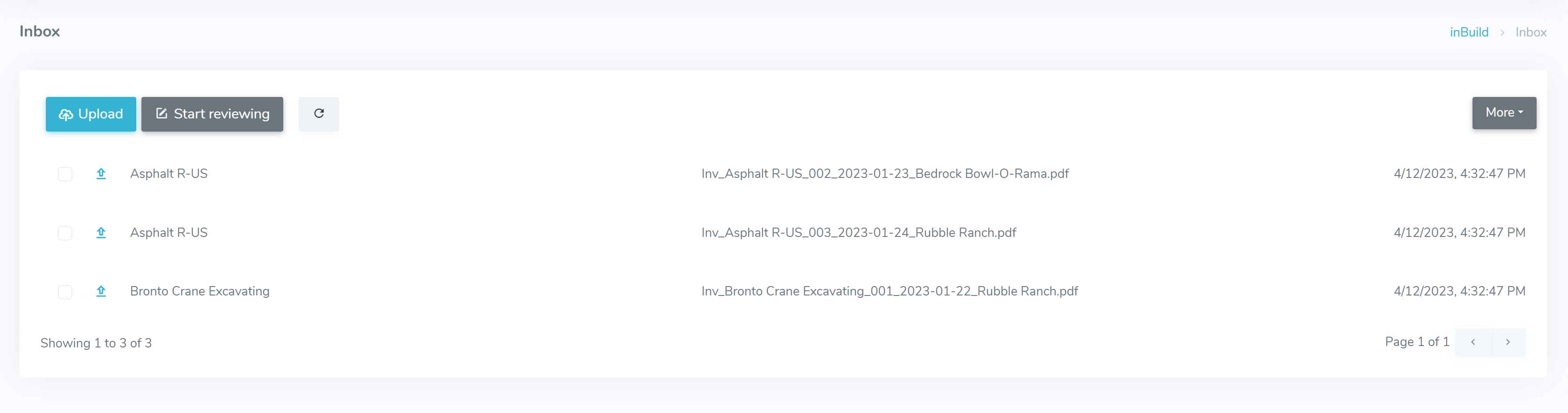
The inBox is the homepage of Builderpad Finance. This is where new invoices will populate from all sources (email, manual upload, and the mobile app). Project managers also have their own inBox, where any requested reviews are sent to the same layout. Here you can upload, start reviewing, refresh, and bulk select invoices for action with the 'options' menu.
Sidebar
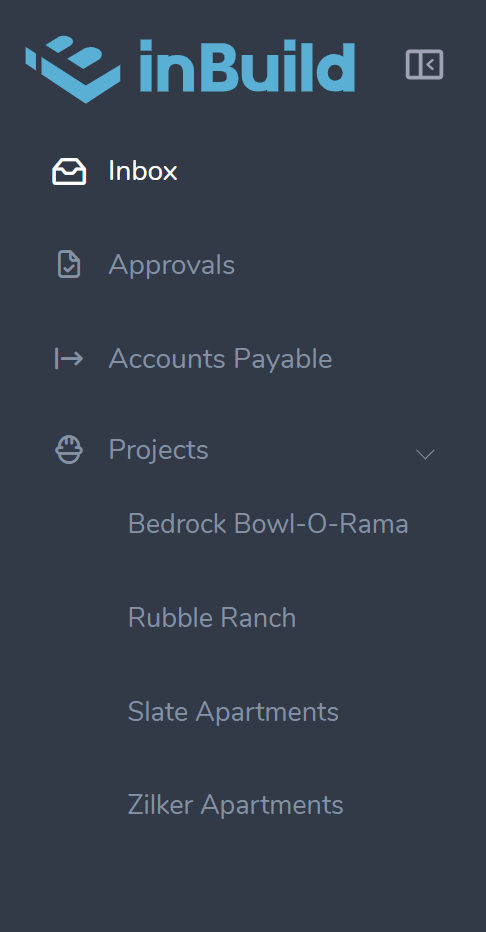 | The sidebar offers navigation throughout the main features of the app:
|
Still need help? Ask the team