Sending Contracts and Change Orders via DocuSign
Written By Stefan S.
Last updated 7 months ago
This tutorial provides a step-by-step guide on how to send a contract and a change order for approval through DocuSign. The procedures for both are quite similar.
Sending a Change Order for Approval
Step 1: Open DocuSign and select the Change Order option.
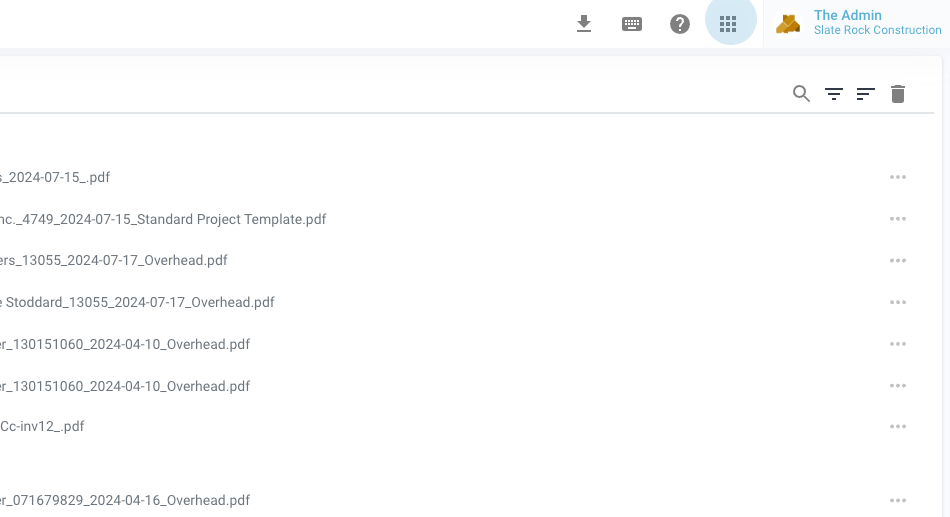
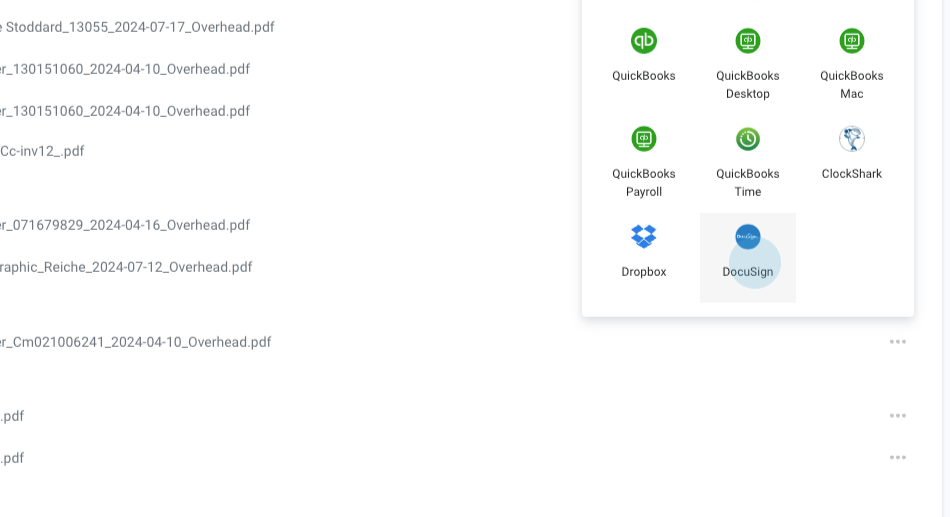
Step 2: Choose the change order to send for signature and approval. Click on the selected change order.
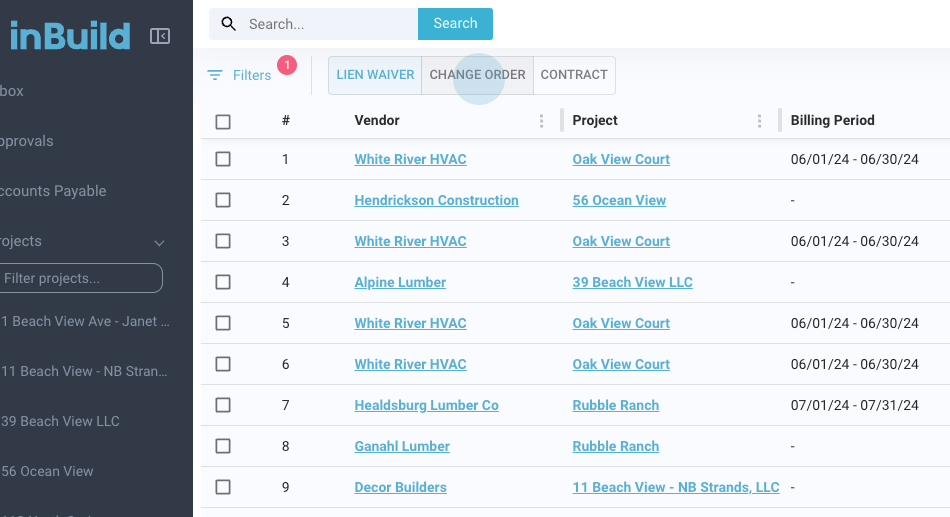
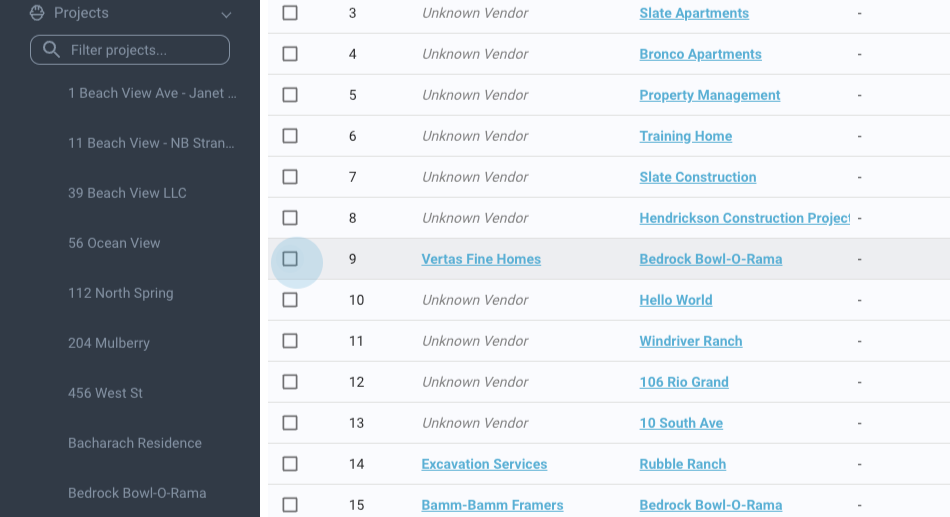
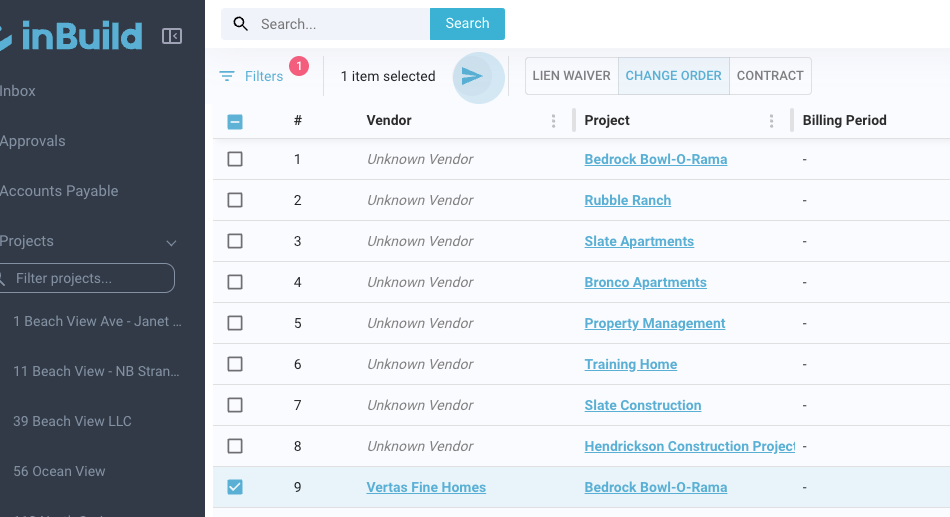
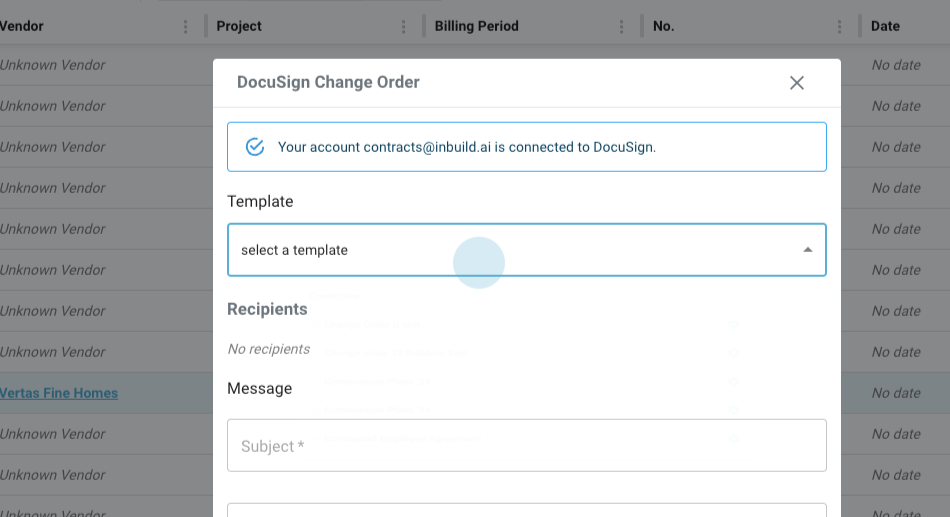
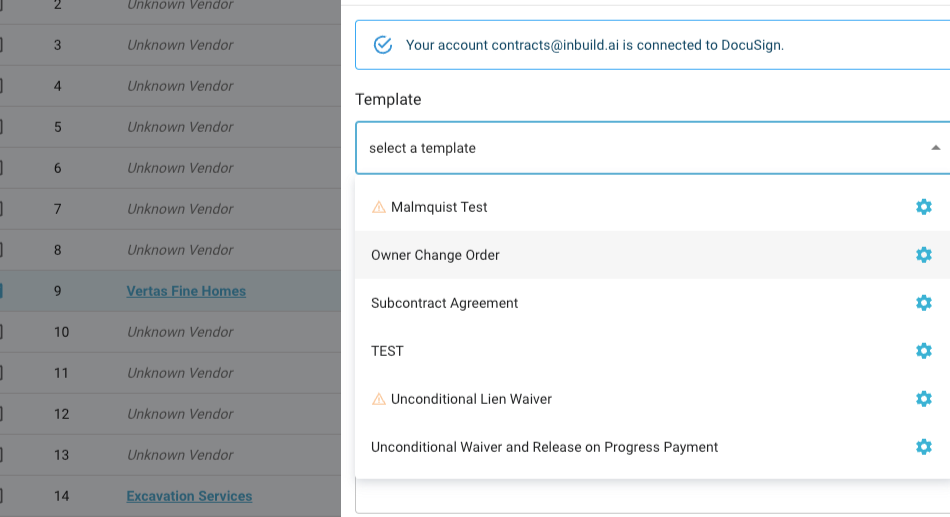
Step 3: Select the Change Order Template.
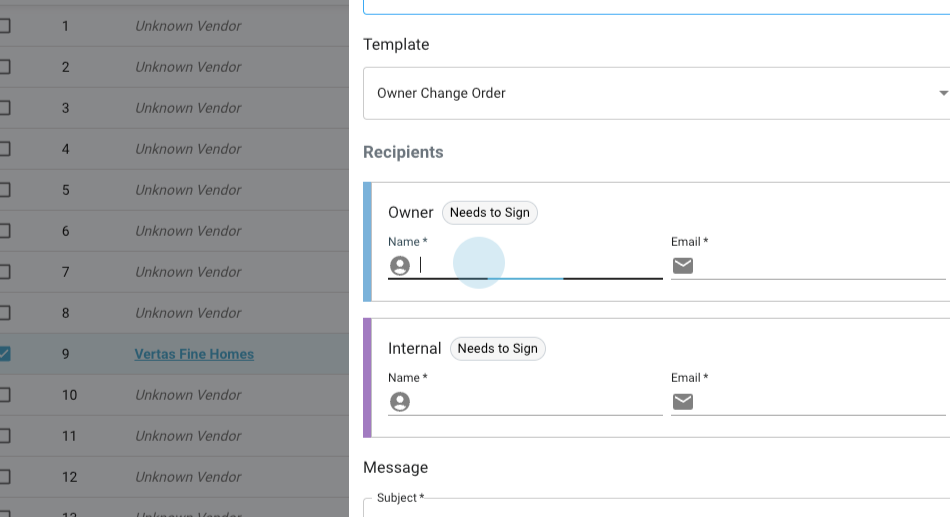
Step 4: Specify the users to send the document to. Enter their email addresses. Remember, both parties need to sign this change order as it's for internal and customer use.
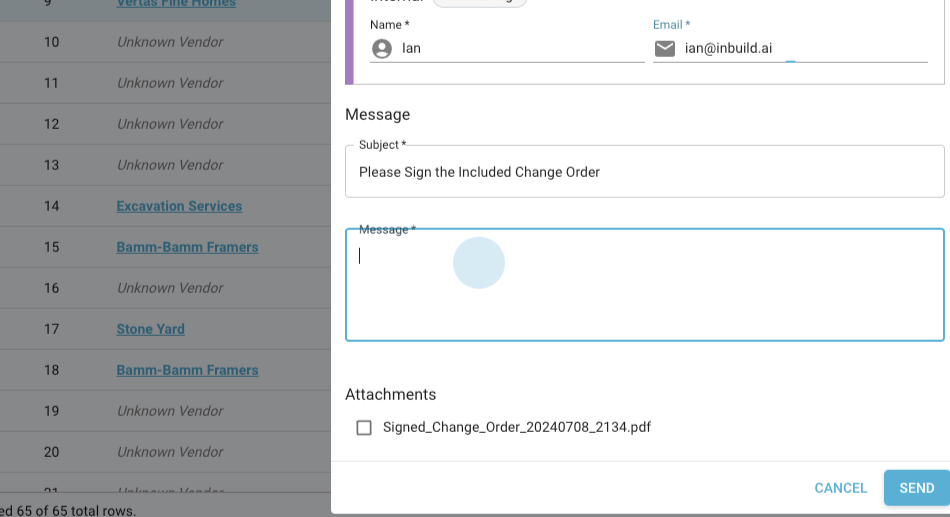
Step 5: Add a message, such as "Please sign change order." If necessary, attach additional documents.
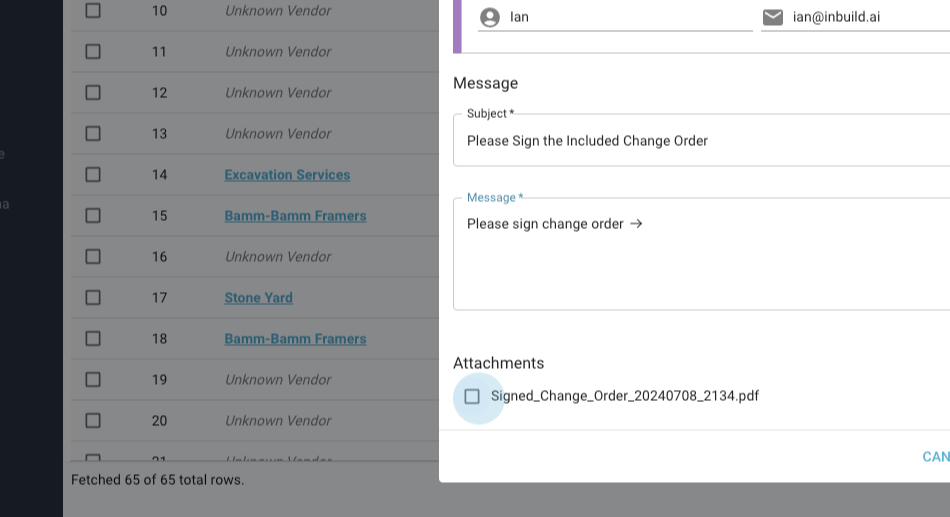
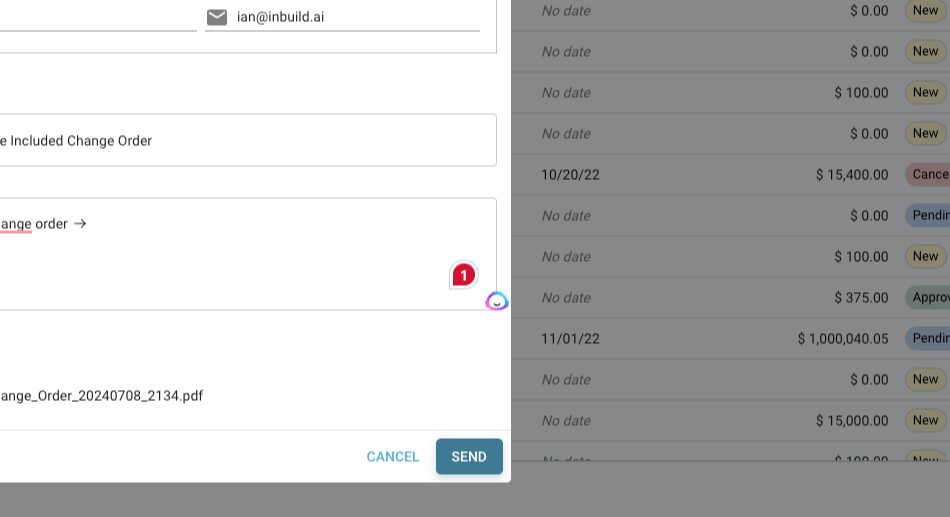
Step 6: After ensuring everything is correct, click Send to dispatch the change order.
Sending a Contract for Approval
Step 1: Click on the Contract tab.
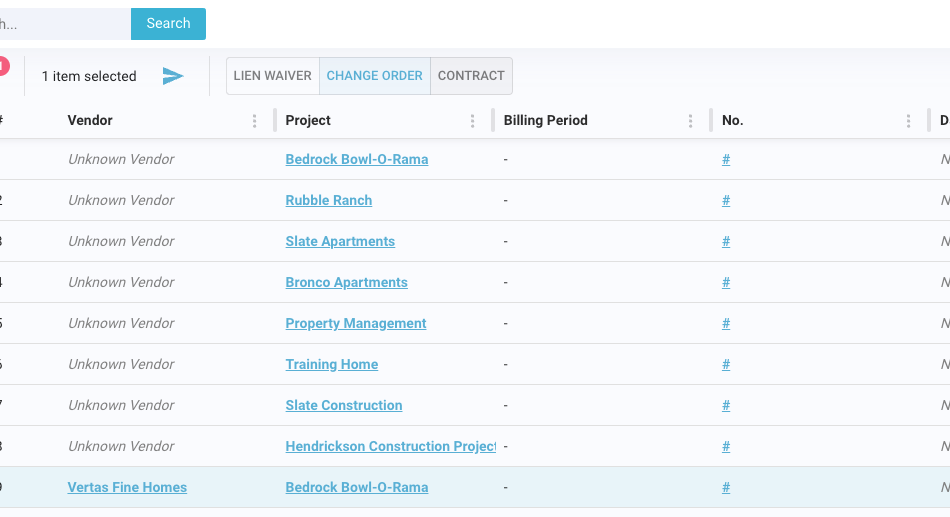
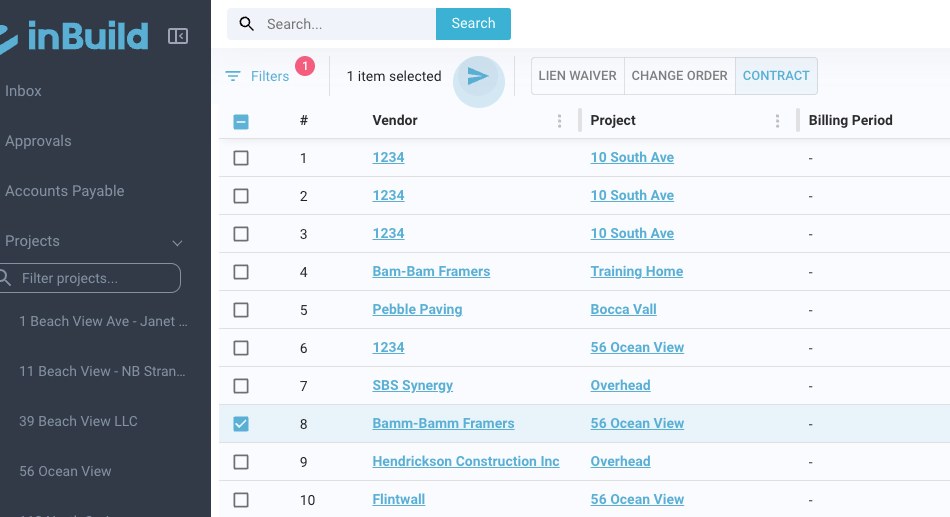
Step 2: All documents listed as contracts will appear. Choose the contract to send.
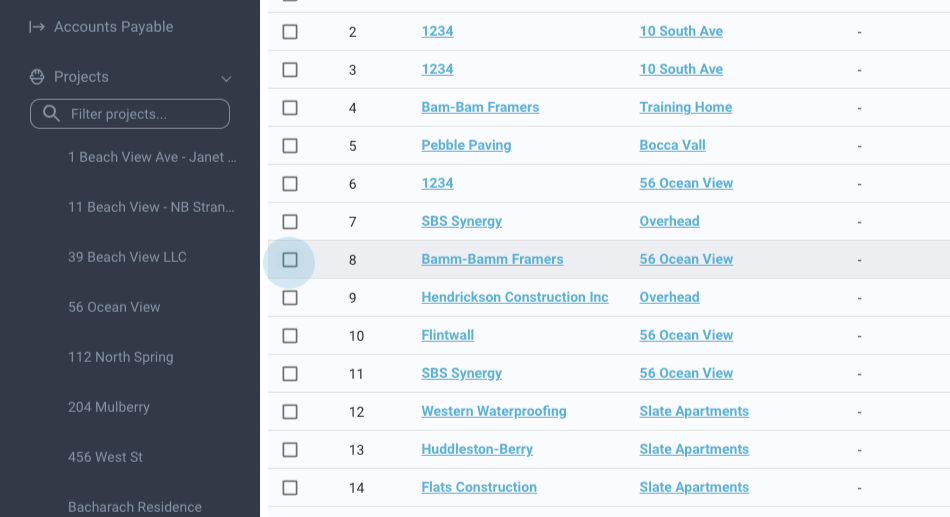
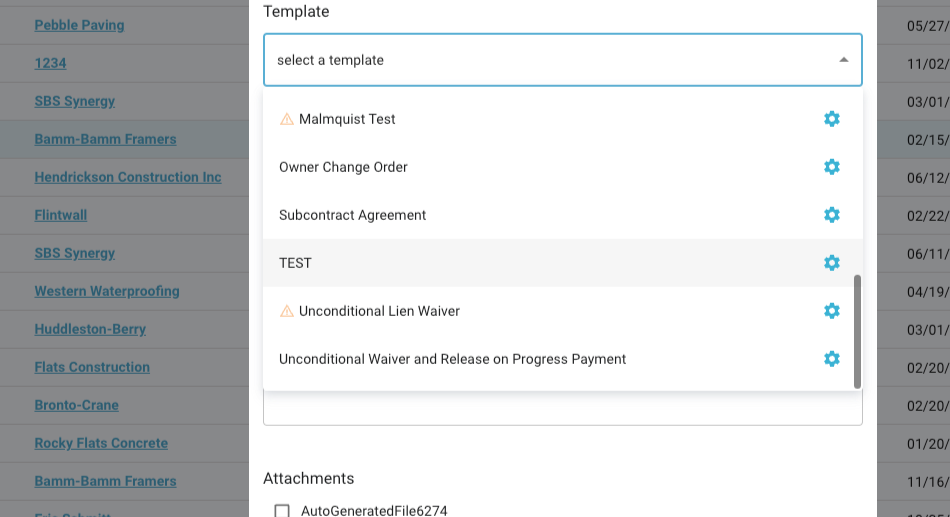
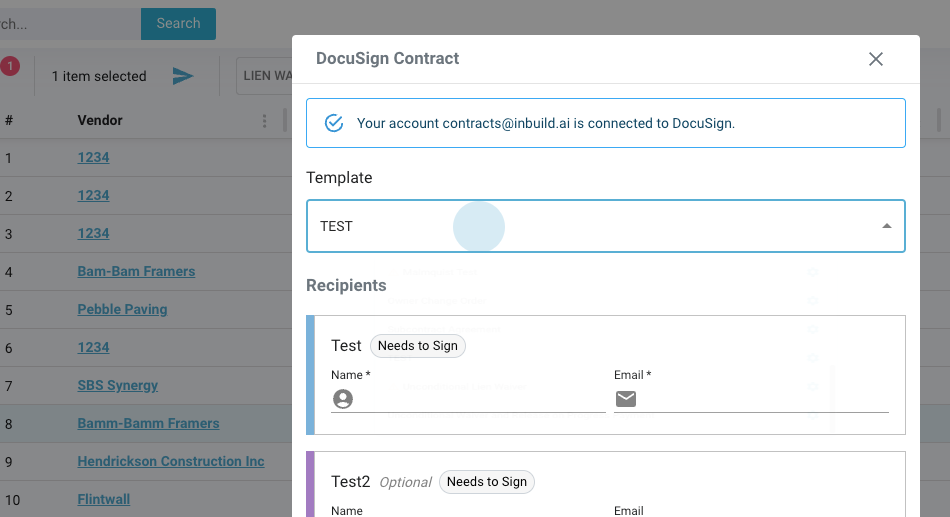
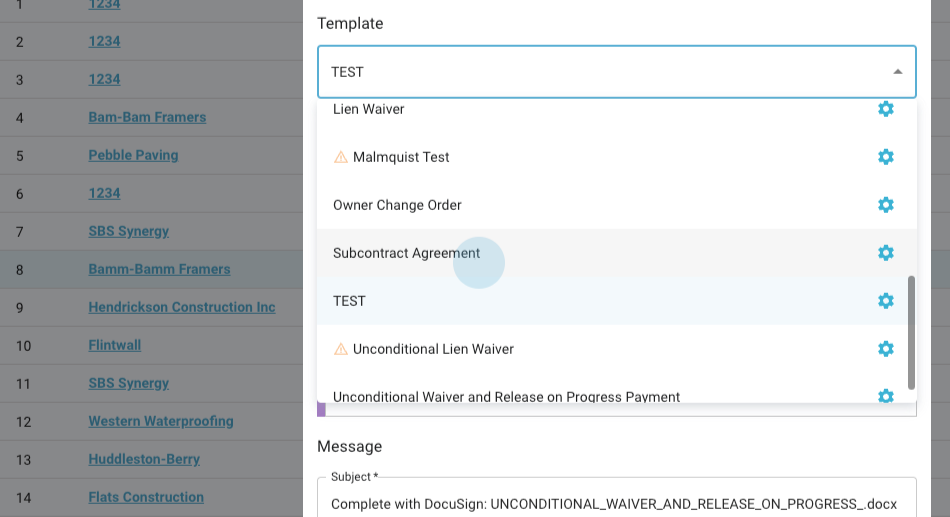
Step 3: Click Send, select the appropriate template (for example, Subcontract Agreement), and enter the recipient's information.
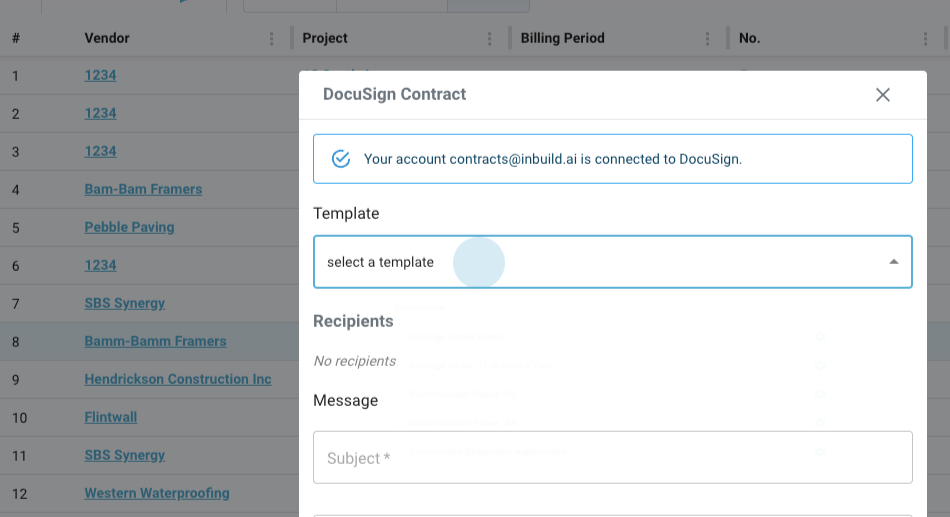
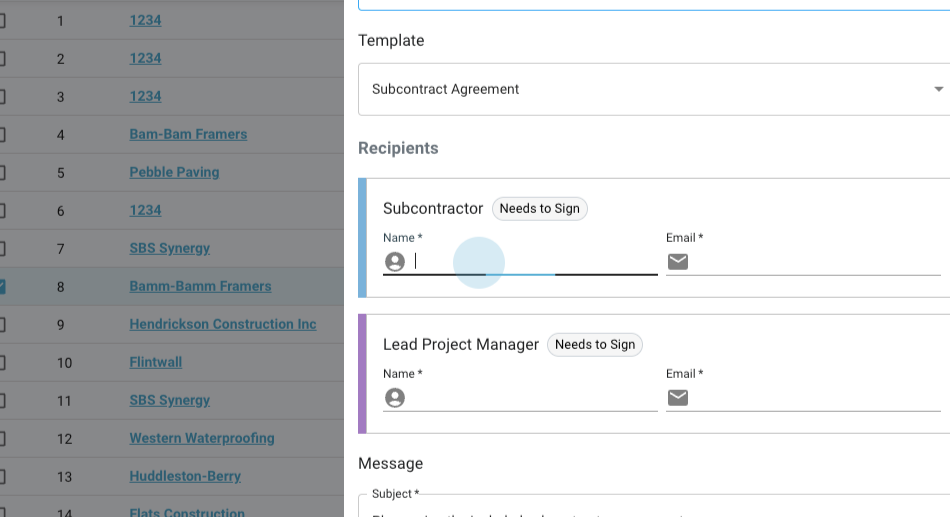
Step 4: Both the subcontractor and the lead project manager need to sign the document.
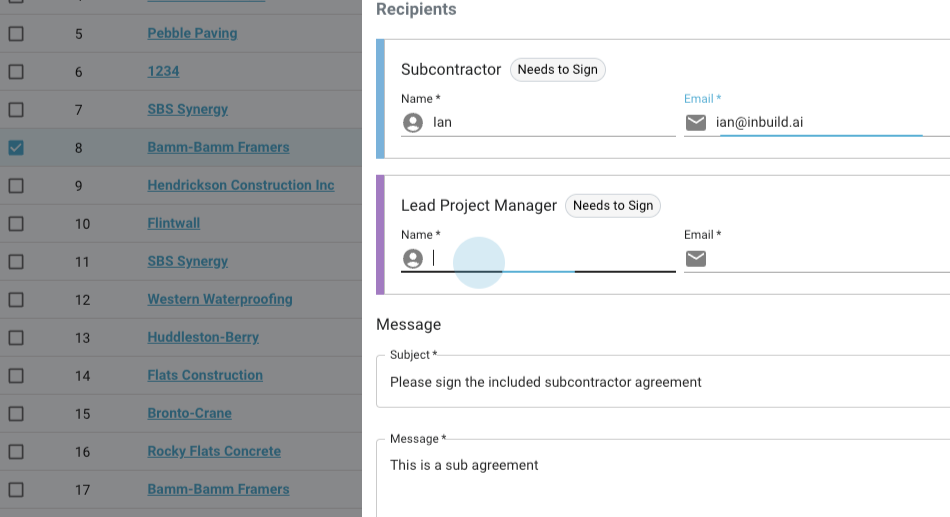
Step 5: Add a message, such as "Please sign." Attach any necessary documents to the contract.
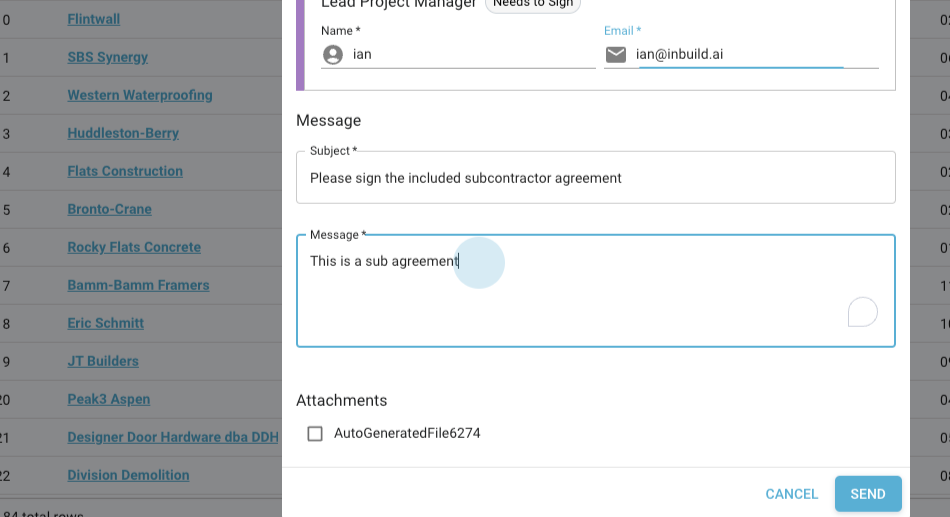
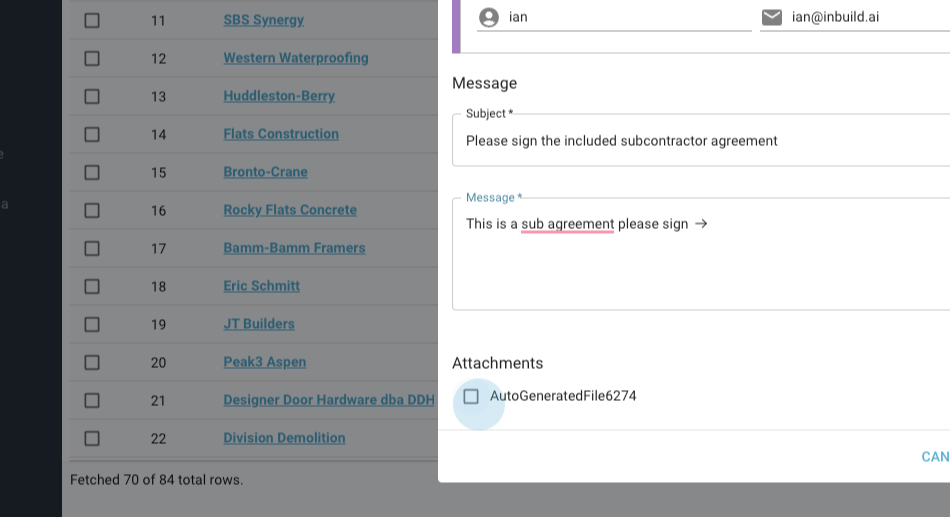
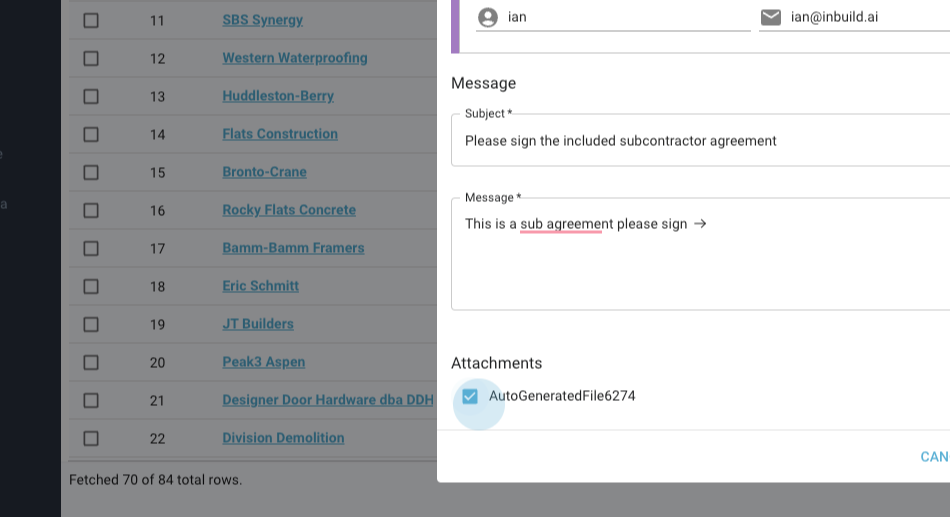
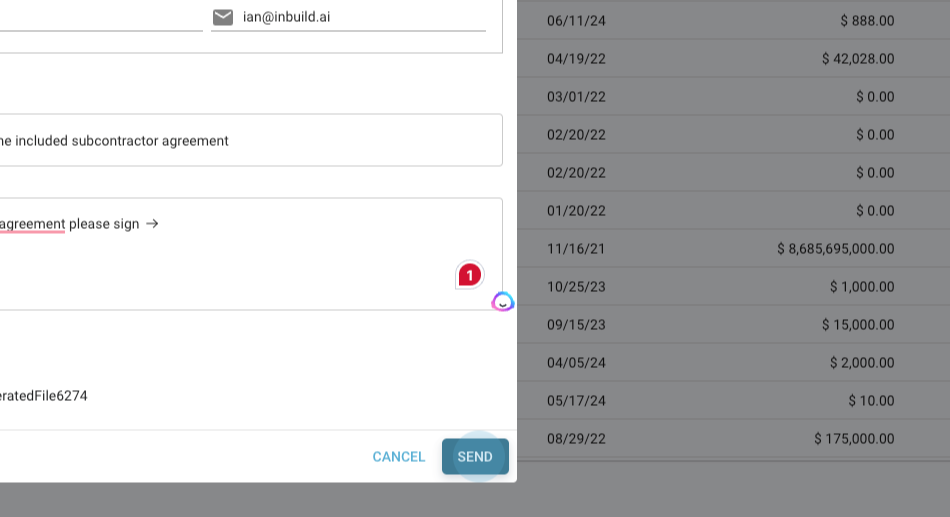
Step 6: Click Send to dispatch the contract for signature via DocuSign.
For further assistance, don't hesitate to reach out. We're here to help.
Was this helpful?
Still need help? Ask the team