How to Find an Invoice's History
Every invoice and receipt in BuilderPad Finance (inBuild) keeps a full history of what's happened to it, and you can open it in a couple of clicks. It's the quickest way to answer questions like "who approved this?", "when did the billing period change?" or "why does this show as Cancelled?"
Written By Gilbert
Last updated 9 days ago

How to open an invoice's history
Open the invoice or receipt you want to check, for example from Accounts Payable or the search bar at the top.
In the details panel on the left, click Options at the bottom, next to the Edit button.
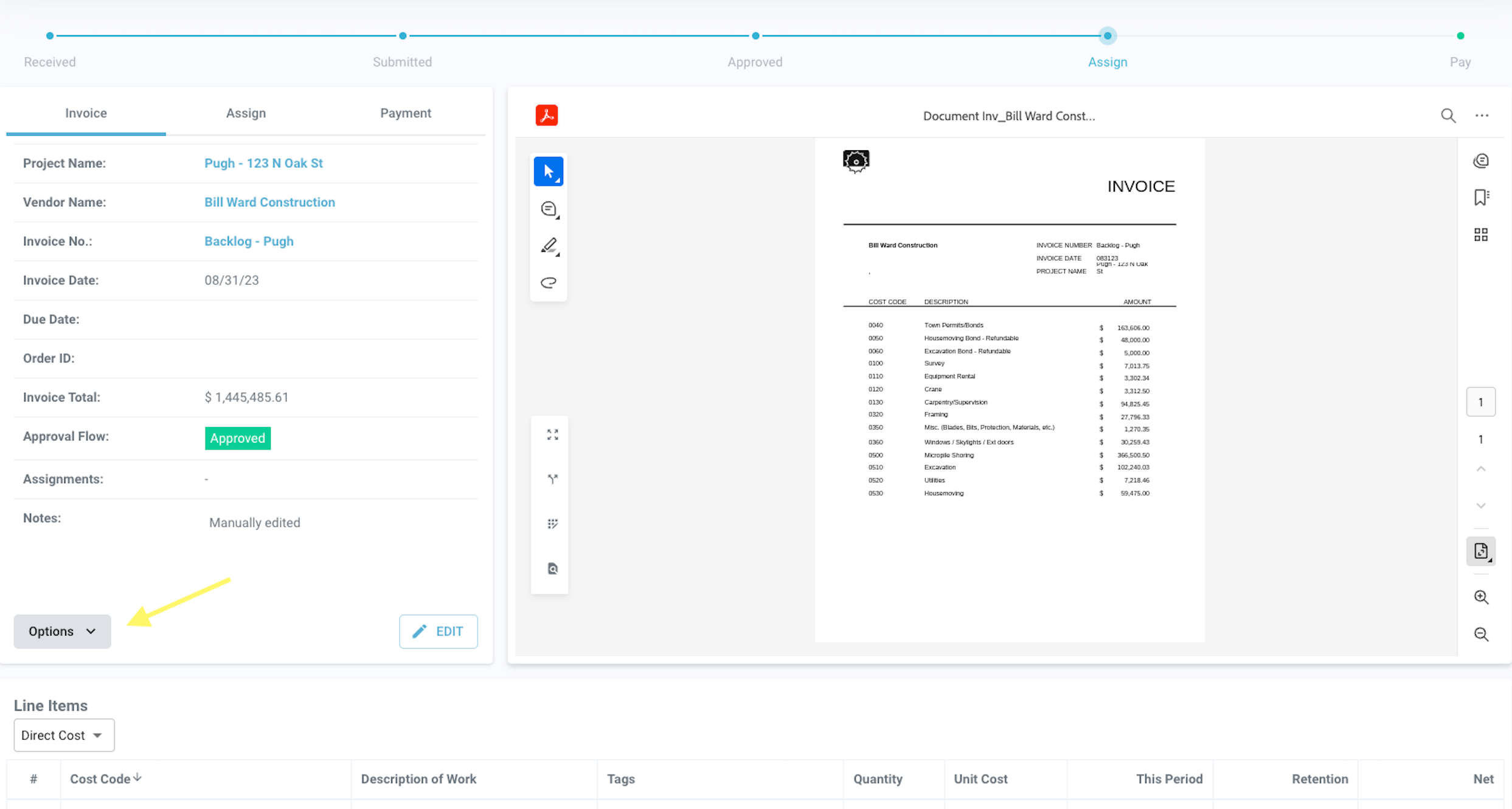
Select History.
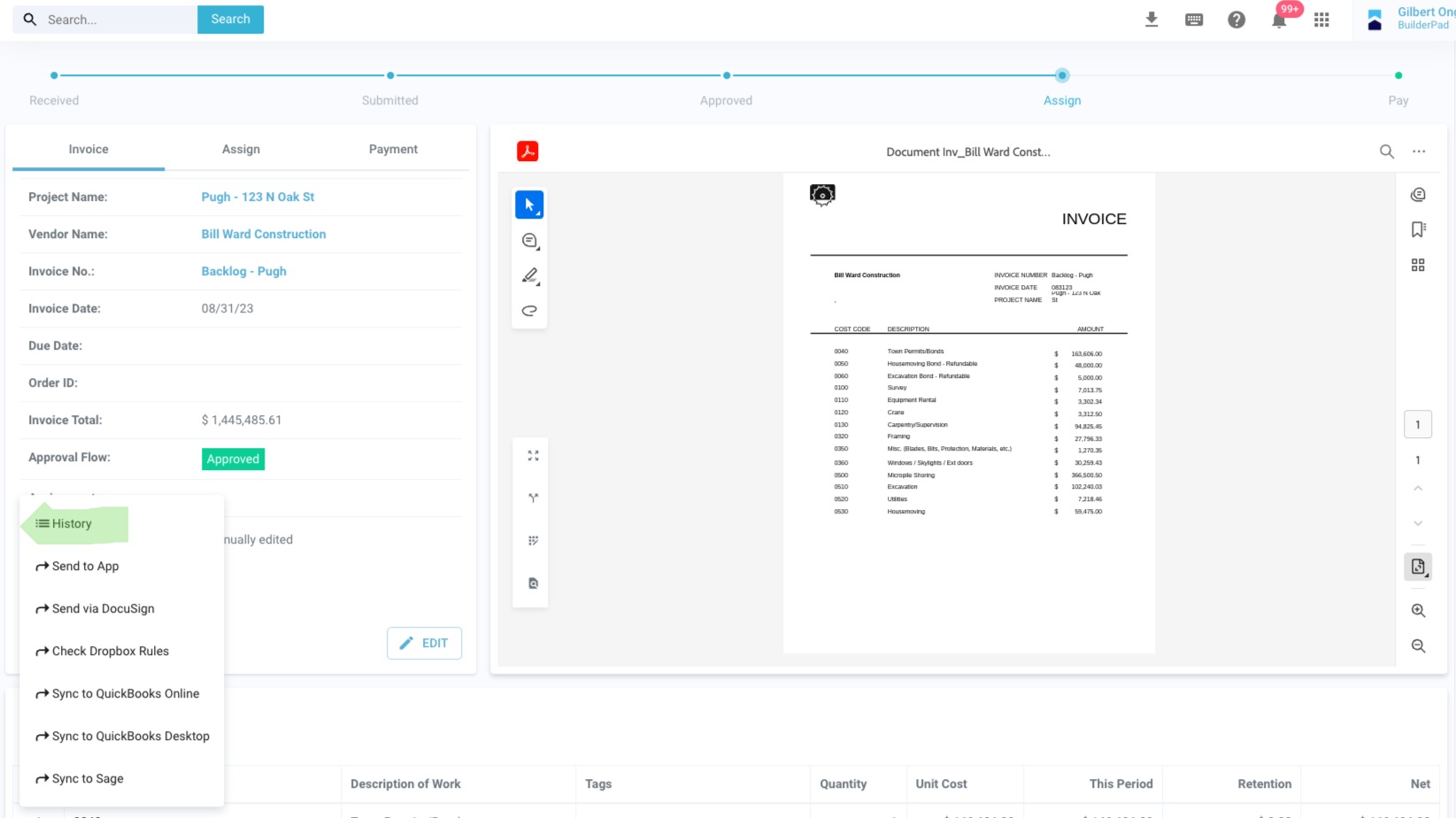
The history opens with every change listed, along with who made it and when.
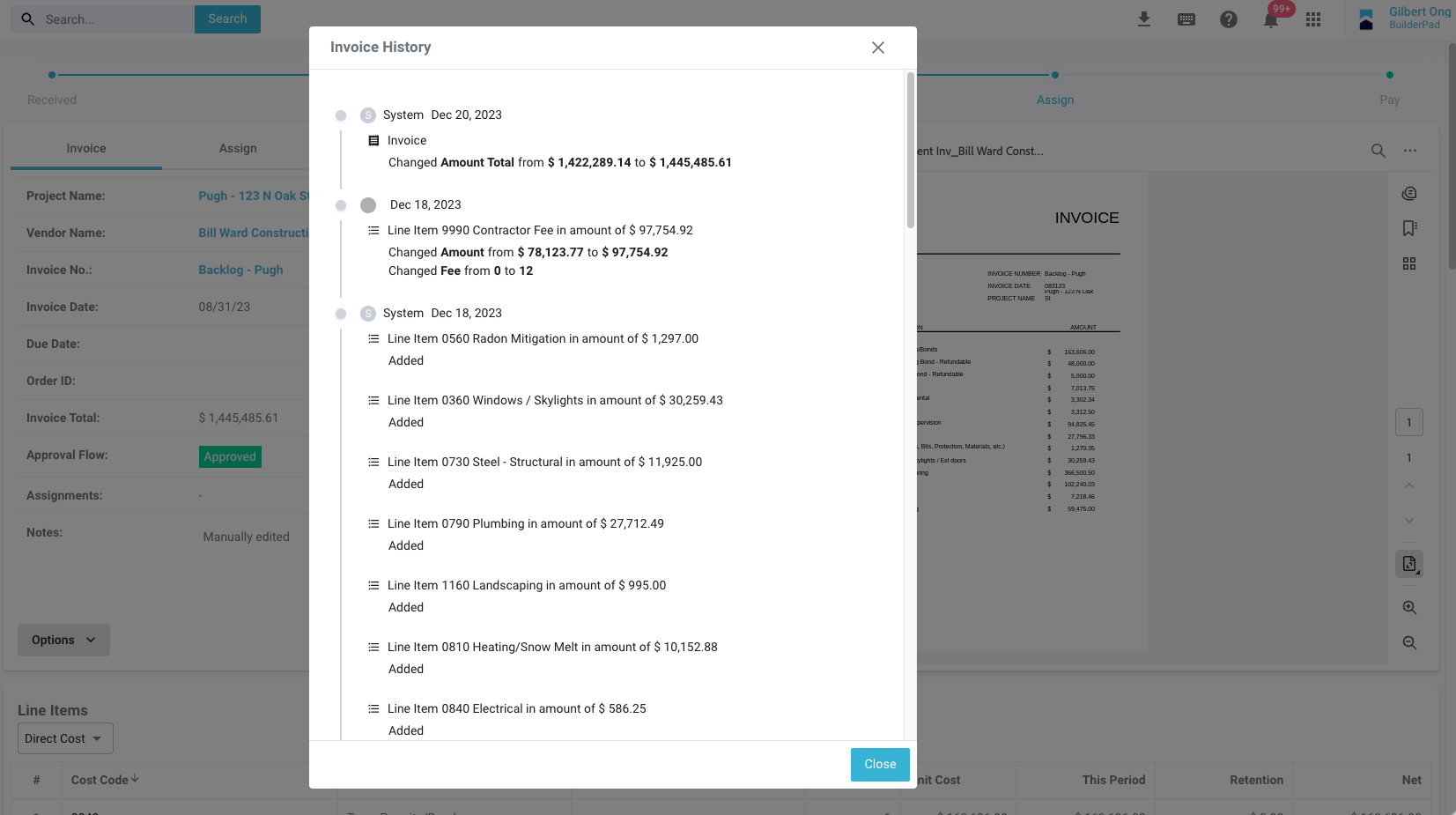
What you'll see in the history
Each entry shows what changed, who changed it and when. Common entries include:
Edits to fields like the amount, invoice number, vendor, project or billing period
Status changes, such as Approved, Paid or Cancelled
Approvals and who signed off
Line item changes, including cost codes added, edited or removed
QuickBooks sync activity, such as when the invoice was exported
If a change was made automatically by the system rather than by a person, that shows in the history too.
FAQ
Can I see the history on receipts too?
Can I see the history on receipts too?
Yes. Receipts work the same way: open the receipt, click Options, then History.
I don't see the Options button.
I don't see the Options button.
It sits at the bottom of the details panel, next to Edit. If your screen is zoomed in or the window is short, it may be cut off. Press Ctrl+0 (Cmd+0 on Mac) to reset your zoom and try again.
Can I undo a change from the history?
Can I undo a change from the history?
No, the history is view only. If something was changed by mistake, like a line deleted or an invoice cancelled, reach out to us before making further edits and we can help restore it.
Still need help?
If the history doesn't answer your question, send us the invoice or receipt number and what you're trying to find out through the chat bubble in the app, and we'll take a look for you.
Was this helpful?
Still need help? Ask the team